
Oracle VirtualBox
Download the Oracle VirtualBox and follow the Installation guide.
If you have installed VM Player for the first time, then please reboot your Windows before proceeding further.
Import SICON.OS VA in Oracle VM VirtualBox
There are two ways to import the SICON.OS in Oracle VM VirtualBox:
Option 1.
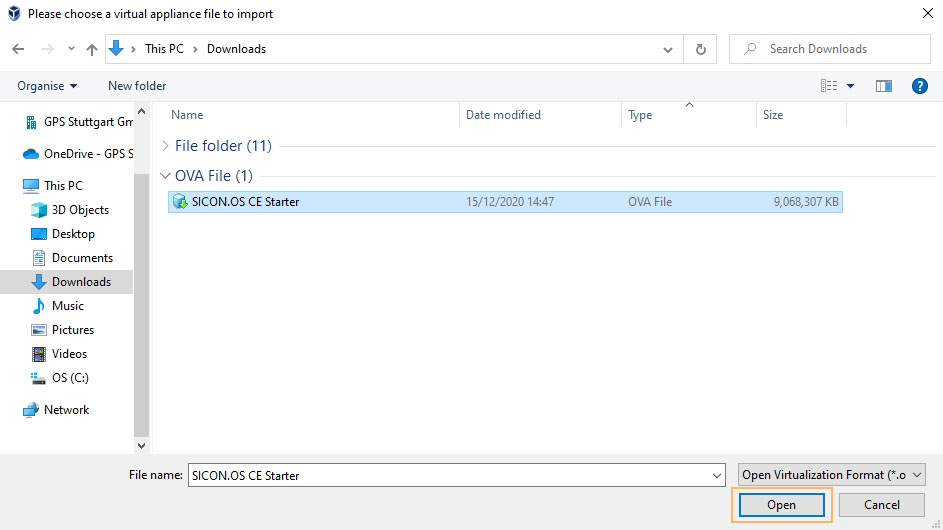
Select the downloaded SICON.OS VA file and double click to Open it into Oracle VM VirtualBox.
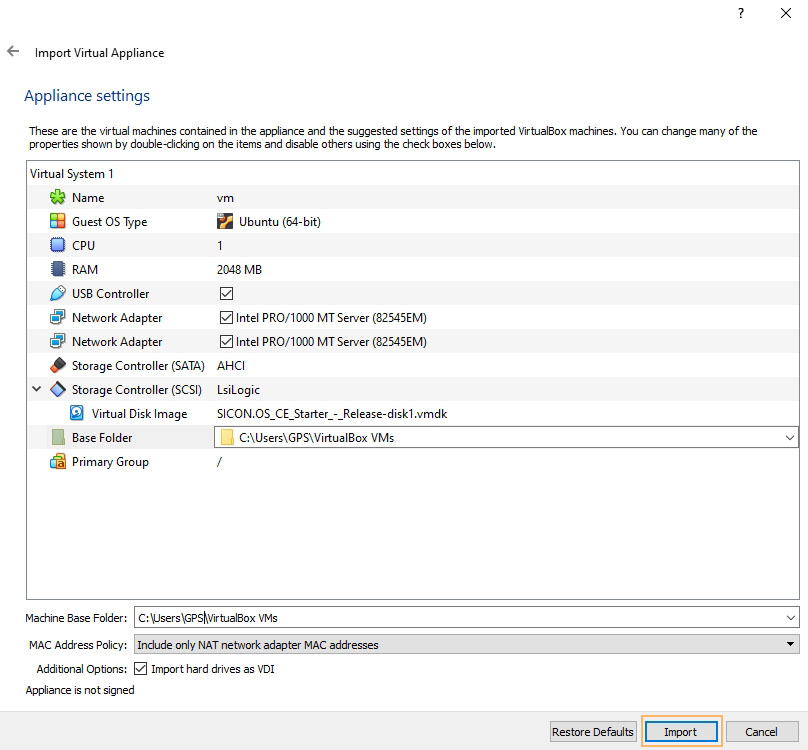
Click on Import.
Option 2.
Open the Oracle VM VirtualBox
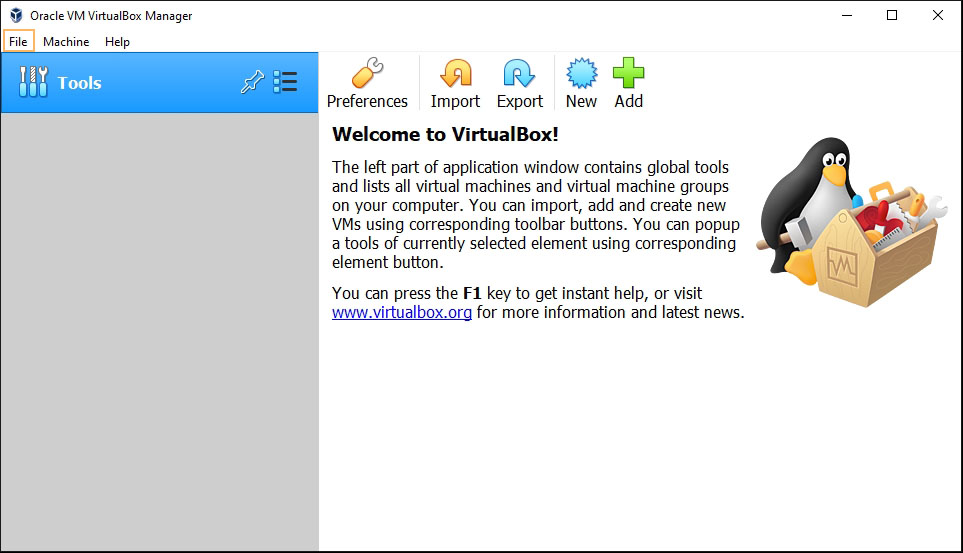
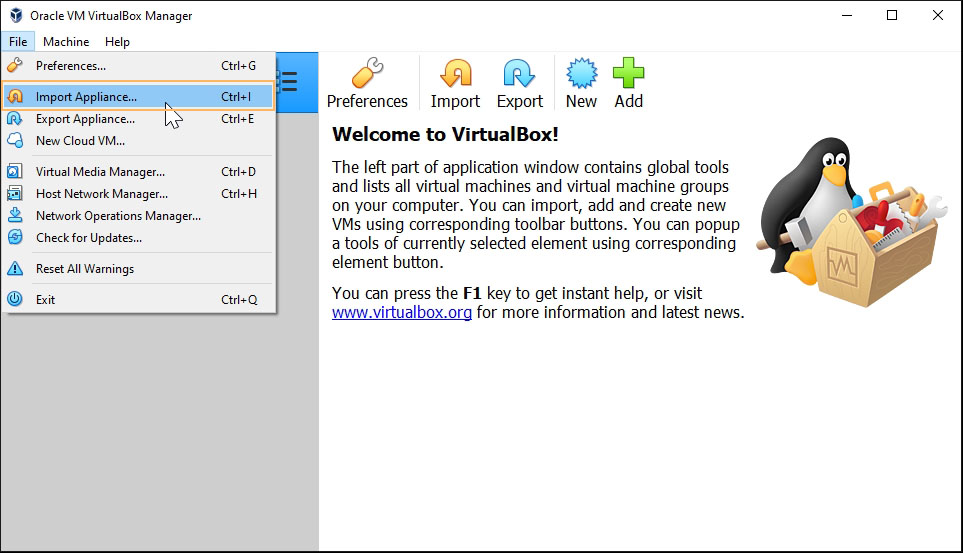
Go to File and select Import Appliance to choose the SICON.OS VA file
Choose the SICON.OS VA file from Downloads and click on Next
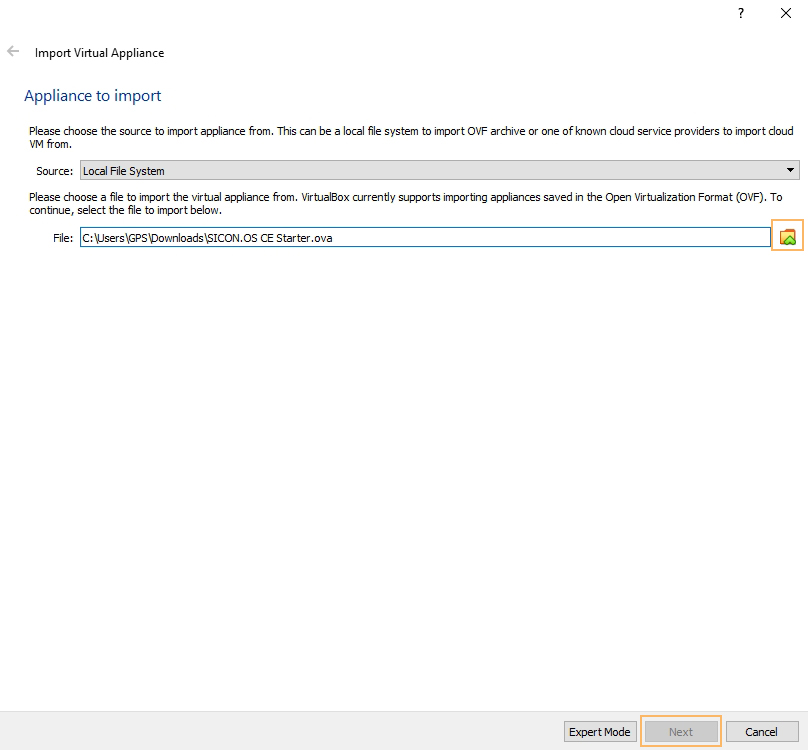
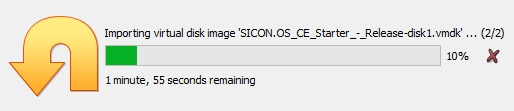
SICON.OS VA file will start importing into Oracle VM VirtualBox.
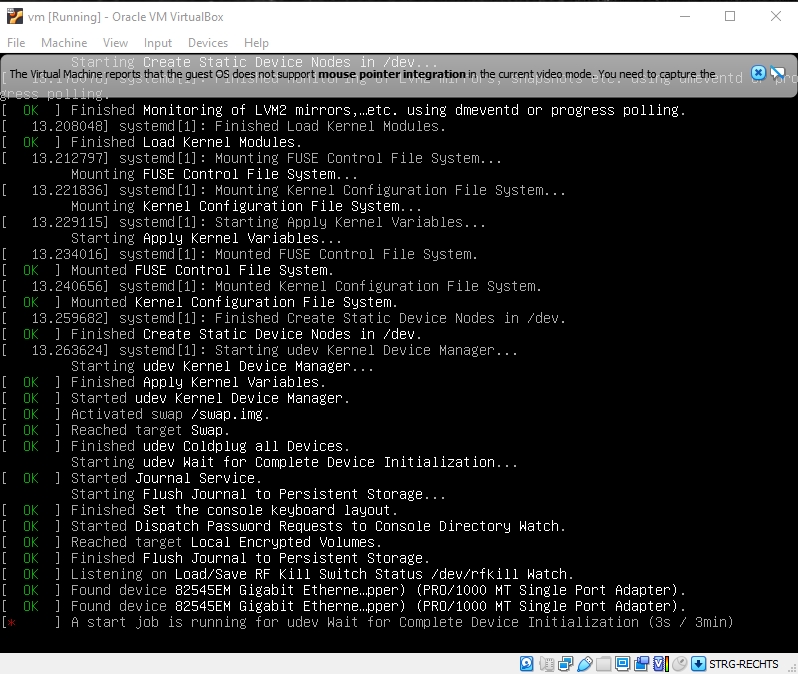
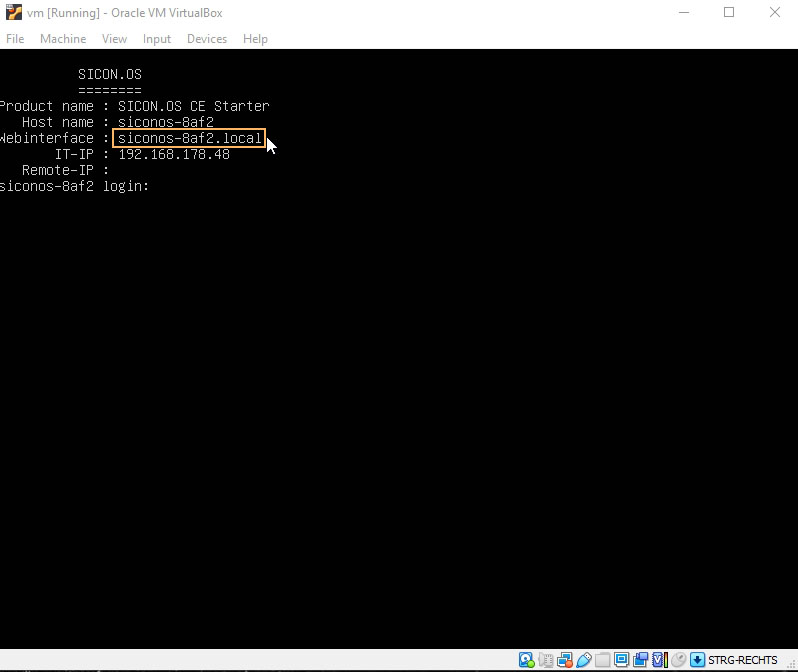
Use the highlighted Web interface address to open the SICON.OS in browser.
Next steps
Your next step would be :