
Download SICON.OS VA
Please follow the below steps to download the SICON.OS VA:
-
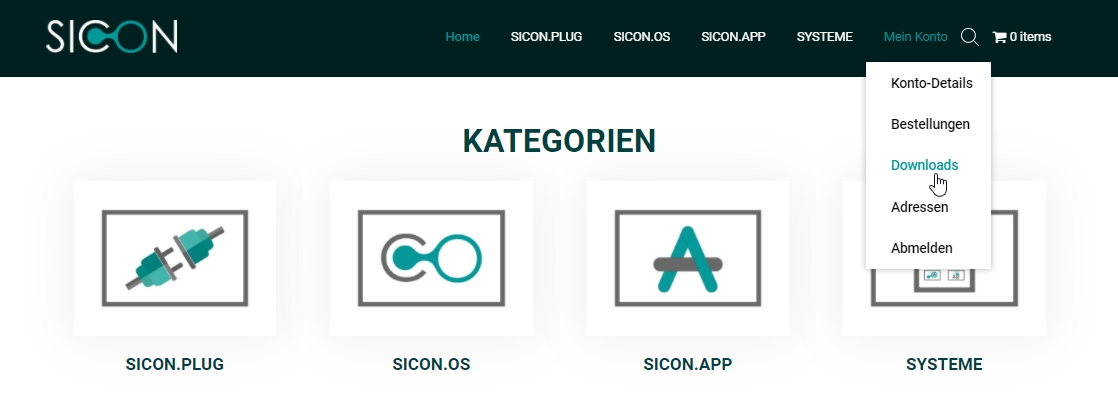
After buying the SICON.OS VA from our shop, go to the Mein Konto and click on Downloads or click here to navigate to the download page directly.
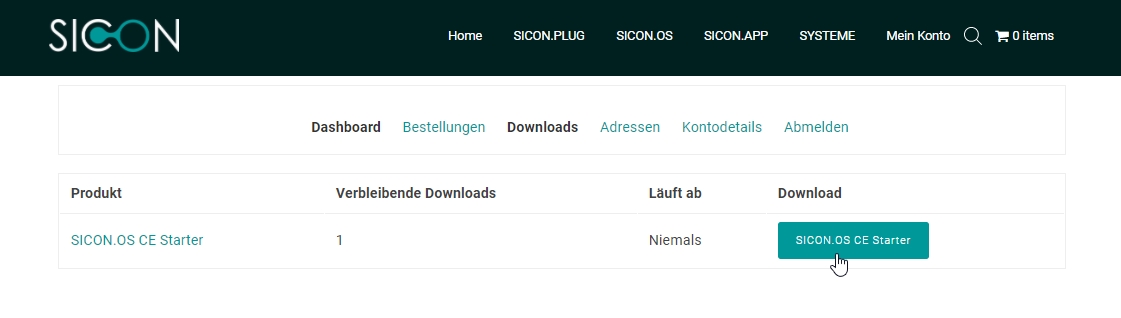
2. Click on the SICON.OS CE Starter button to start downloading your SICON.OS VA
Download and Install your preferred VM Player
1. VMware Workstation Player
Download the VMware Workstation Player and follow the Installation guide.
If you have installed VM Player for the first time, then please reboot your Windows before proceeding further.
2. Oracle VirtualBox
Download the Oracle VirtualBox and follow the Installation guide.
If you have installed VM Player for the first time, then please reboot your Windows before proceeding further.
Next steps
Your next steps would be :
➡ Import SICON.OS VA in VMware Player
➡ Import SICON.OS VA in VMware Workstation
➡ Import SICON.OS VA in VMware ESXi
➡ Import SICON.OS VA on Hyper-V
➡ Import SICON.OS VA in Oracle VM VirtualBox