
SICON Setup involves connecting and preparing SICON.OS (software program) to function properly. You can set up a SICON.OS after it's been installed.
Setup Guide
This is the general document for the SICON.OS Installation (or general setup). To setup our SICON.OS Software, please follow the steps given below:
1. Pre-Installation Process
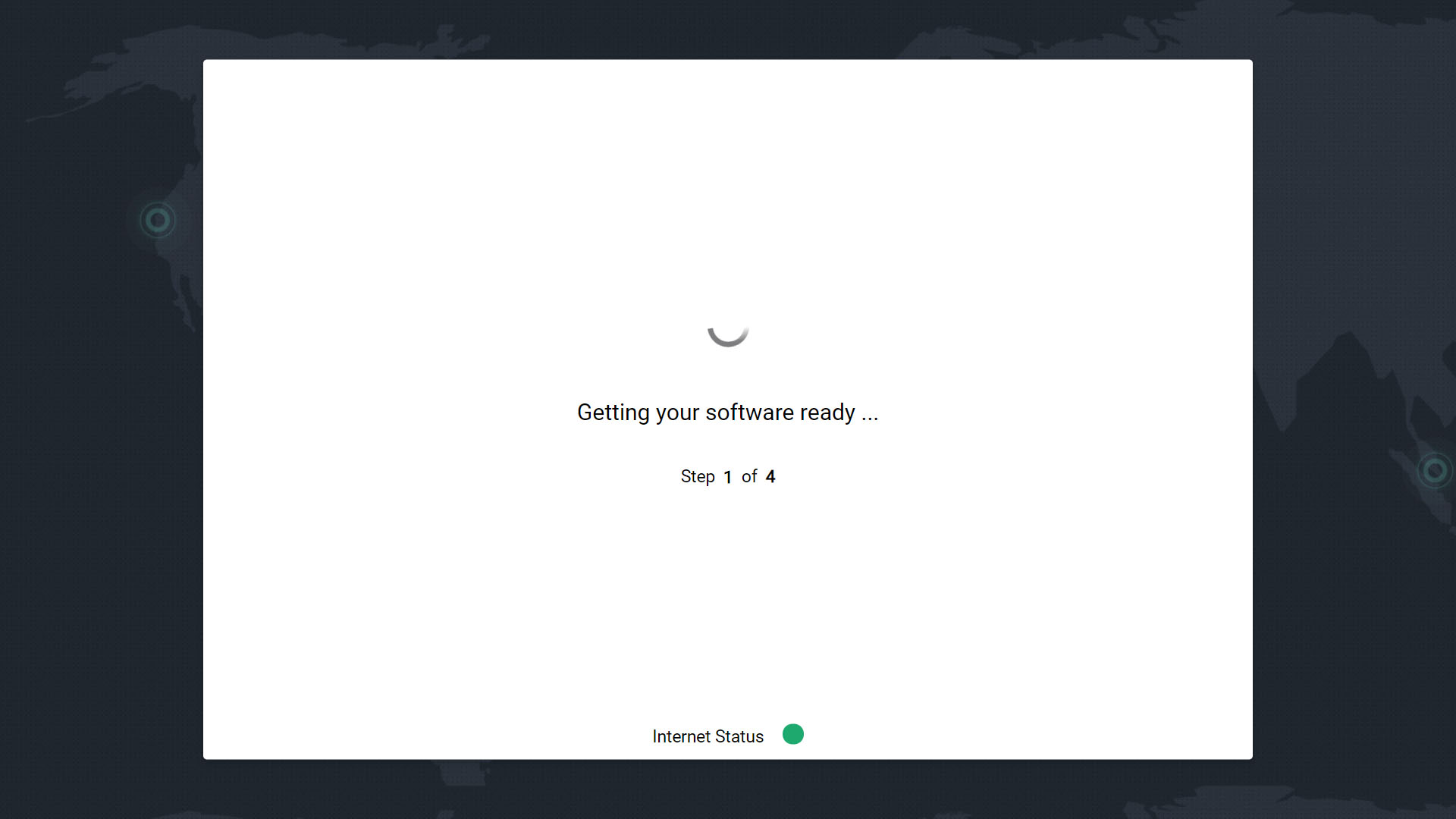
SICON.OS is getting ready for installation.
-
Step 1-of-4
-
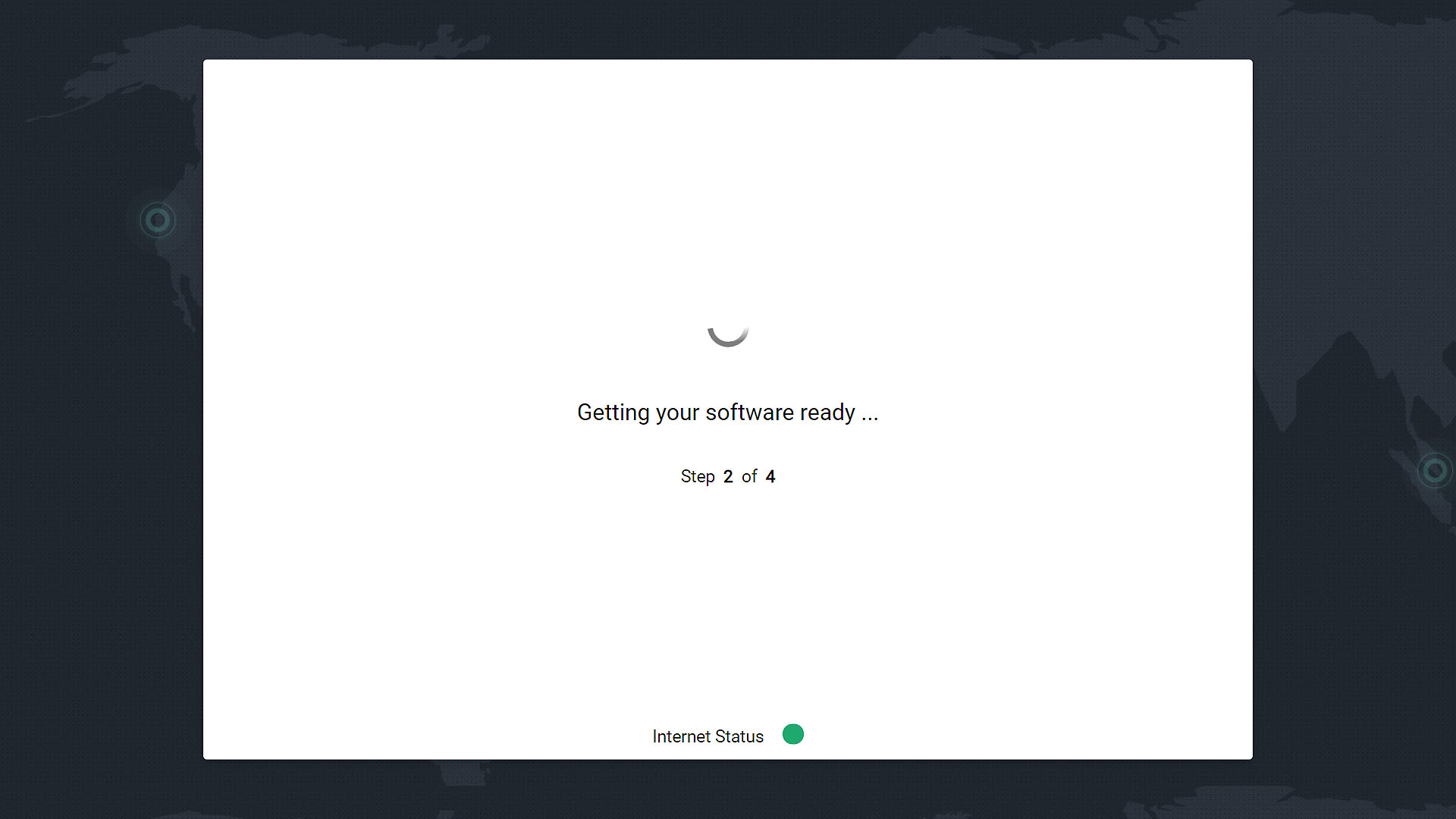
Step 2-of-4
-
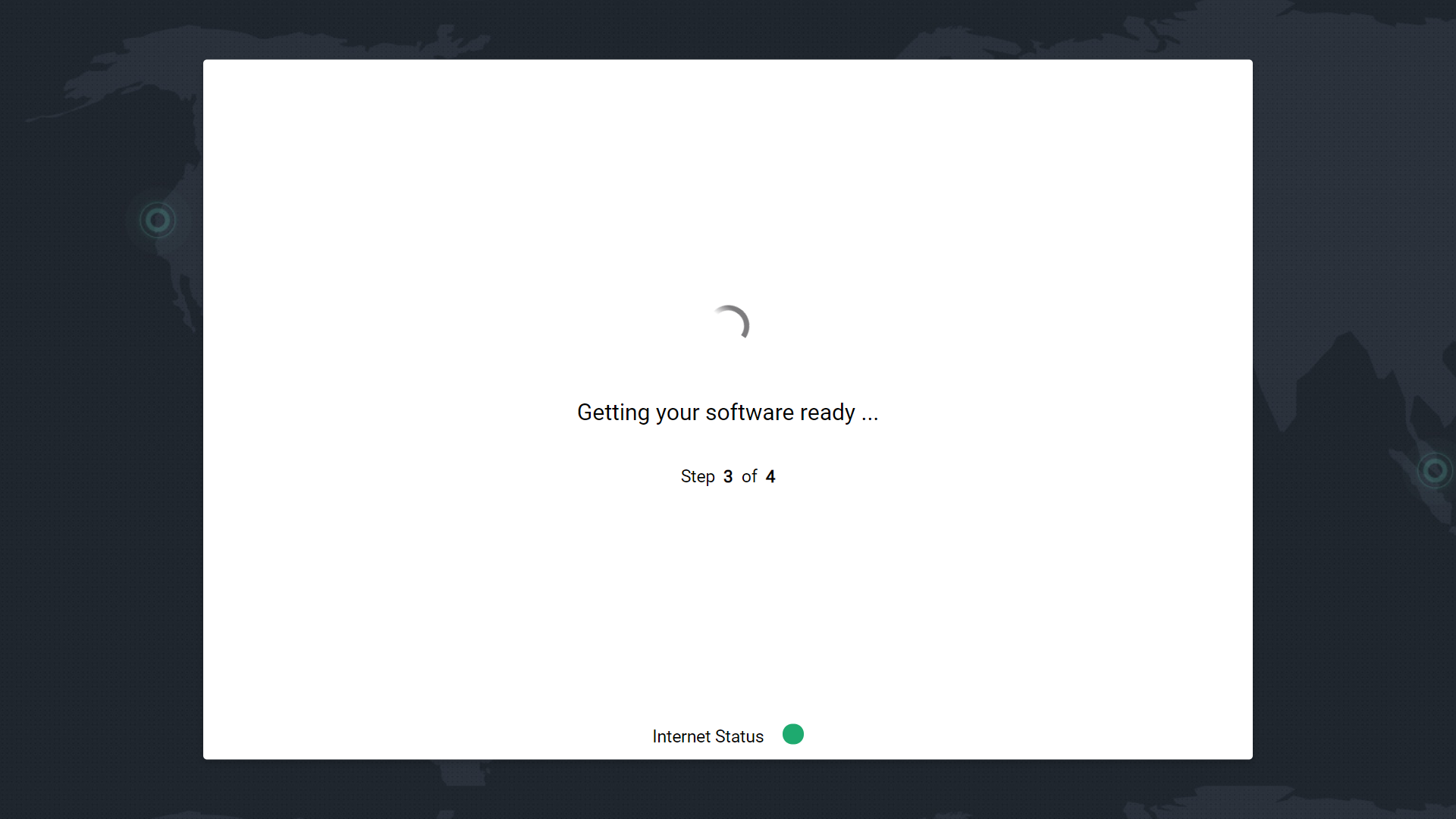
Step 3-of-4
-
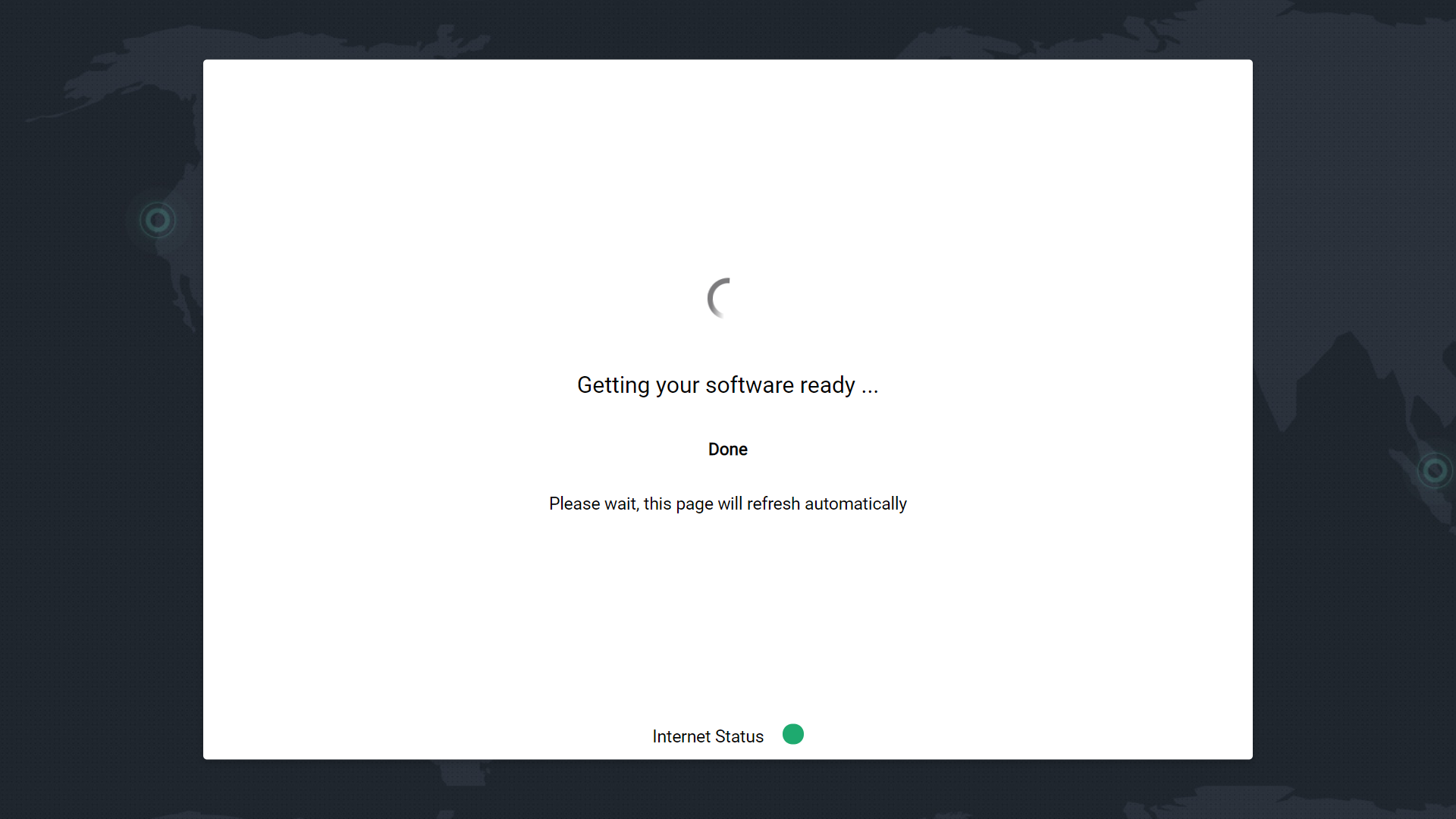
Getting your software ready
2. Configure the SICON.OS
Click on "Get Started"
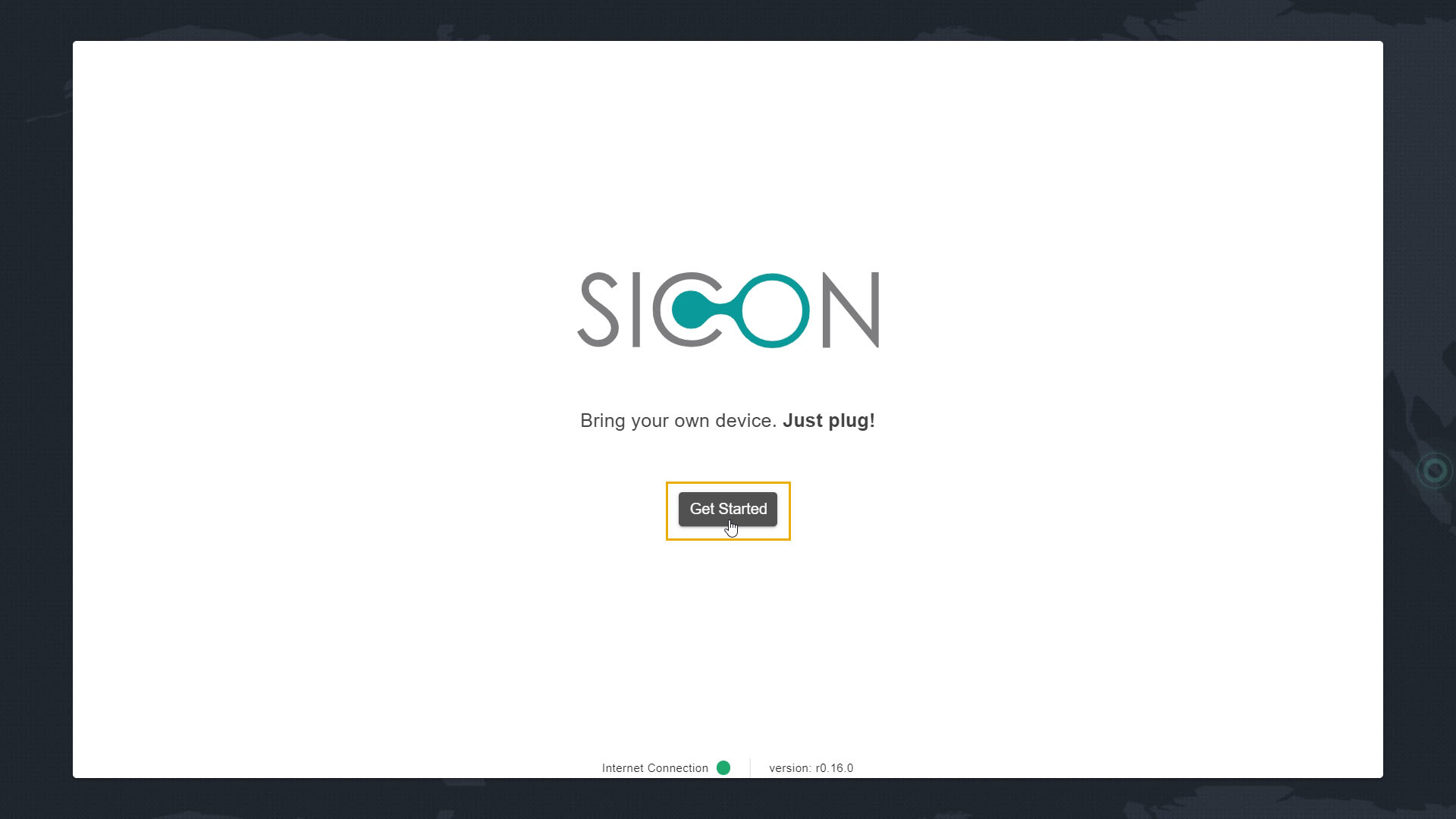
Configuration of the SICON.OS completes in four Steps:
2.1 : Accept Terms & Conditions
-
Carefully read the Terms & Conditions for the Software installation.
-
Check-on the option to accept the "Terms stated above"
-
Then click on "Next" to continue.
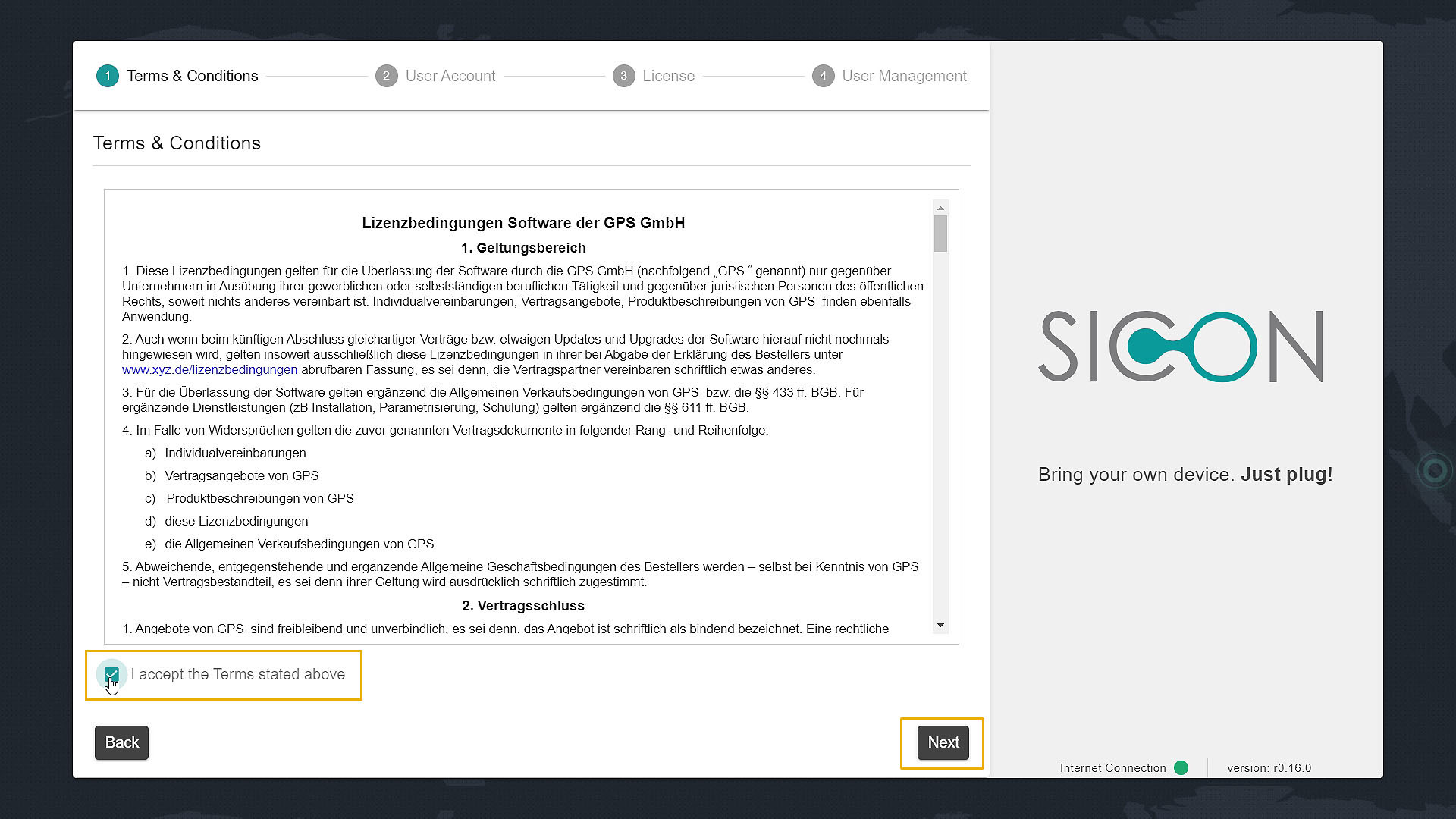
2.2 : User Account
-
Click on "SIGN IN" option if you already have an account and continue.
-
Click on "SIGN UP" option to create an account and continue from step 2.2.2
2.2.1: Account Sign-in
-
Sign-in to the account by filling your Email address and Password.
-
Then click on "Login" to proceed further and continue from Step 2.3
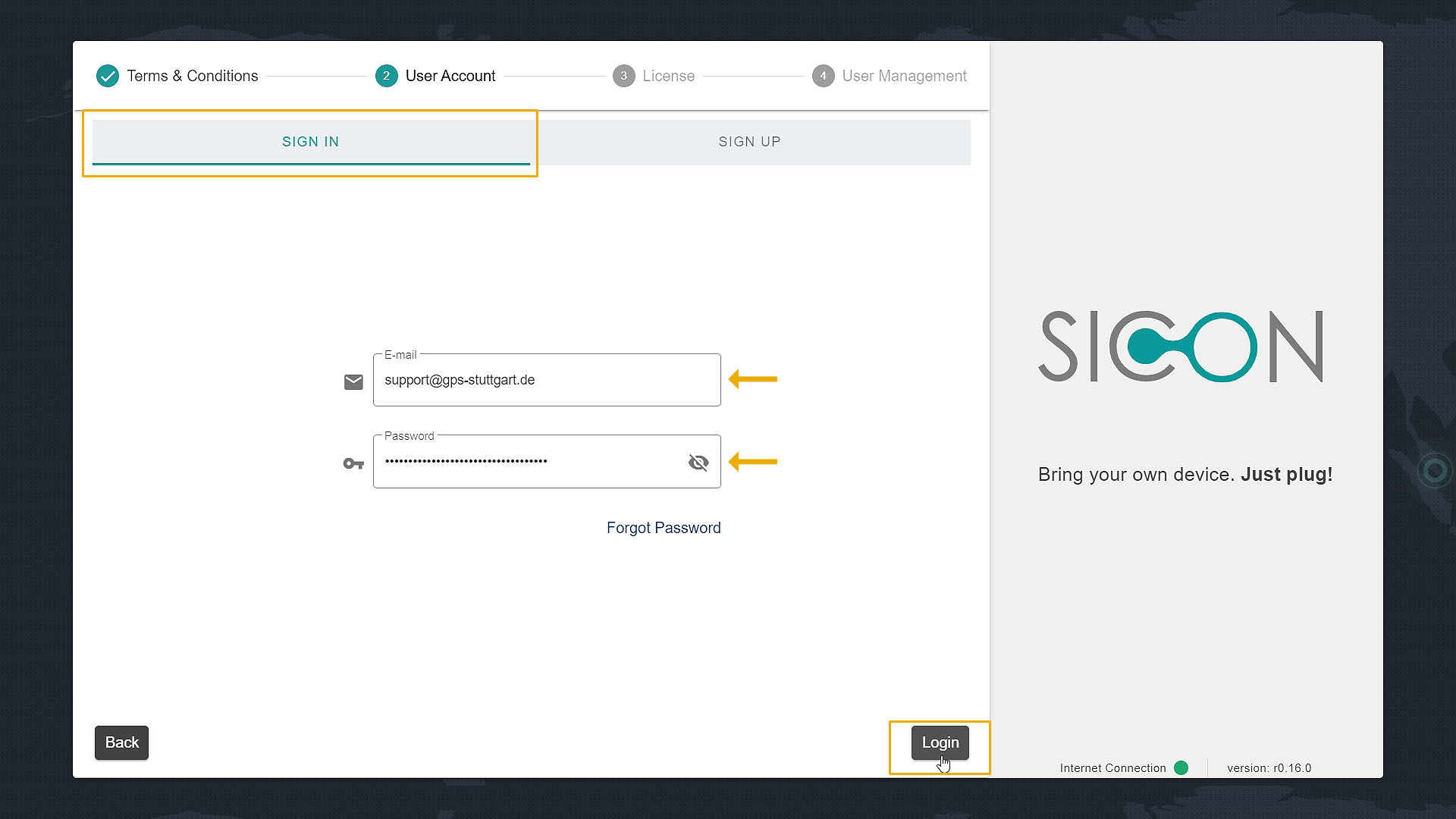
2.2.2: Account Sign Up
-
Fill the option given in the Sign-up form like your E-mail address, Password, Personal Information and Address.
-
Then click on "Sign-up".
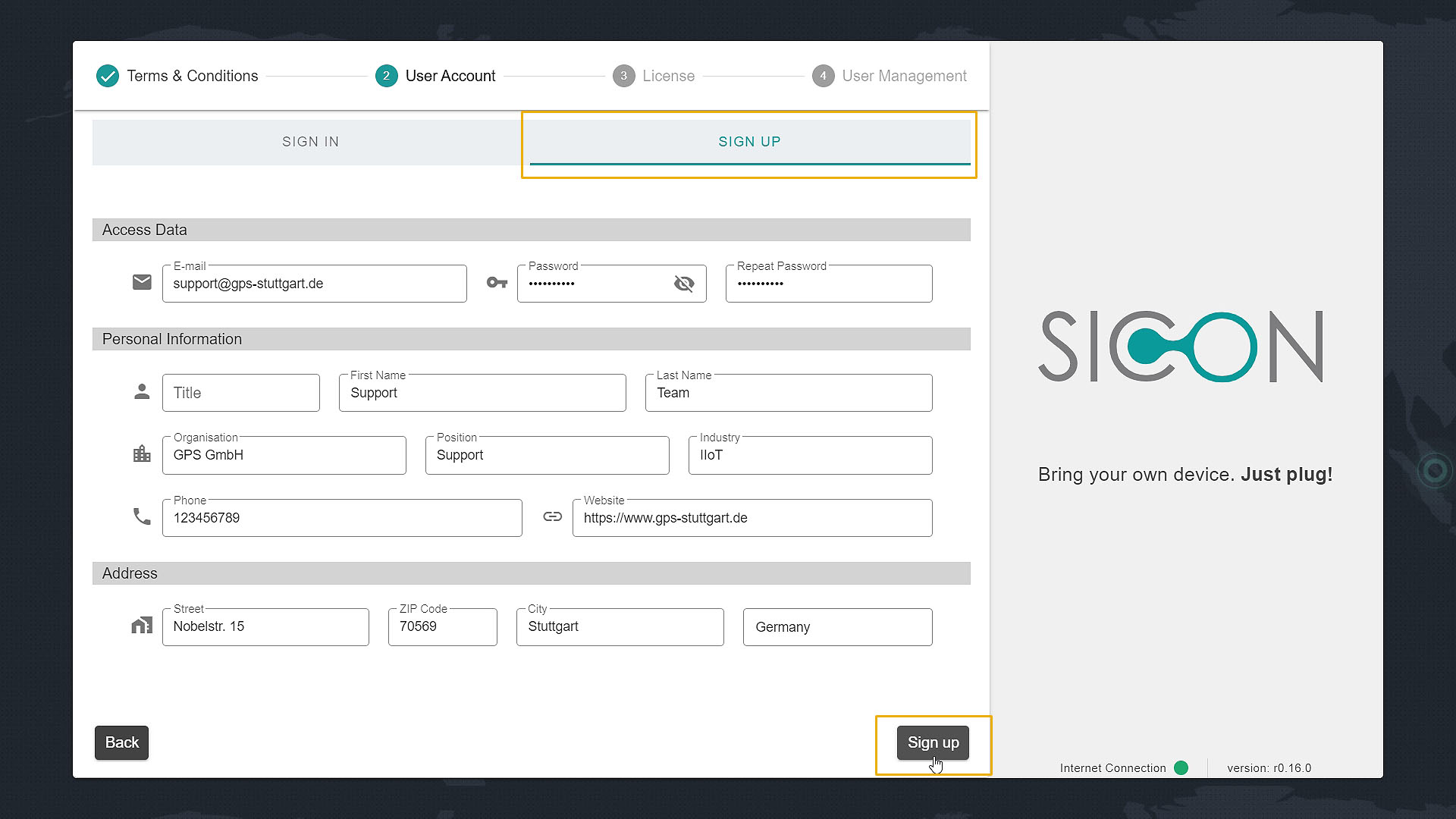
2.2.3: E-mail confirmation
Confirm your email address
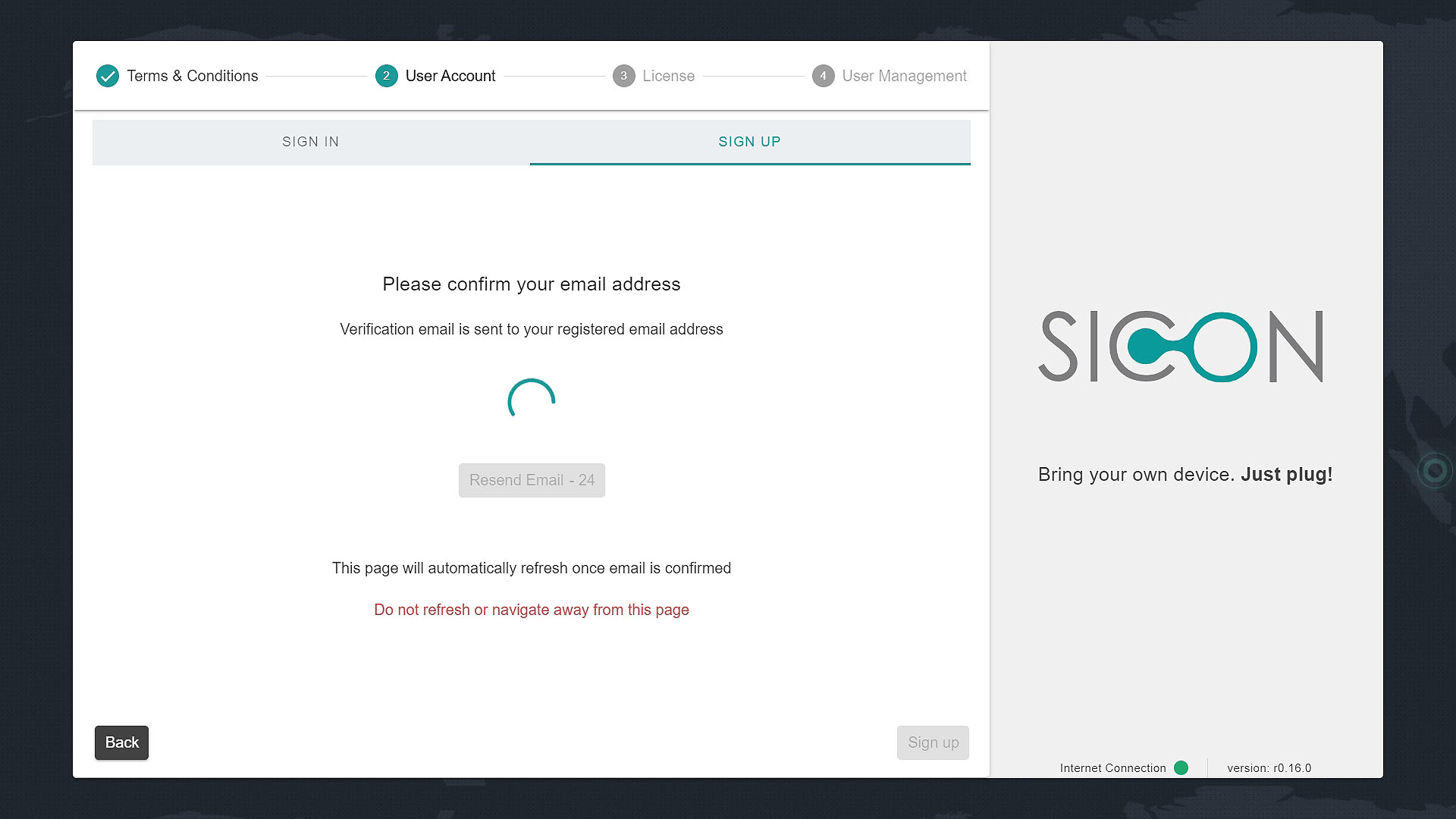
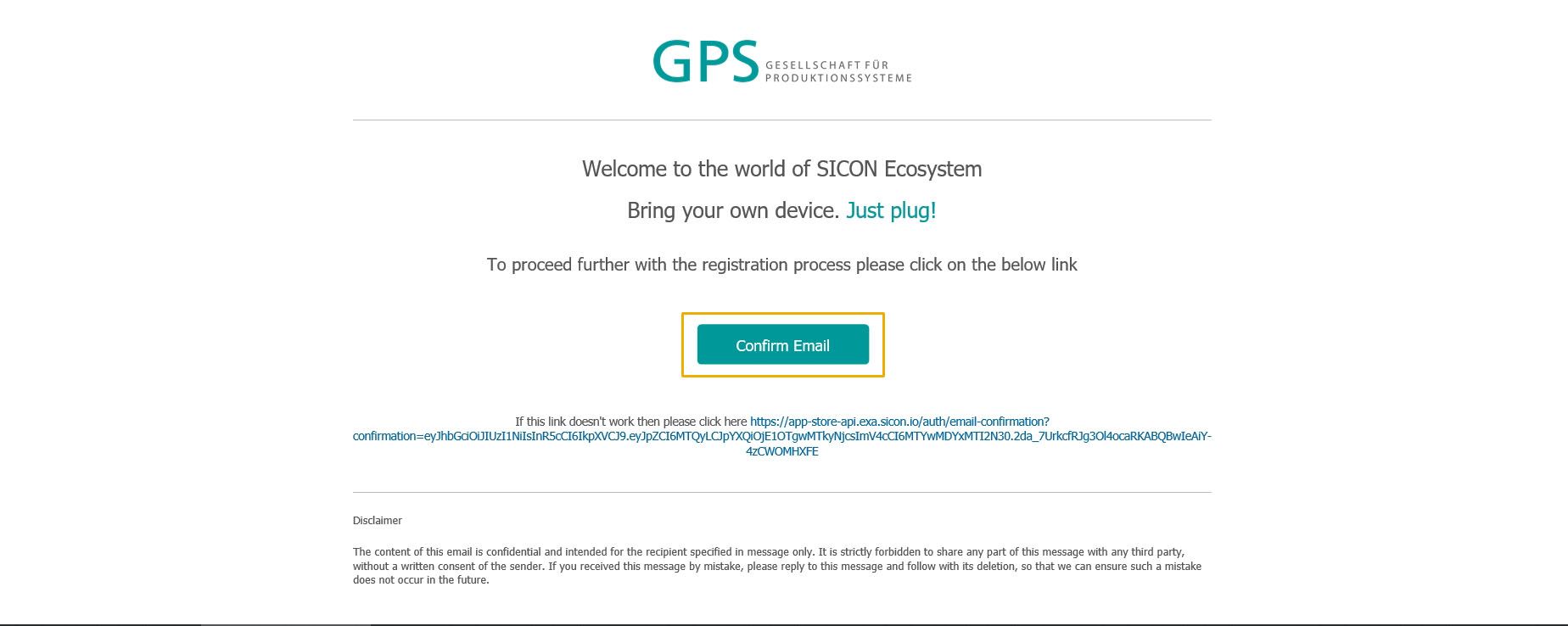
You will receive an email of confirmation on your email account, click on "Confirm Email"
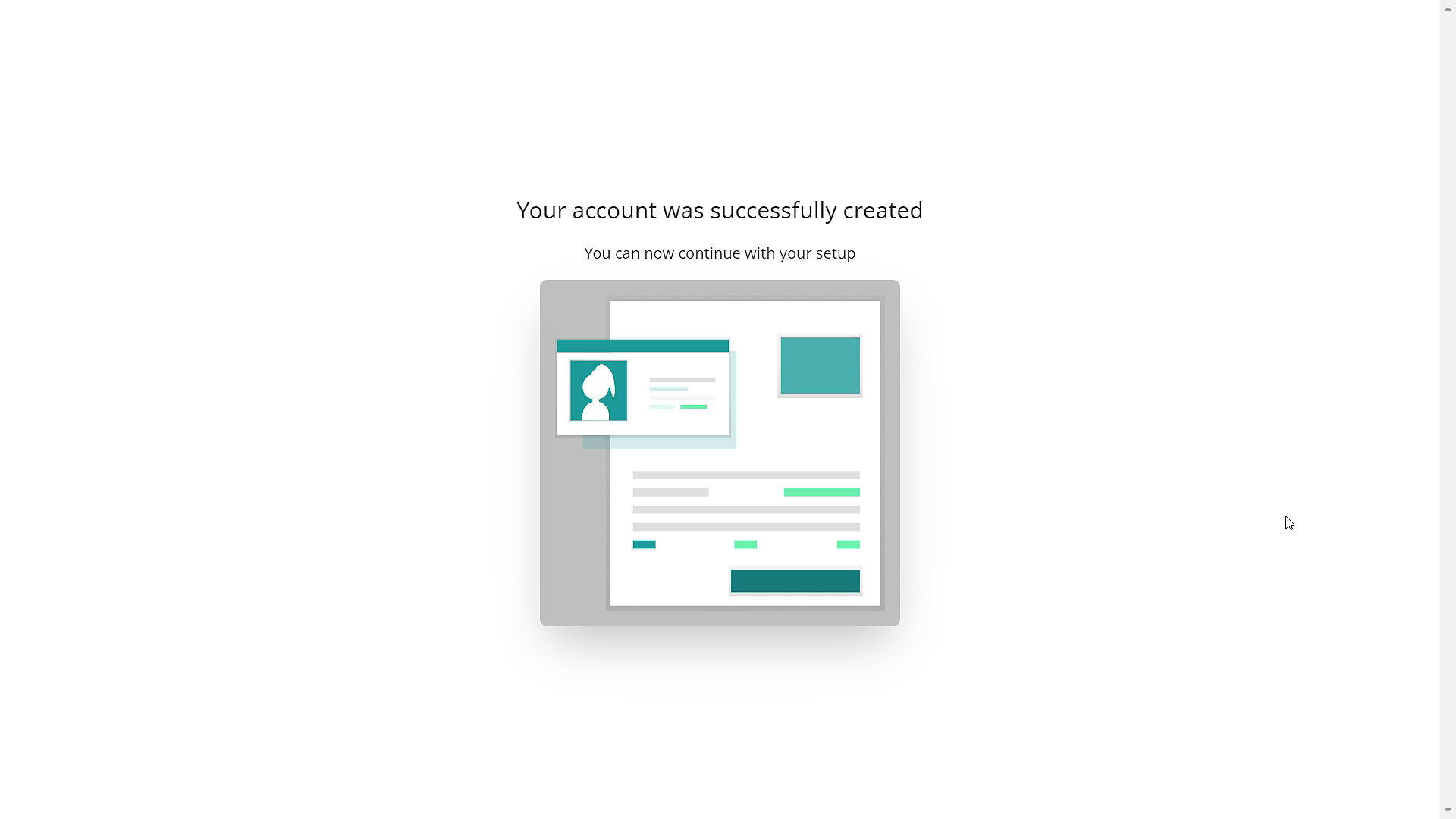
Your account get successfully created.
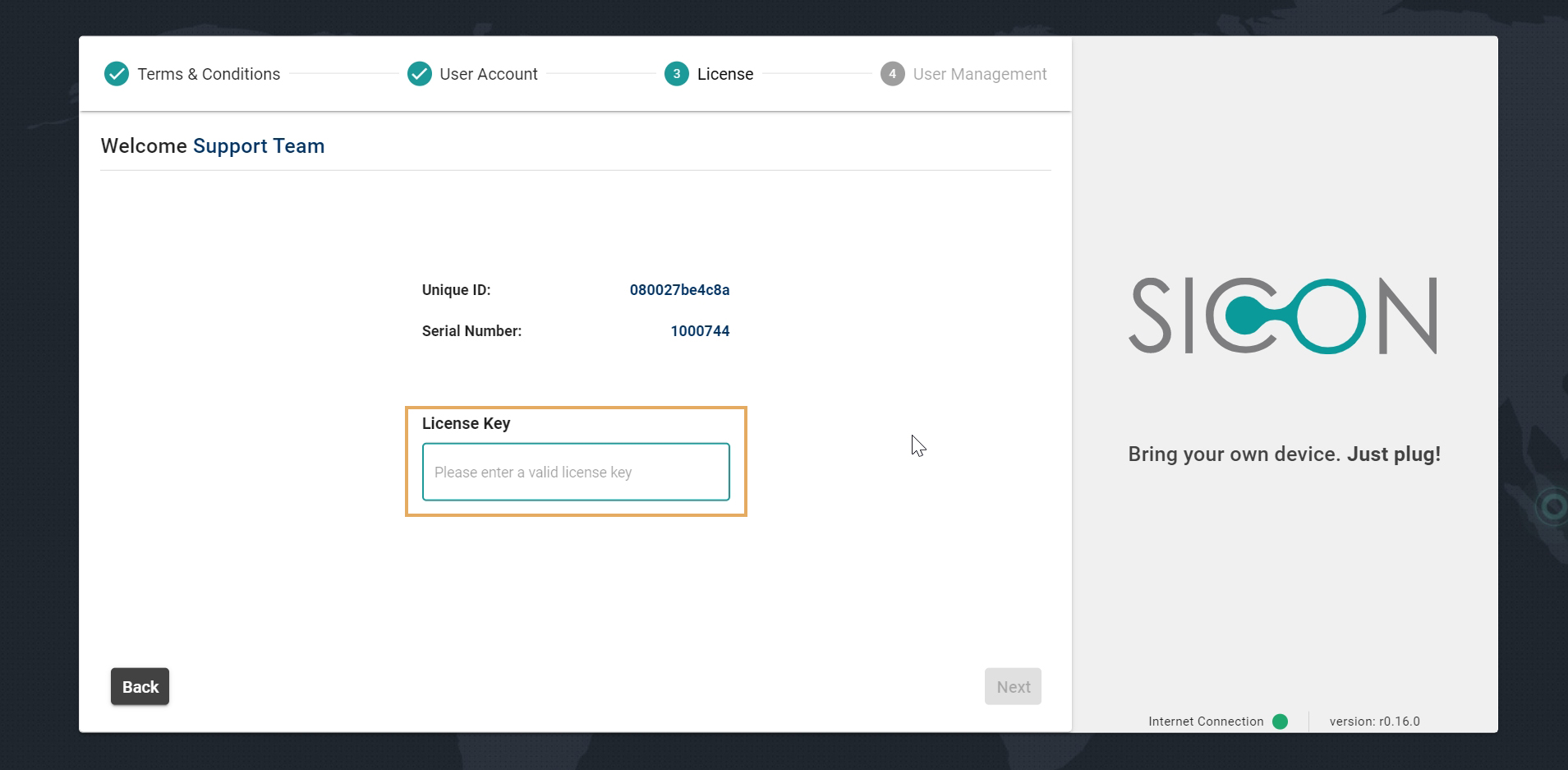
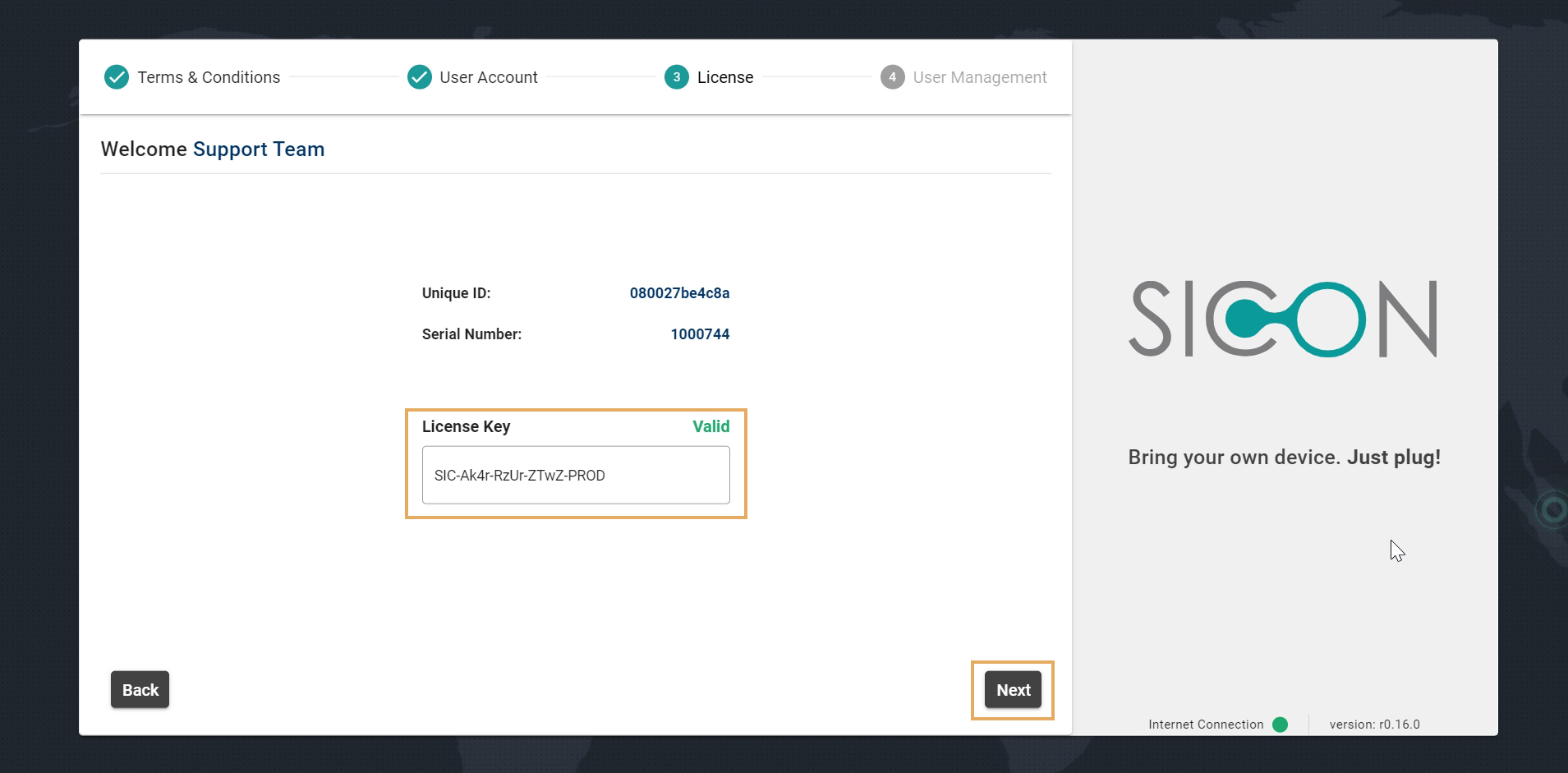
2.3: License
Enter your "License Key" and click on Next
2.4: User Management
-
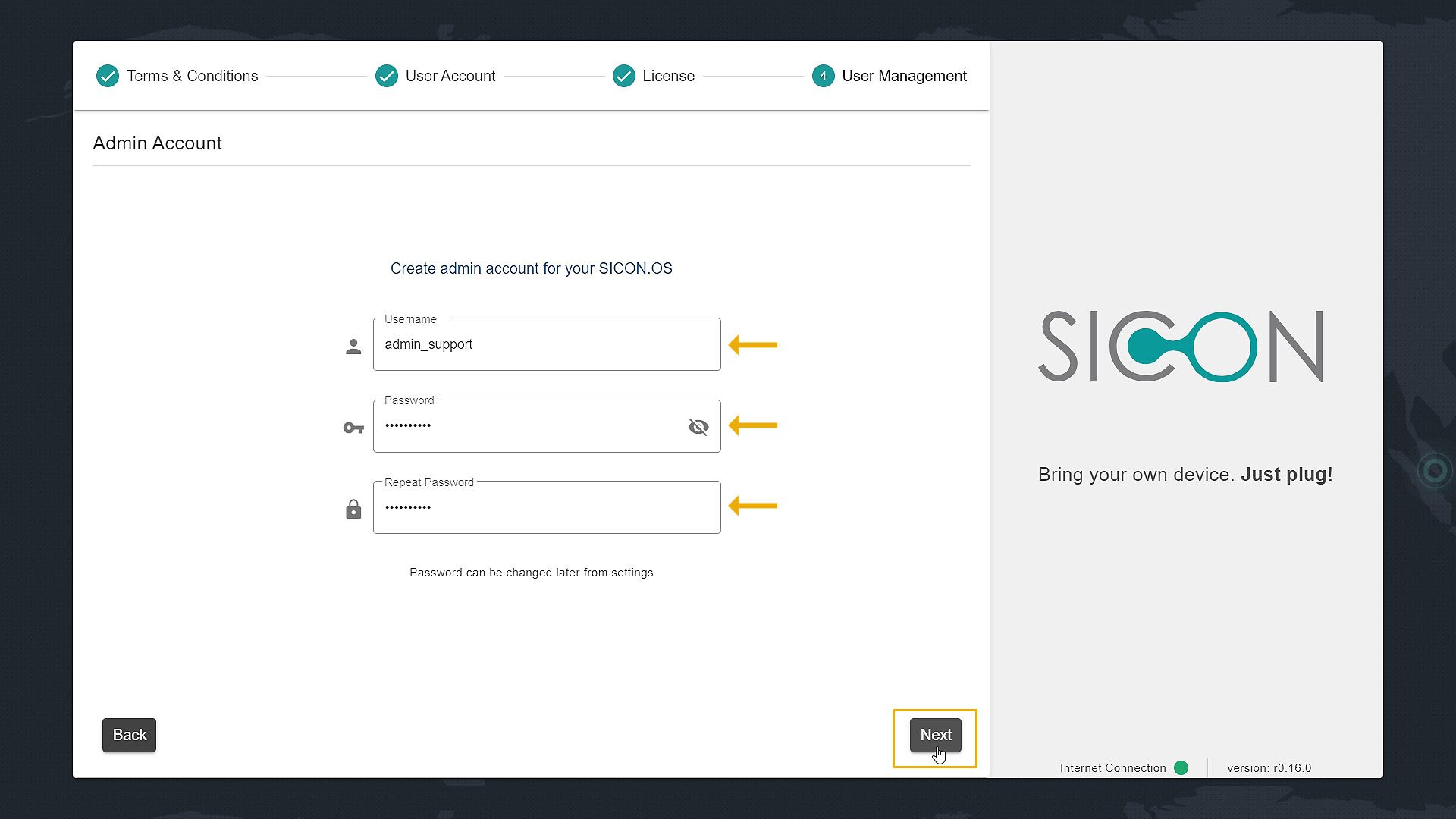
Create Admin account for your SICON.OS by giving Username and Password.
Please note down the Username and Password as it is required to login to SICON.OS.
-
Click on "Next" to proceed further.
3. Final Installation Process
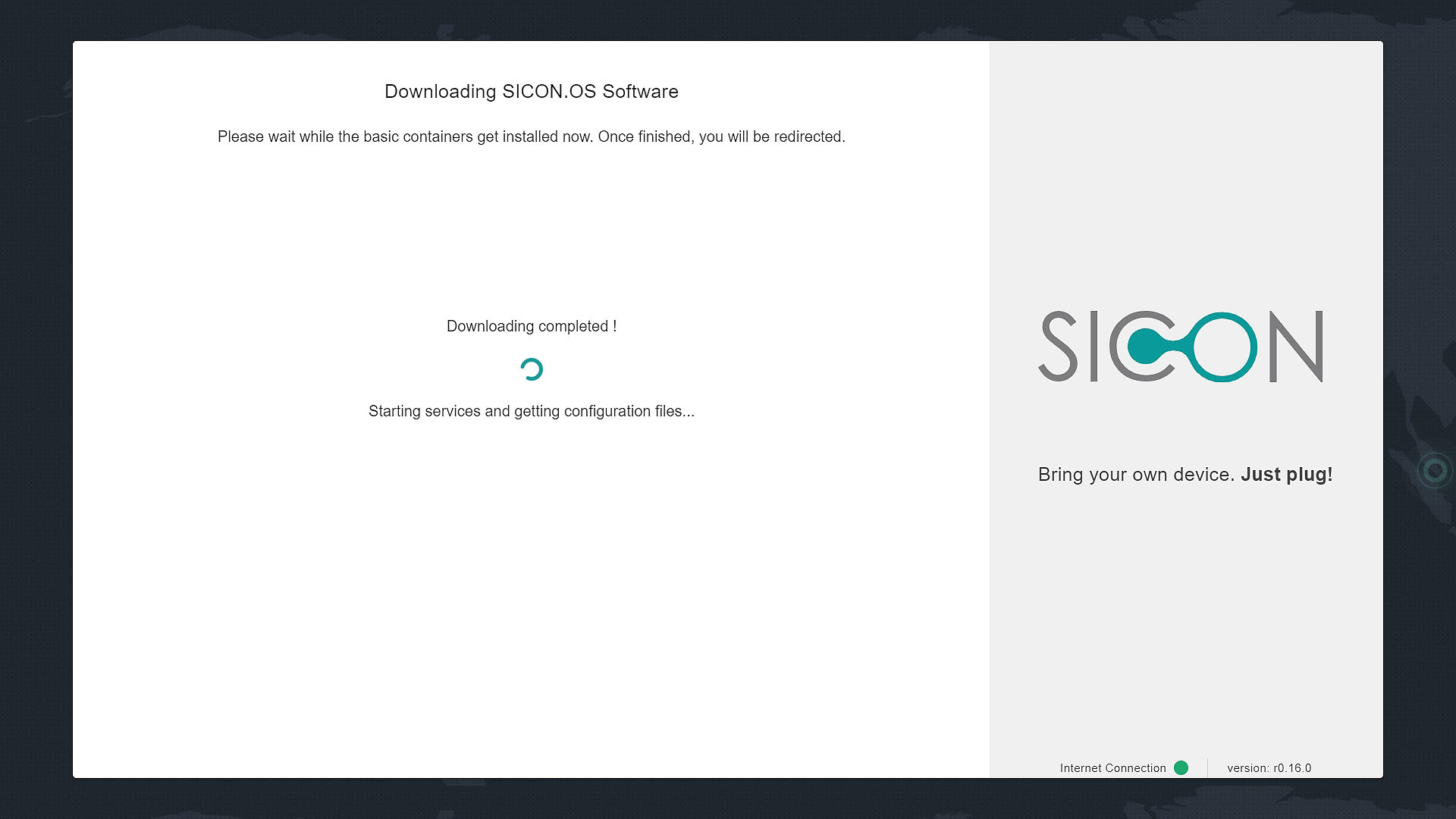
SICON.OS Software starts downloading. Please wait, it may take a few seconds.
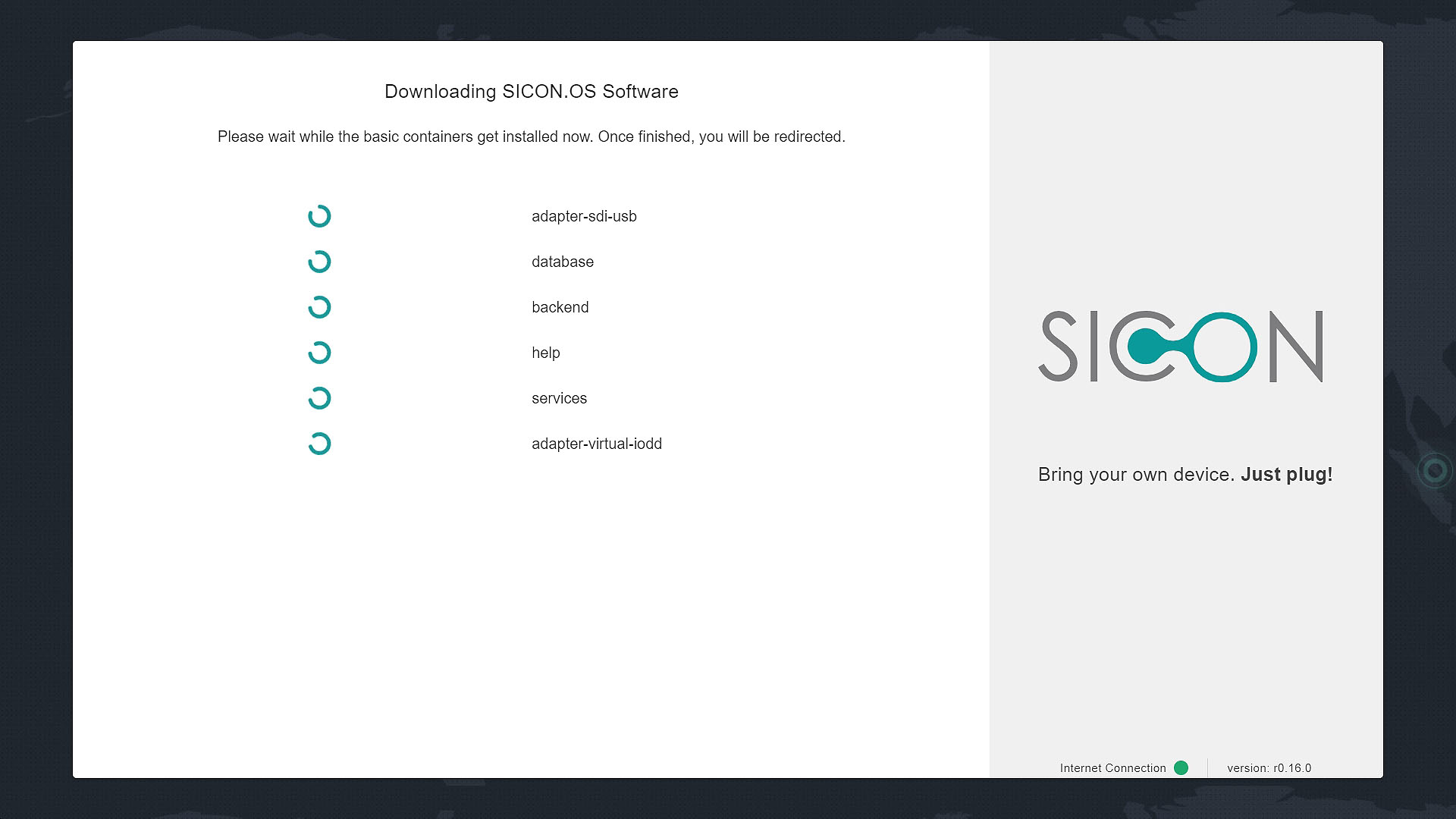
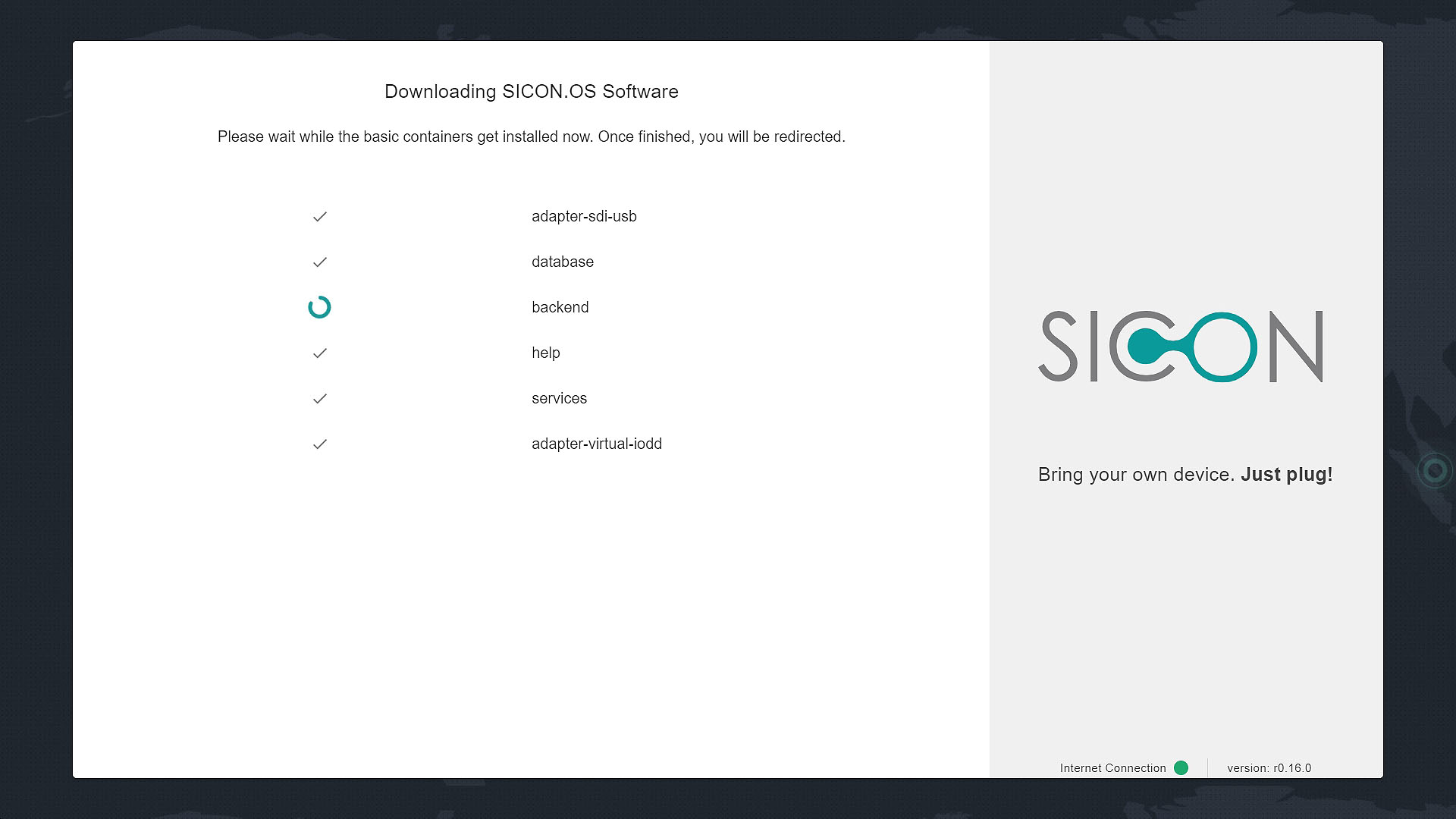
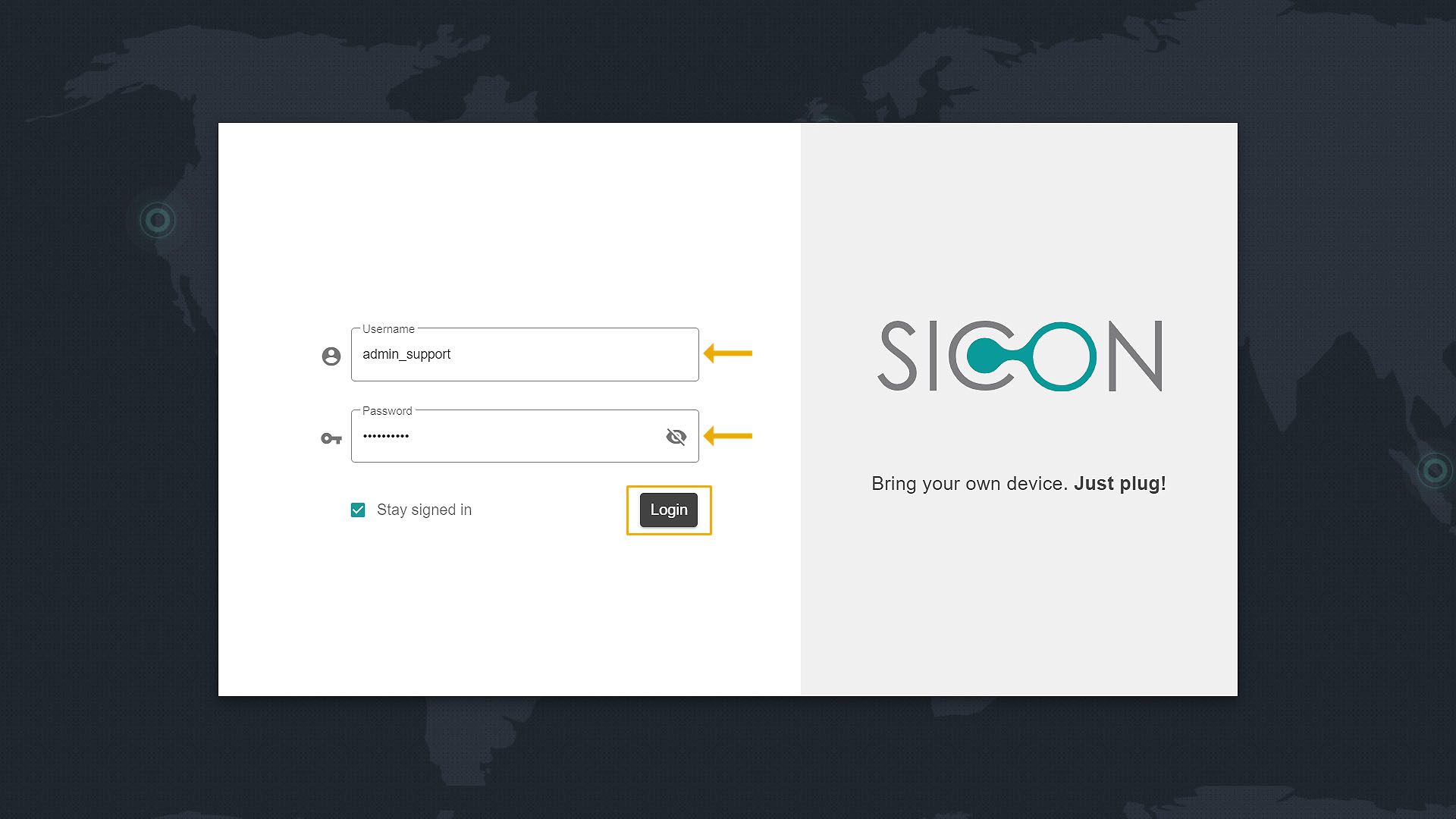
Wait until all the basic containers get installed. After that you will be redirected to the main SICON.OS login page.
Enter your admin account Username & Password and click on "Login".
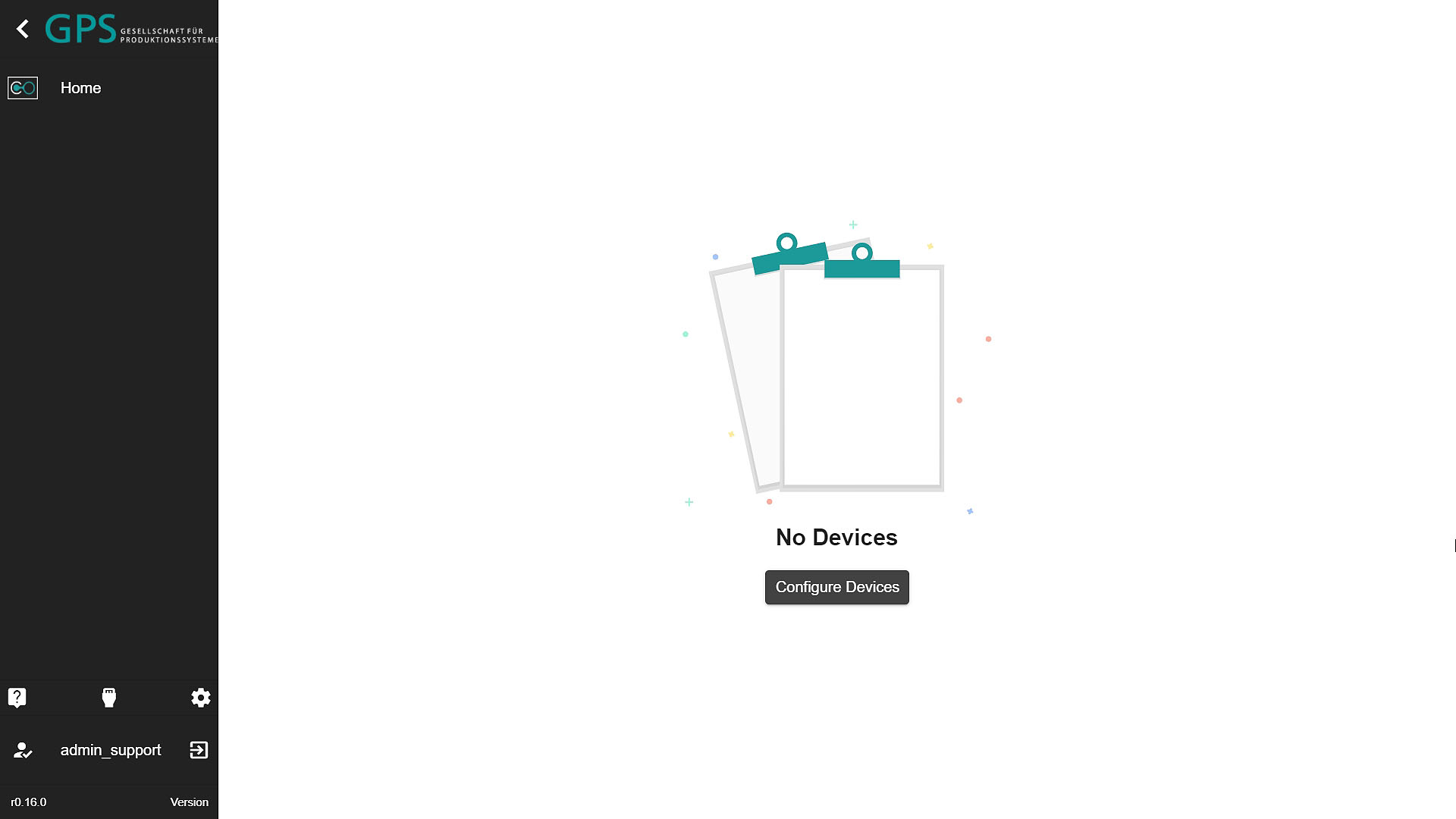
Welcome to your SICON.OS dashboard.
Next steps
Your next steps would be :
➡ Connect your Device with SICON.OS (Device management)
➡ Configure further settings of SICON.OS (System management)