
If your SICON.OS instance is hosted in the cloud (e.g., on xxx.cloud.sicon.eco), follow these steps:
-
Navigate to the Login Page
-
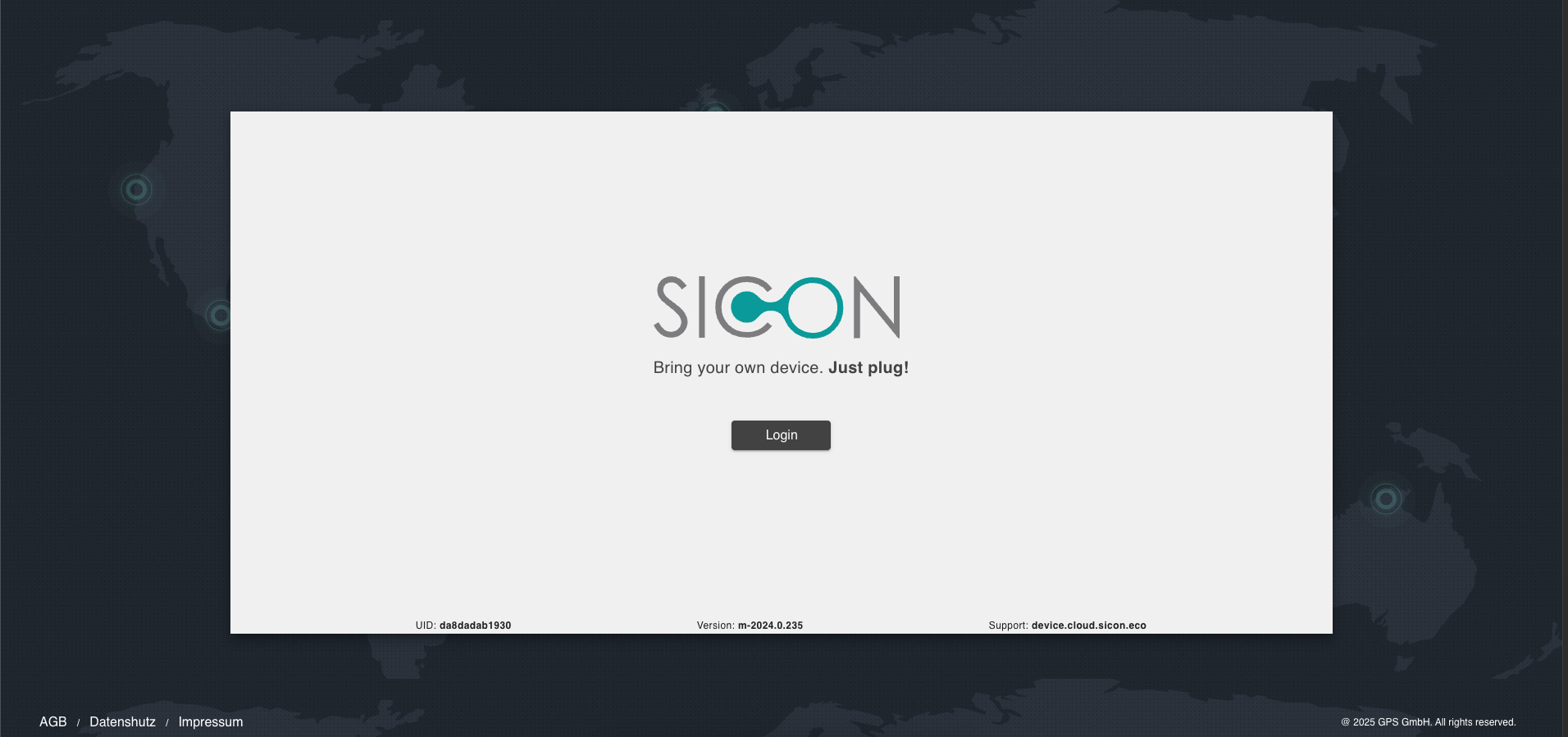
Open your browser and go to your instance URL (e.g., https://xxx.cloud.sicon.eco).
-
-
Click on Login button
-
You will be redirected to a page where you can enter your existing username and password.
-
-
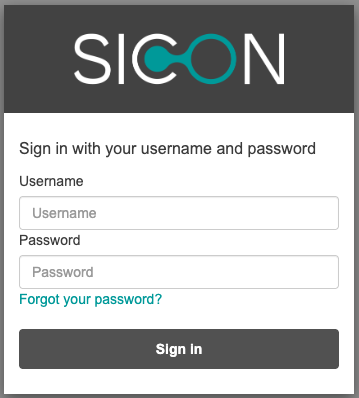
Click on “Forgot Password”
-
On the login screen, click the “Forgot Password” button.
-
-
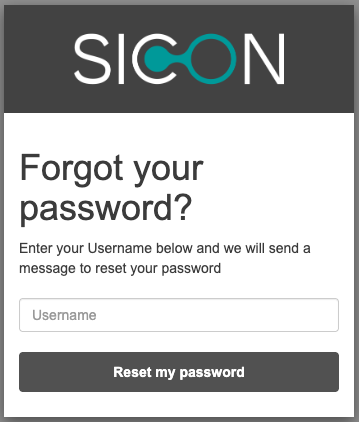
Enter Your Username
-
Provide the username associated with your SICON.OS account and click on “Reset my password“ button
-
If you forgot your username then contact your SICON.OS administrator.
-
-
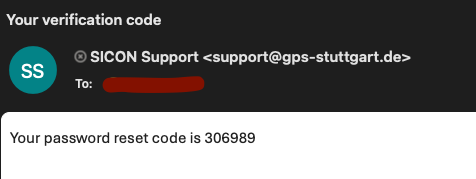
Check Your Email
-
A password reset code is sent to the associated email address with your username
-
-
Create a New Password
-
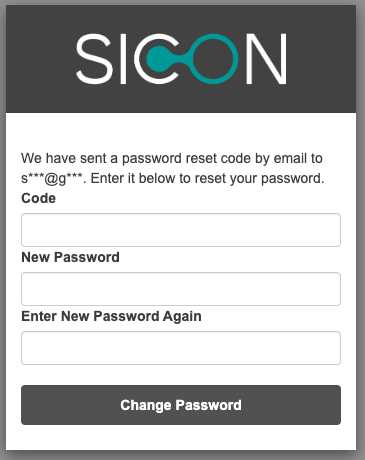
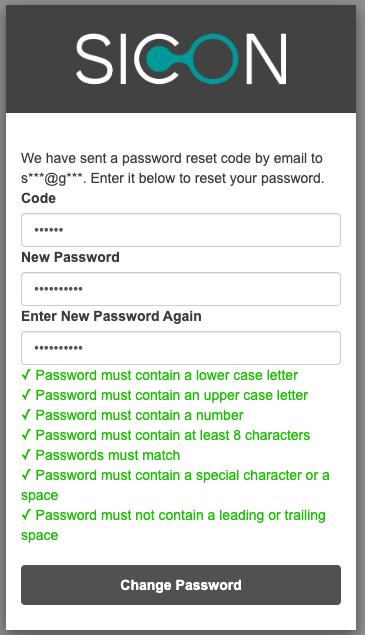
On the password reset screen, use the code received via email and enter your new password two times
-
Click on “Change Password“ button
-
-
Log In
-
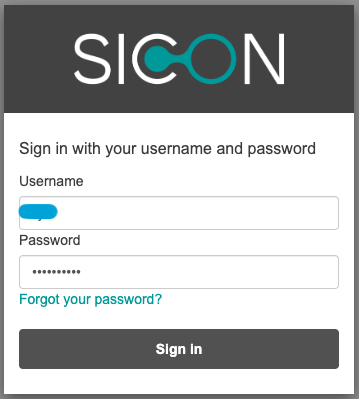
Once the password is changed you will be redirected to the login screen and there you can provide the username and new password to login.
-
If you do not receive the reset email within a few minutes, check your spam/junk folder or contact your administrator.