
Welcome to the quick installation guide for SICON.PULSE, the IIoT condition monitoring sensor for industrial vacuum systems.
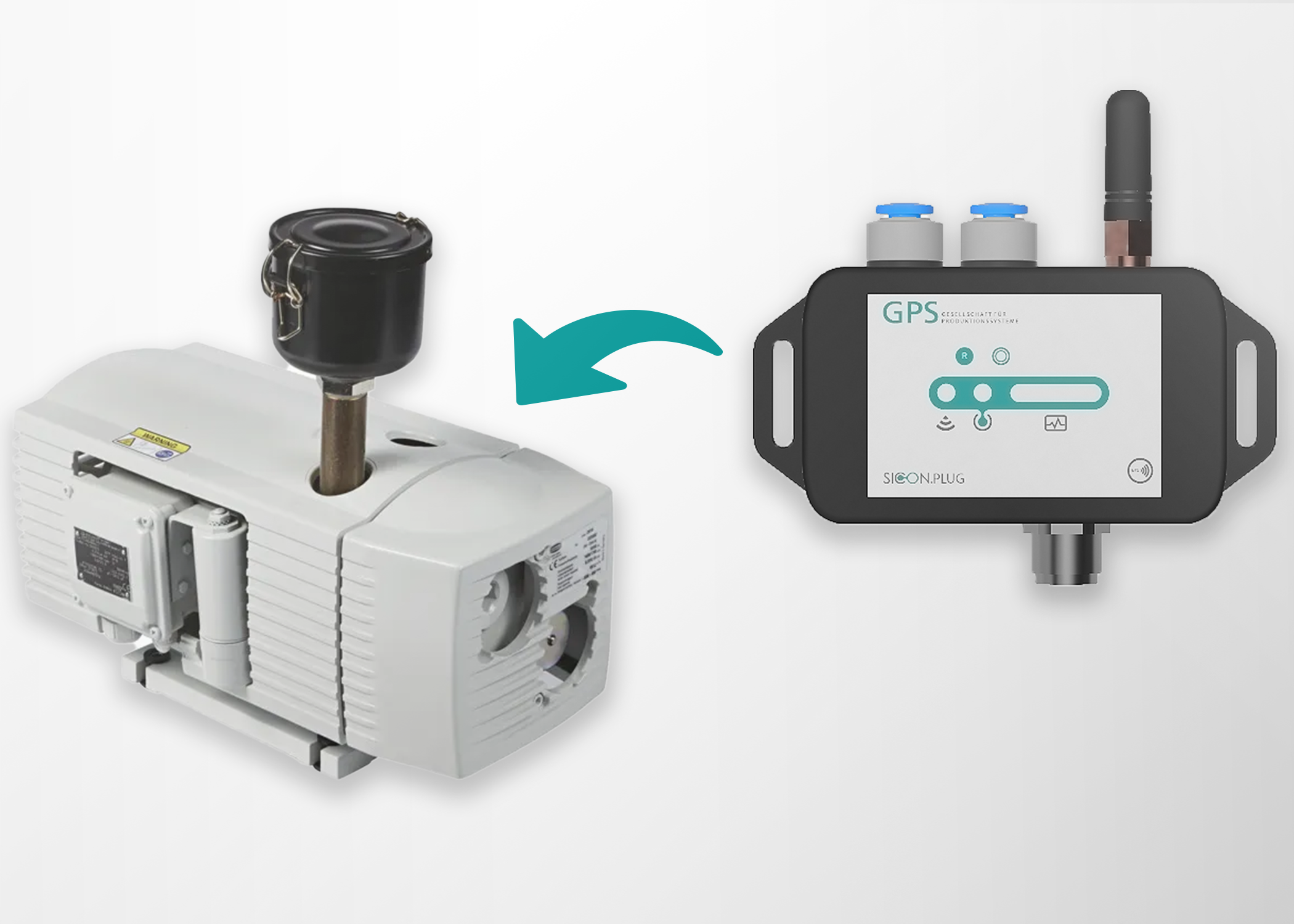
This guide will help you install and connect the device in just a few steps.
Follow the below steps:
1. Unbox & Prepare
Before starting, check that you have:
|
No. |
Material Required |
|---|---|
|
1. |
The SICON.PULSE device |
|
2. |
Power supply (5V DC (USB / industrial connector)) |
|
3. |
Pneumatic hoses and fittings suitable for your vacuum connections |
|
4. |
Tools for securing connections (Screw it on, and you're done. 30 minutes.) |
|
5. |
Smartphone/Tablet with the SICON.Toolbox app for setup (optional but recommended) |
Safety Notice
-
Switch off the Vacuum generator before installation.
-
Depressurize the vacuum system.
-
Disconnect electrical power before wiring.
2. Install SICON.PULSE on Your Vacuum Generator (Mechanical Installation)
1. Mount the SICON.PULSE
-
Screw the SICON.PULSE directly onto the designated connection point.
-
Ensure the device is securely fastened and properly aligned.
-
Plug in the sensor connection.
-
No additional pneumatic tubing is required for this step.
-
Choose a stable location near the vacuum generator where the device can be securely mounted and is protected from excessive heat, impact, and moisture.
2. Electrical Connection
-
Connect the SICON.PULSE to its 5V DC (USB / industrial connector) power source.
-
Verify correct polarity.
-
Power on the device.
💡 LED indication:
-
Solid light → Device powered
-
Blinking → Network initializing
For More information (See Troubleshooting for LED code details.)
3. Network Connection
Option A – Ethernet (Recommended)
-
Connect Ethernet cable.
-
Device receives IP via DHCP (default).
-
Verify connection in your network router or dashboard.
Option B – LoRaWAN Setup (For LoRa variant)
-
Use the SICON Toolbox App.
-
Scan QR code on device.
-
Select WiFi network.
-
Enter credentials.
-
Confirm connection.
4. Verify Operation
After installation:
-
Log into your SICON.OS dashboard.
-
Confirm device appears online.
-
Verify live vacuum readings.
-
Check baseline vacuum values.
If readings appear unstable:
-
Check for vacuum leaks.
-
Ensure proper hose routing.
-
Confirm system is depressurized during installation.