Before accessing the SICON Dashboard, first you will need to install the SICON.OS software and then Signup (for first time user) or Login (For already users) with your username & Password.
If you don’t have a SICON.OS installation ready, you can follow the installation process guide to setup your own SICON.OS.
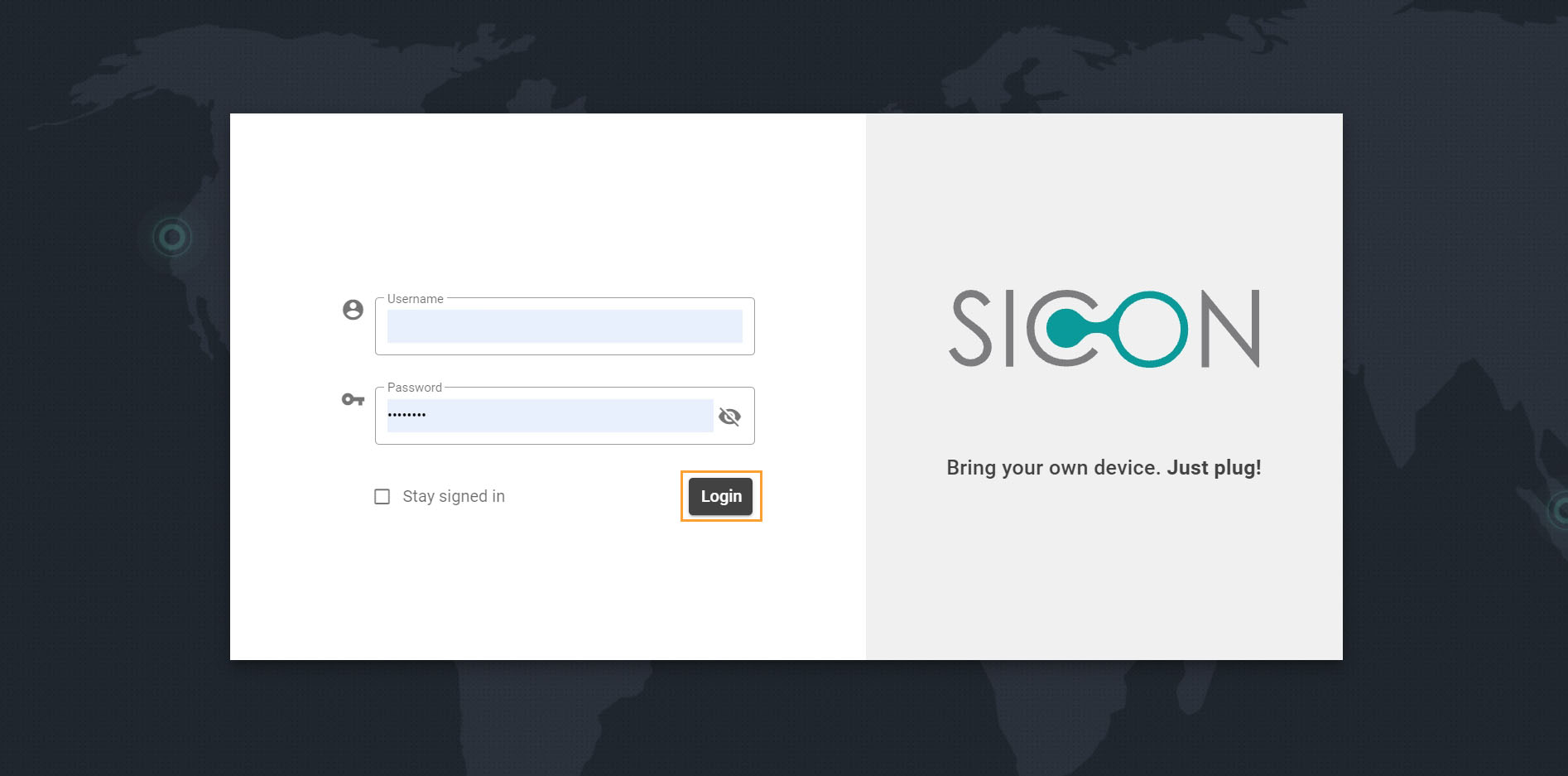
Welcome to SICON.OS Dashboard.
SICON.OS Dashboard
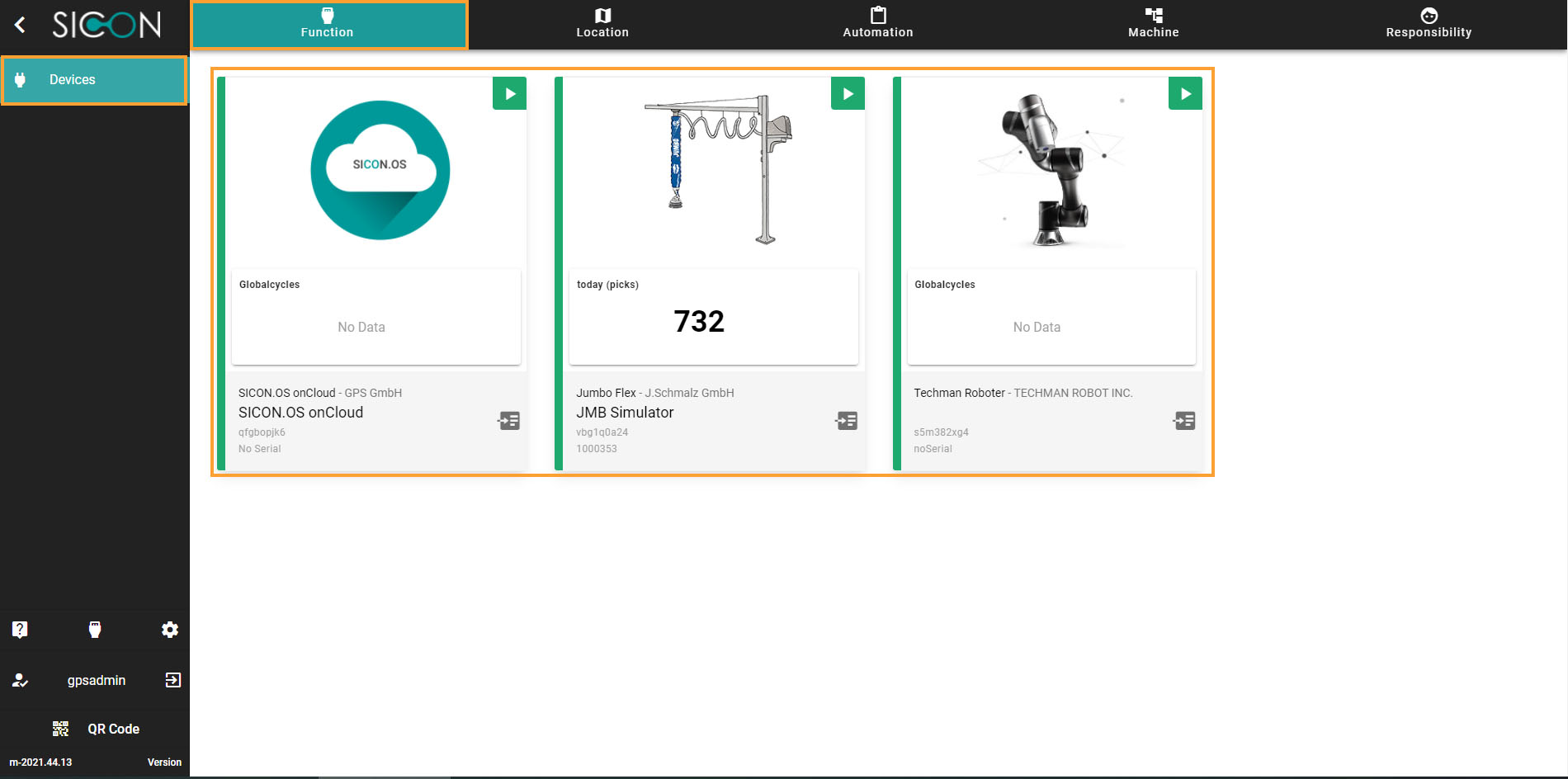
Header Menu options
Here you will get the information about the Device function, Location, Automation, Machine and the responsibility which are described below.
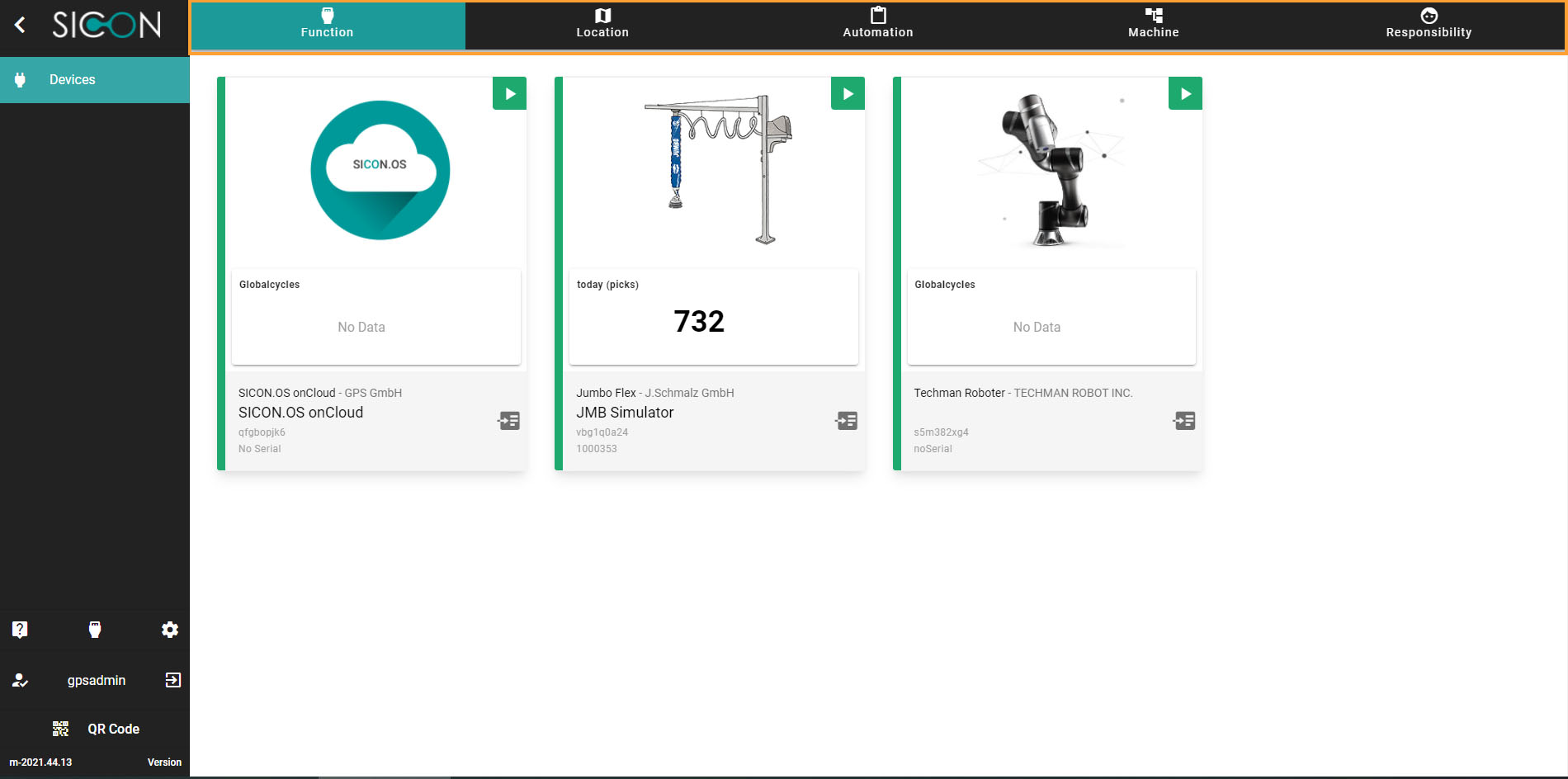
Functions View
The Functions menu is shown at the top:
It displays all the devices which are connected with SICON software. Hence you can access all devices without any relationship.
Location View
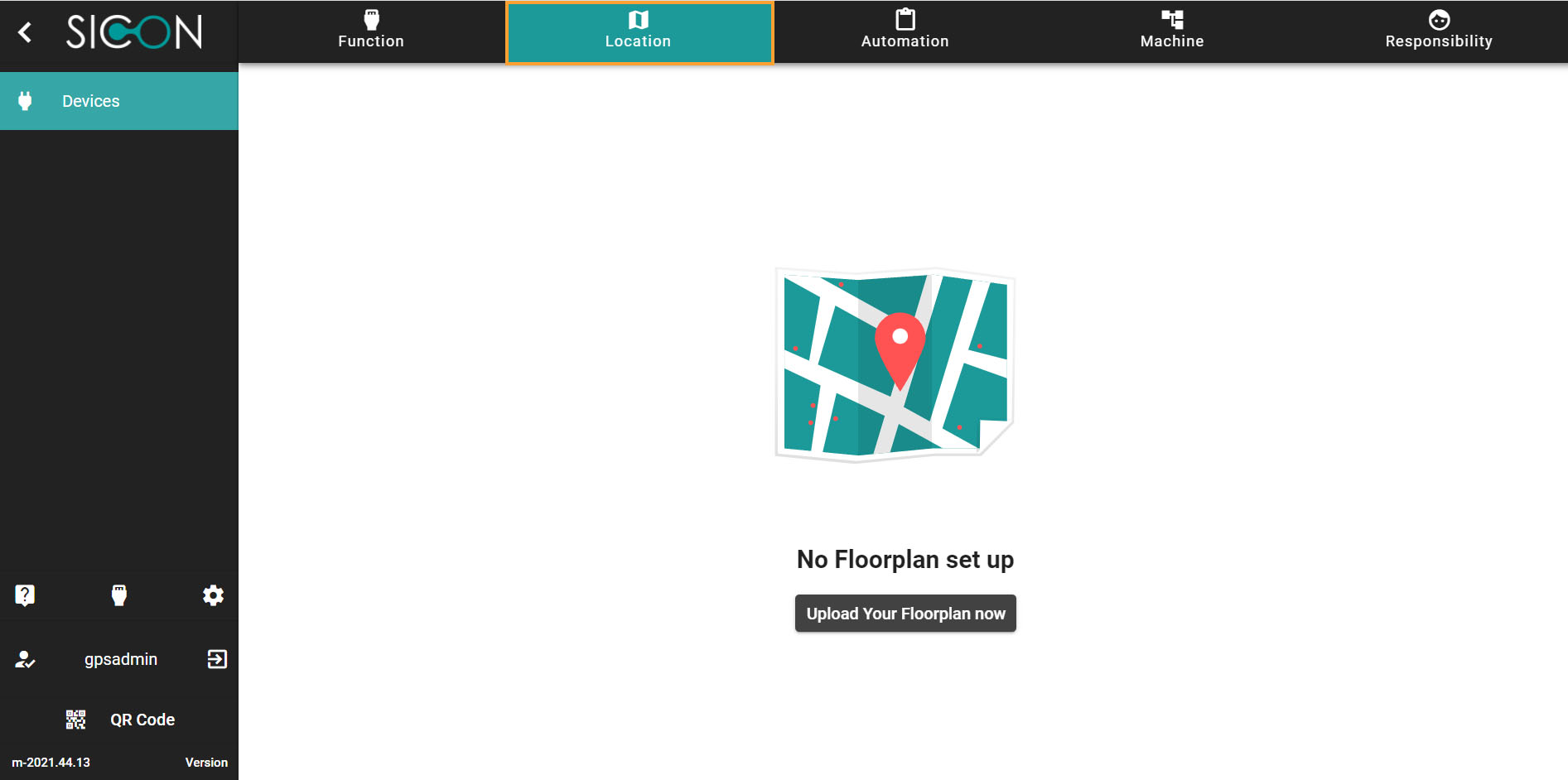
Next to the Function is the Location, You can setup the Floorplans by creating or uploading it. The Devices mapped to the floor plan.
Automation View
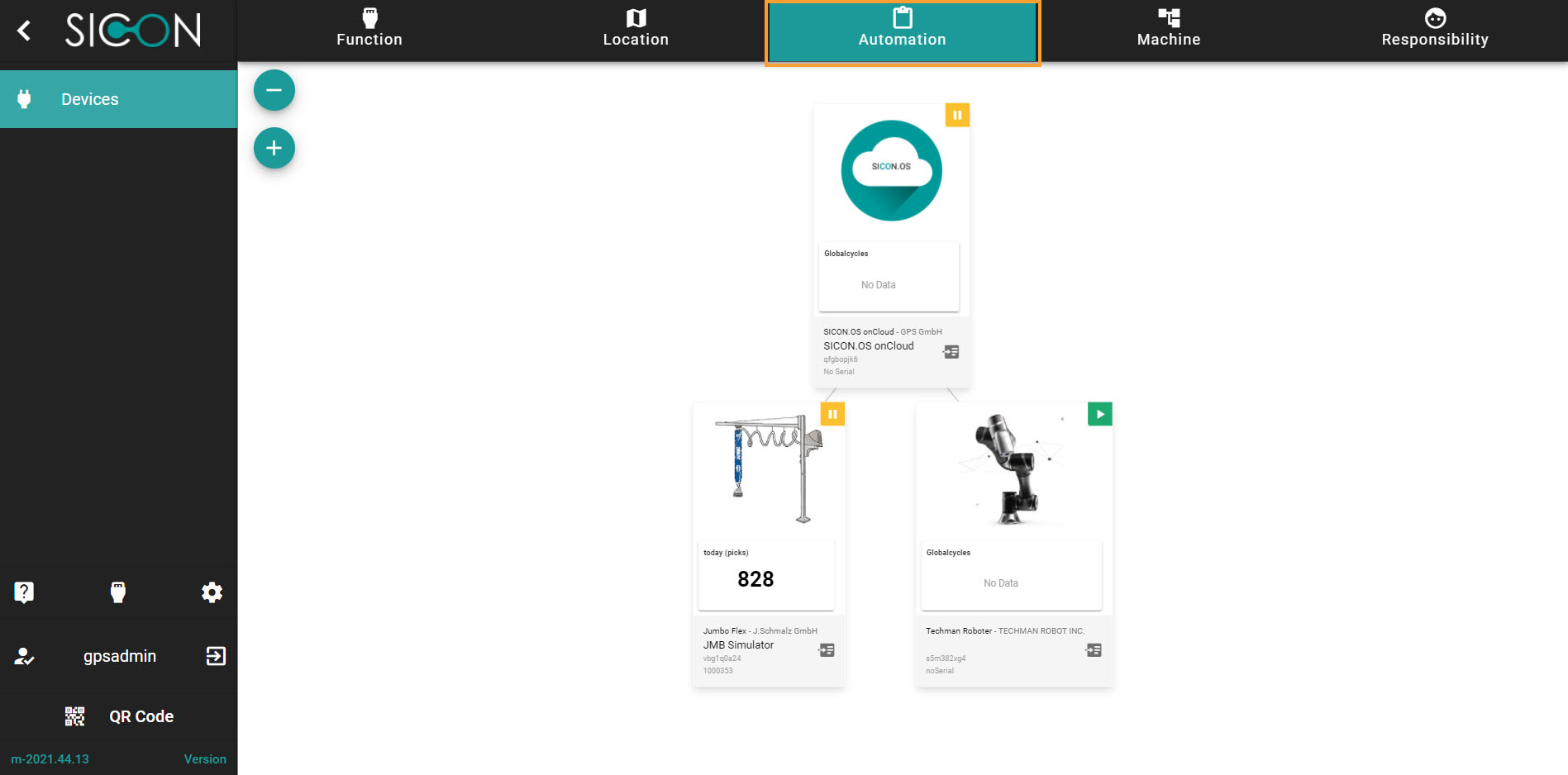
As we know, Automation describes a wide range of technologies that reduce human intervention in processes. In SICON.OS, you can find the devices in hierarchy view based upon the connection between parent child devices.
Machine View
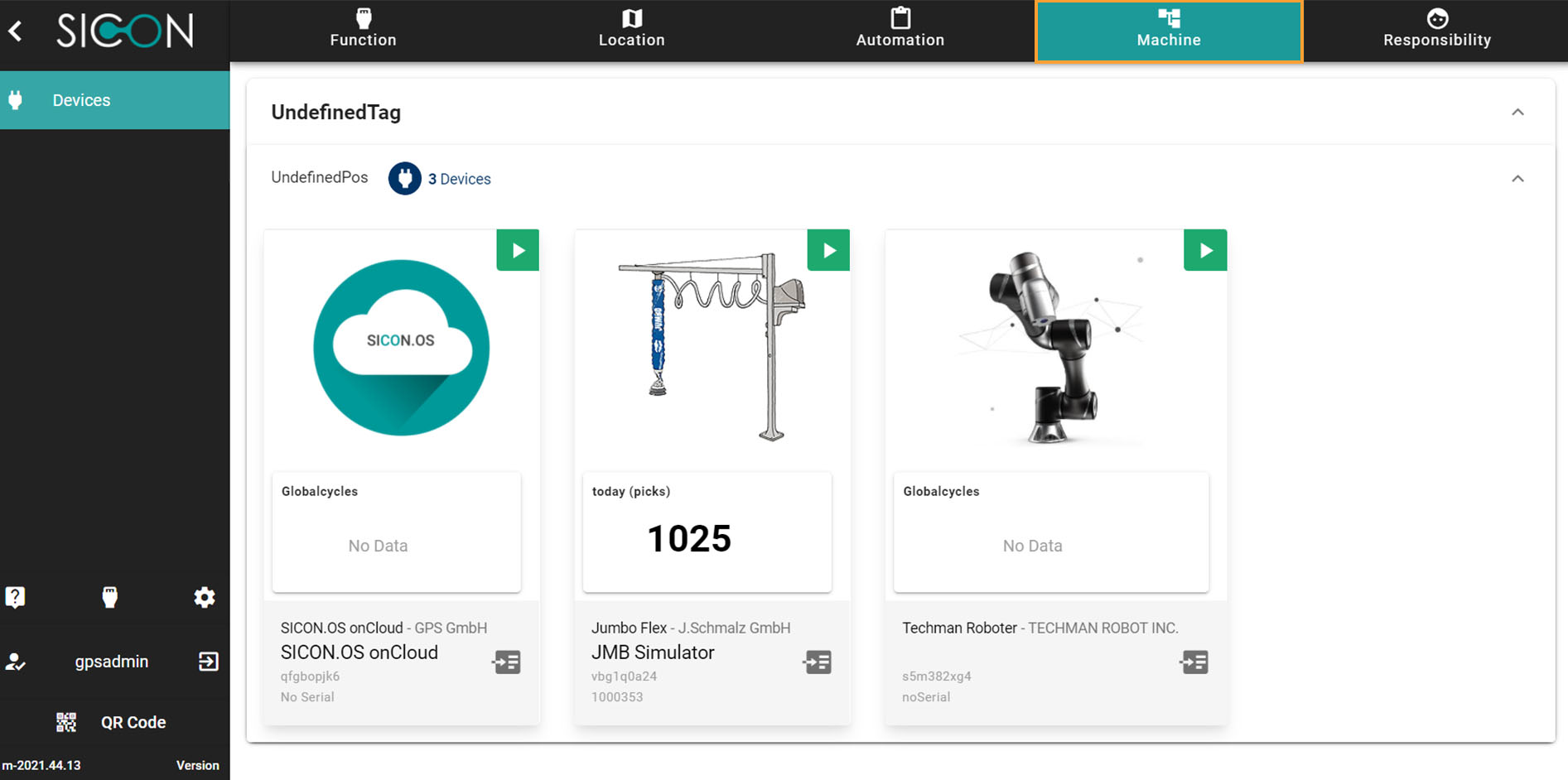
Here, Devices in grouped view based upon device location tag and Pos.
Responsibility
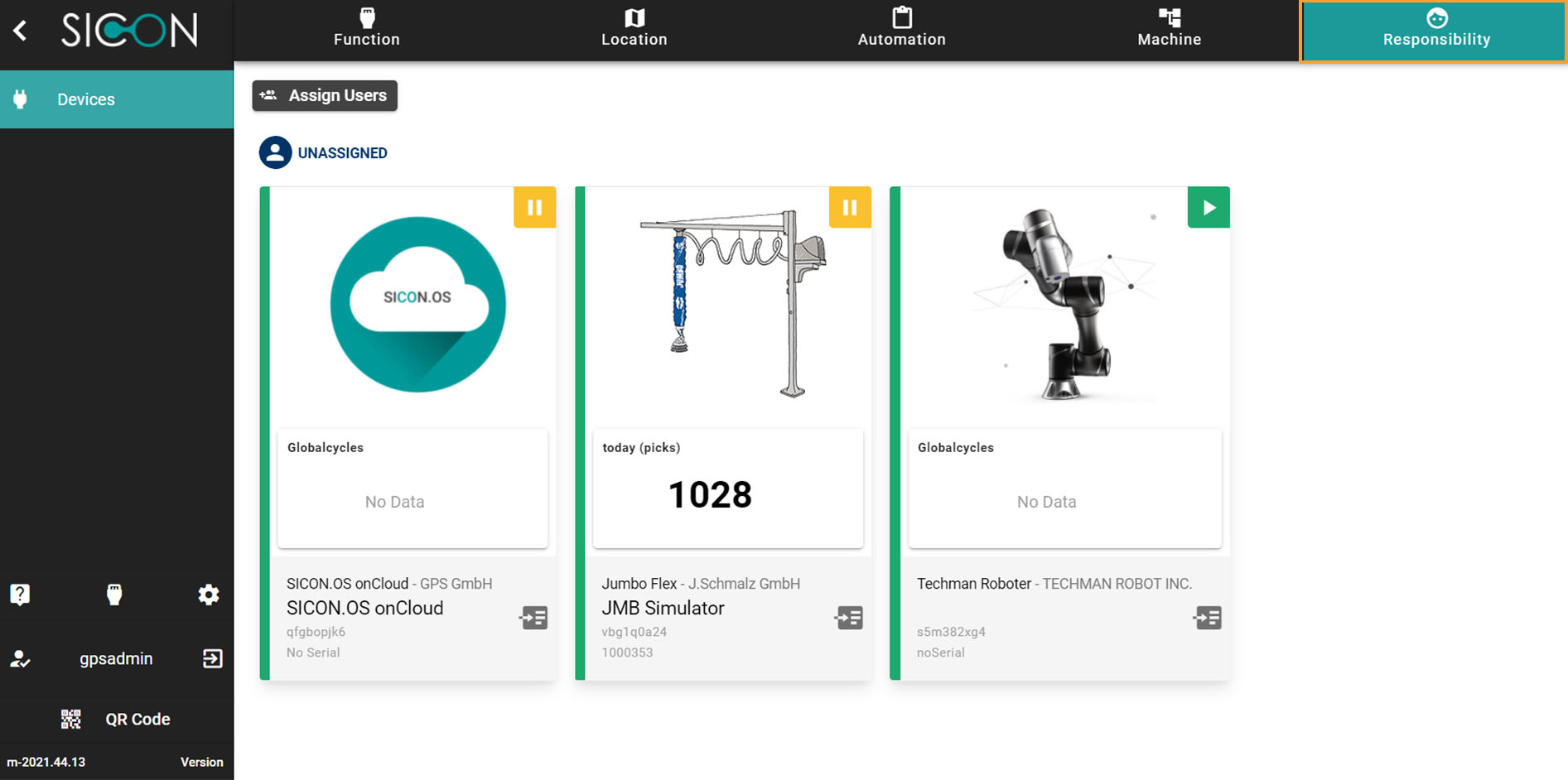
Devices in grouped view based upon the assigned users.
Sidebar Menu options
On the Left side panel, The Devices tab displays the generic dashboard with all devices information which are connected with SICON software.
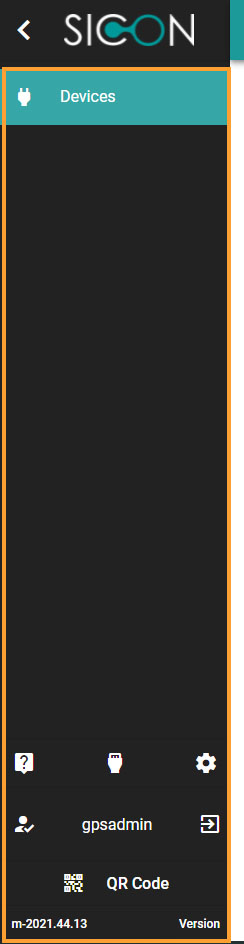
Beside Devices tabs, there are more option like SICON Help, Assets, Settings, Logout, SICON.OS QR-code scan and last but not the least is SICON.OS Version.
These are described below:
SICON Help
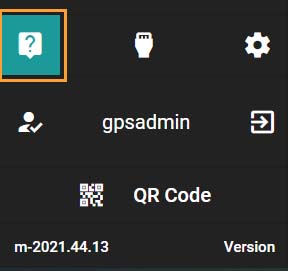
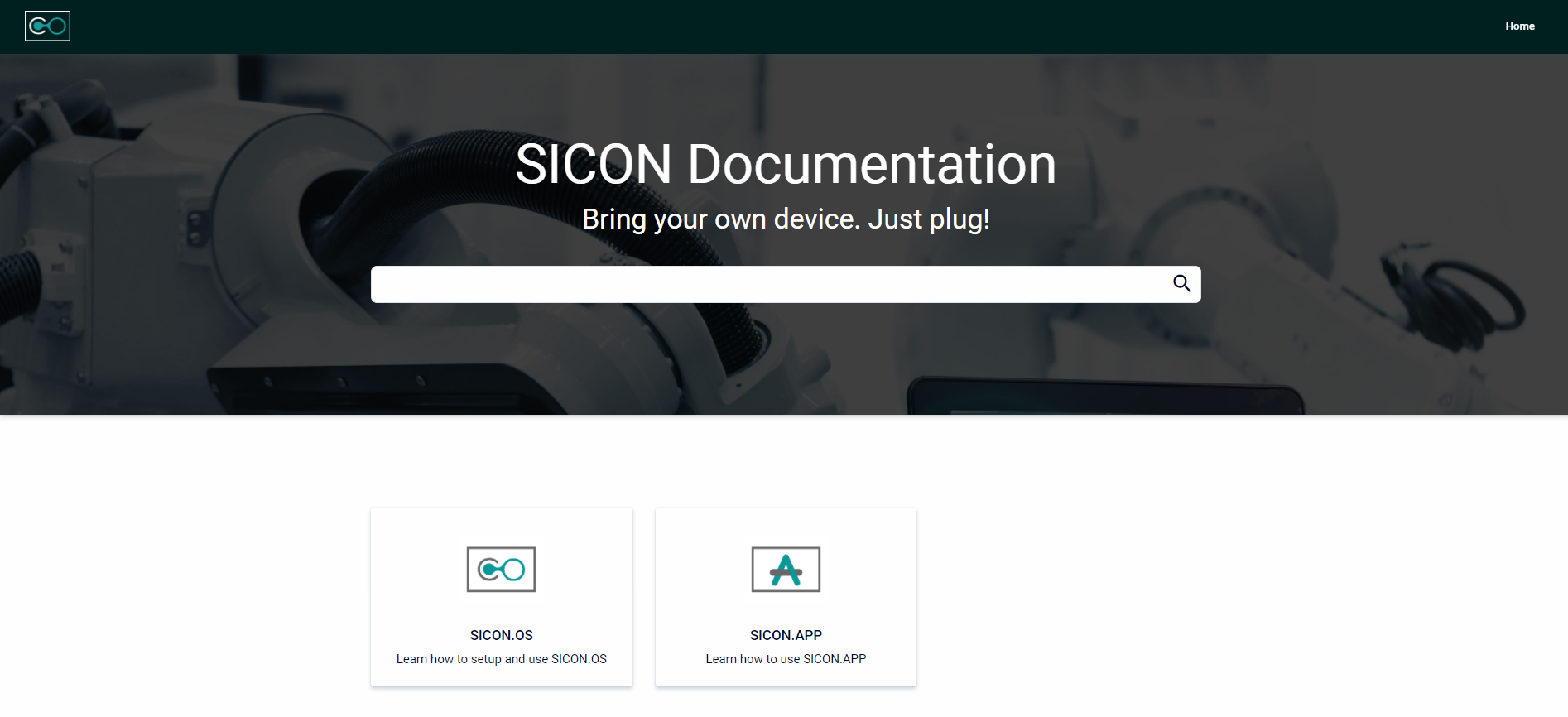
In SICON Documentation, You will find the detailed documents about the SICON.OS, SICON.APP, SICON.PLUG and SICON.ECO.
SICON Assets
On the Assets section, you can find the three menu options: Devices, Description and the Floorplans.
-
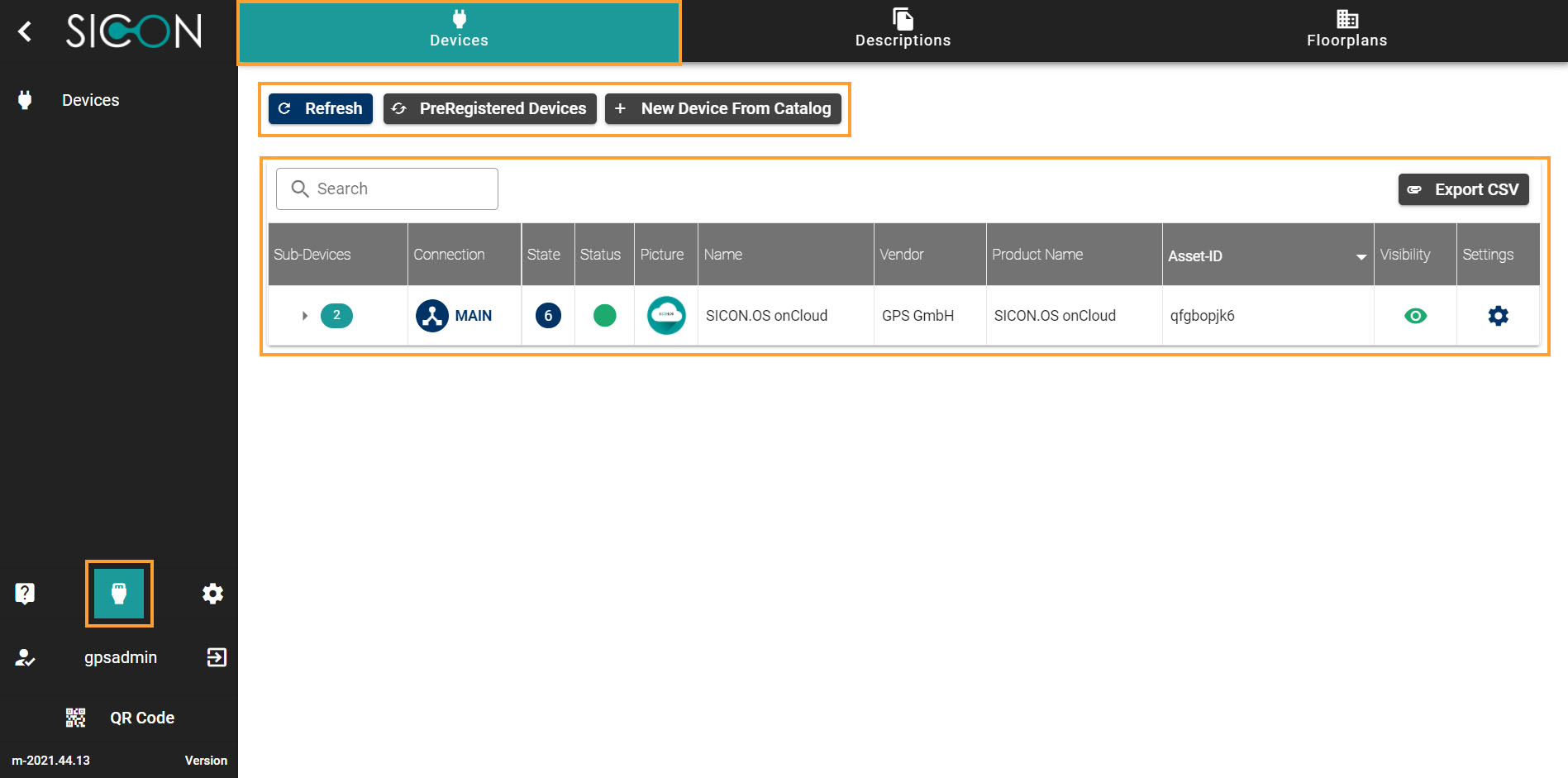
Under Devices, you can have the information about the Main Device or the Sub-Devices, PreRegistered Devices, add new Devices from catalog. The complete information is exhibit for the Device like mode of Connection, State, Status, Device image, name of the Cloud, Vendor name, Product name, Asset-ID, visibility and device setting.
-
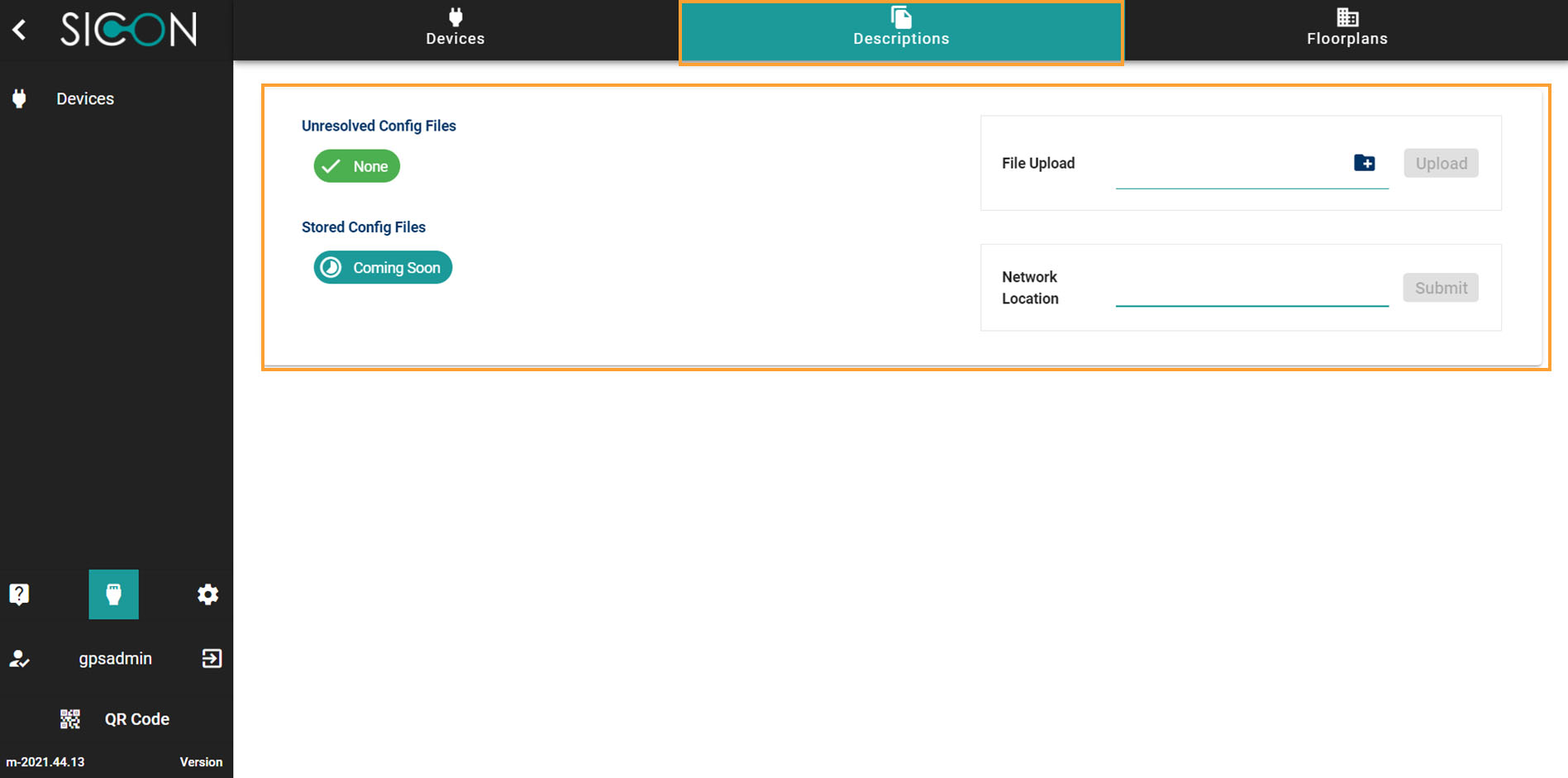
Under Description, you can have the access of config files, upload file and the network location.
-
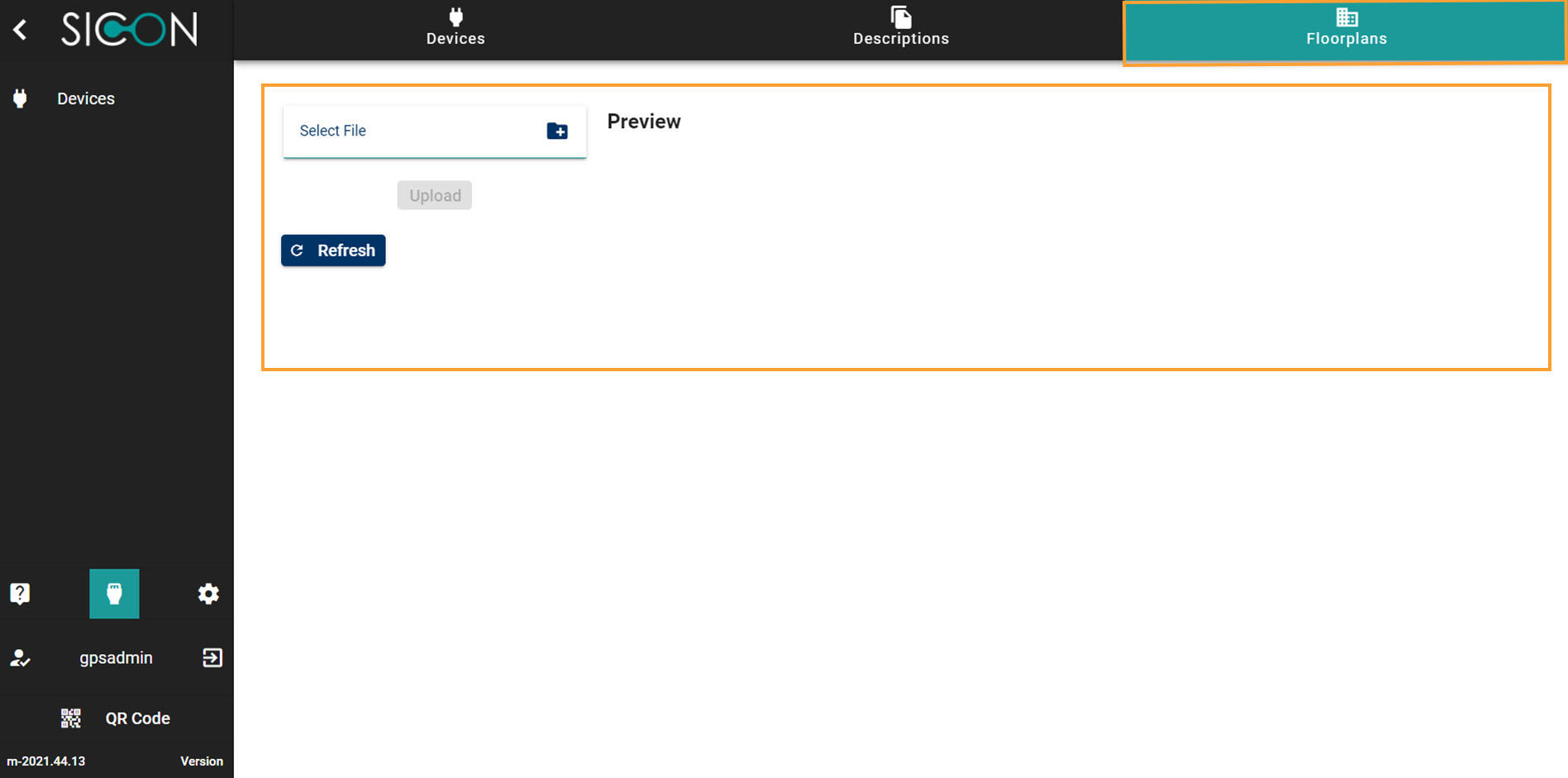
Under Floorplans, you can upload the Floorplans files from your computer.
Settings
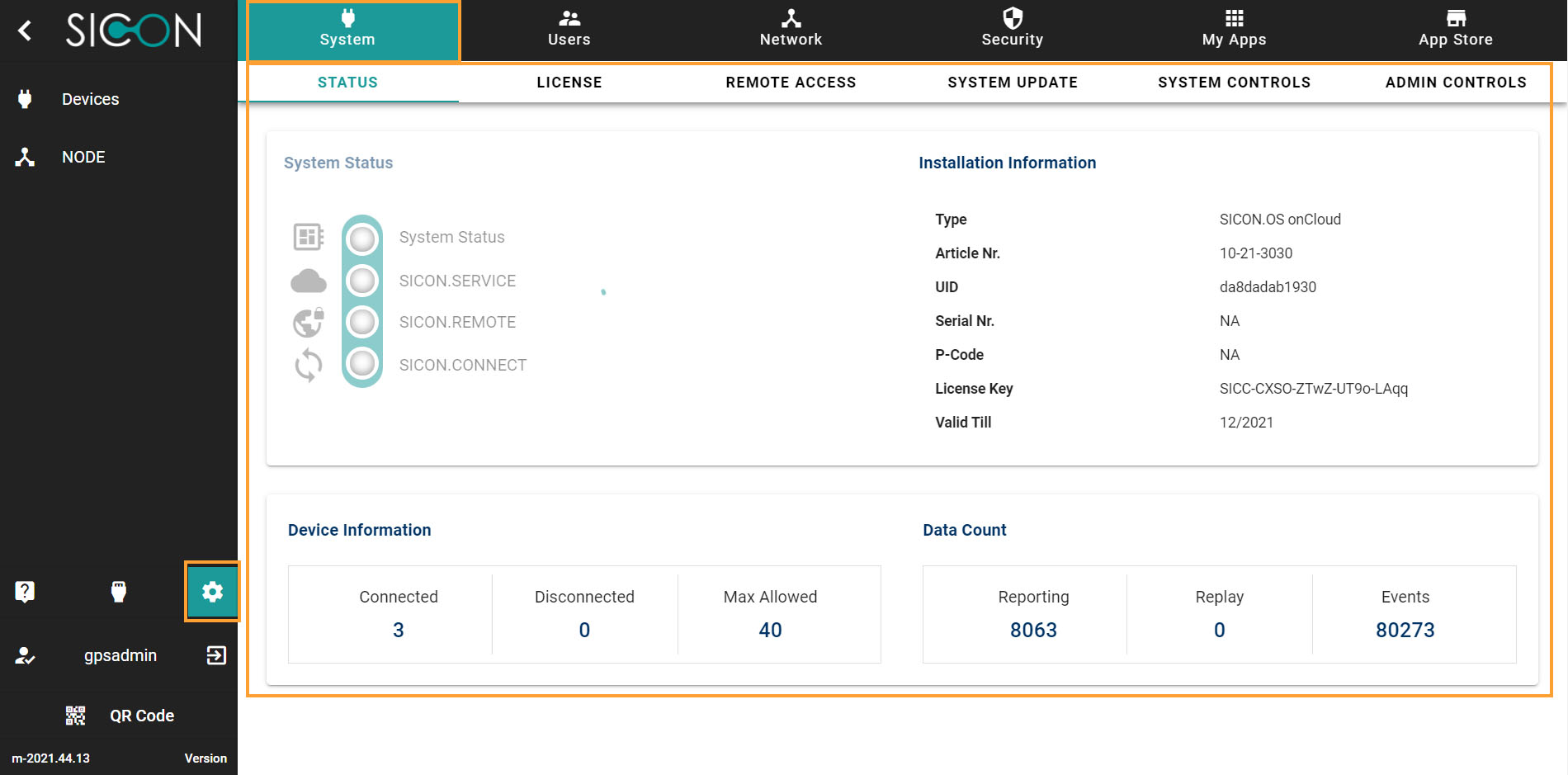
Click on the icon to go to the system settings page
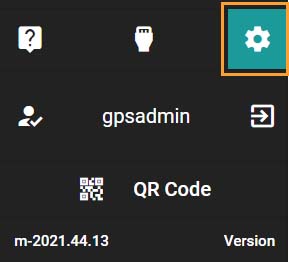
On system settings page, You will find the system Status, information about the Installation, Device, License, and other settings like Remote access, System update, System controls, and Admin controls on the sub-header menu.
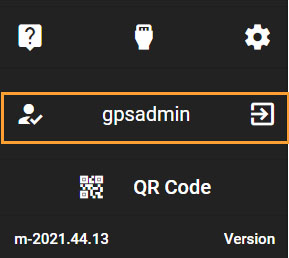
Log out option
Click on the icon to log out from the SICON.OS
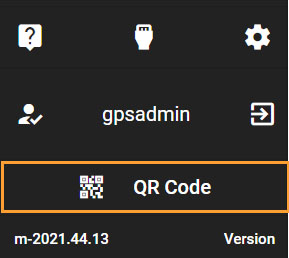
Scan the QR-Code
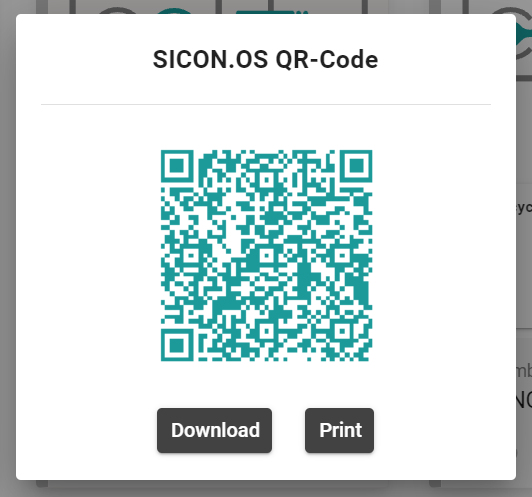
You can scan the SICON.OS QR-Code to get the device information. You can either download or Print also.
Download Shortcut
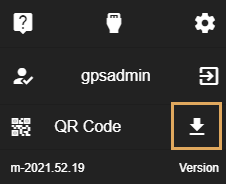
To get quick access to SICON.OS, a shortcut can be downloaded available for Windows.
You may need to confirm the download of the shortcut through your browser.

Version information
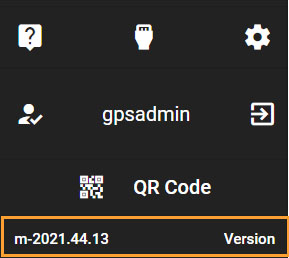
The SICON.OS version is shown at the bottom: