
Your Industrial Edge Gateway connection hub for Email, Microsoft Teams, Slack, and browser notifications.
The Reports & Notifications feature allows you to receive information from your industrial devices without switching between multiple applications. Notifications and reports can be delivered directly to your email, collaboration tools, or accessed through your browser.
After completing the setup using the SICON.Toolbox App, you can configure the gateway to automatically send device status updates, alerts, and reports to your preferred communication platform.
Overview
Managing industrial device communications across multiple systems can quickly become complex. Important information may be scattered across dashboards, monitoring tools, and logs.
The Reports & Notifications feature centralizes device communication by automatically distributing updates to the platforms your team already uses.
Instead of constantly monitoring device dashboards, your team receives automated notifications whenever important events occur.
This ensures:
-
Faster responses to issues
-
Improved operational visibility
-
Better collaboration across teams
Key Features
-
Integrated Connectivity
Connect devices to communication platforms such as Email and Microsoft Teams. -
Real-Time Notifications
Receive instant alerts about device status and performance to detect issues early. -
Custom Alerts
Configure notifications for events such as system alerts, device errors, maintenance reminders, or status updates. -
Remote Access
Access notifications and device information from anywhere. -
Easy Configuration
Quickly set up reporting by selecting a notification platform, defining triggers, and assigning recipients.
Benefits
-
Better visibility of device status
-
Faster response to events
-
Reduced manual monitoring
-
Centralized communication
-
Improved operational efficiency
Reports & Notifications App Configuration
Steps to configure the Reports & Notifications app settings:
-
Log in to your SICON.OS and open the System management .
-
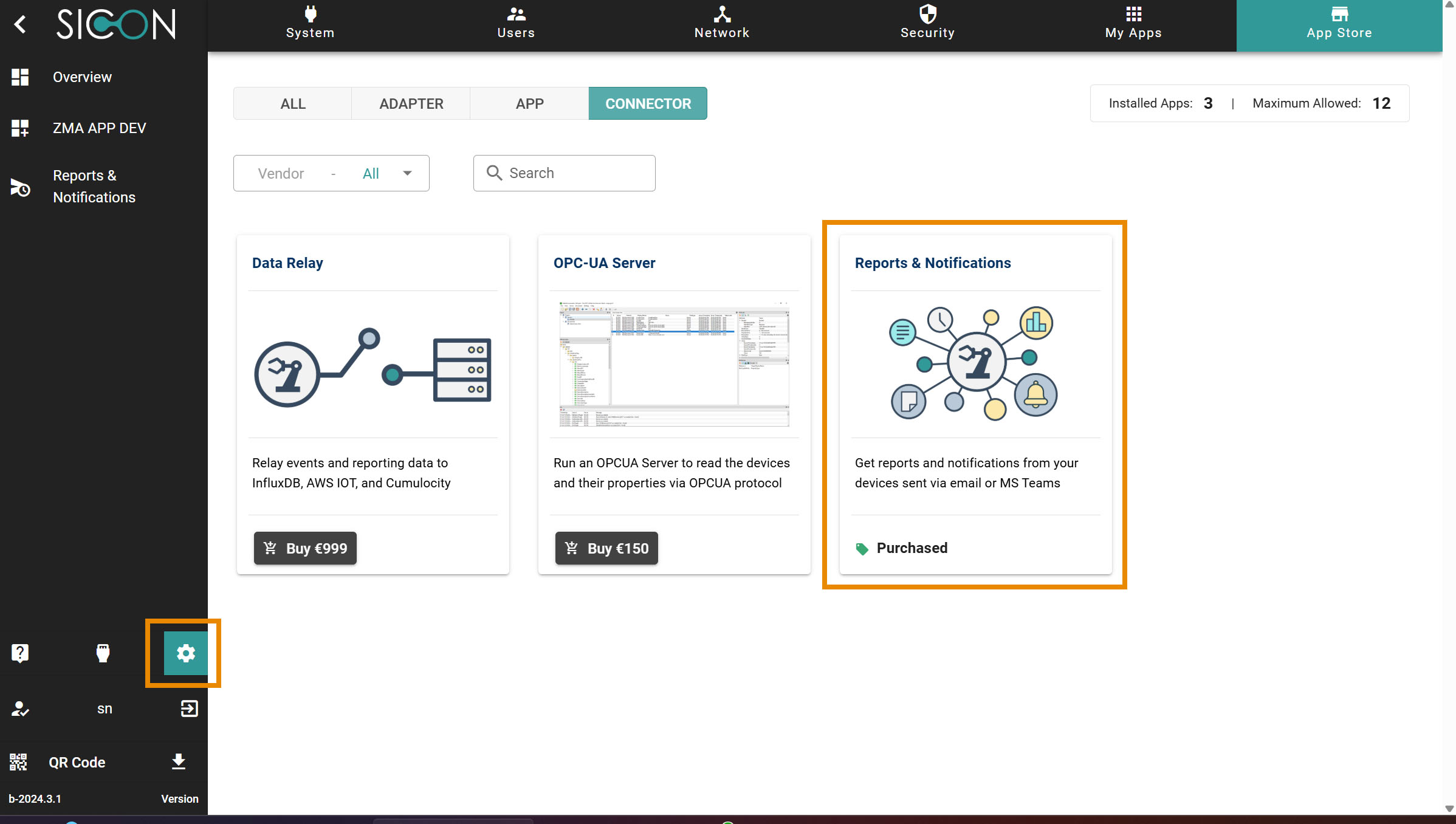
Now open the App store and search for Reports & Notification app
-
Buy and Install the Reports & Notification app.
-
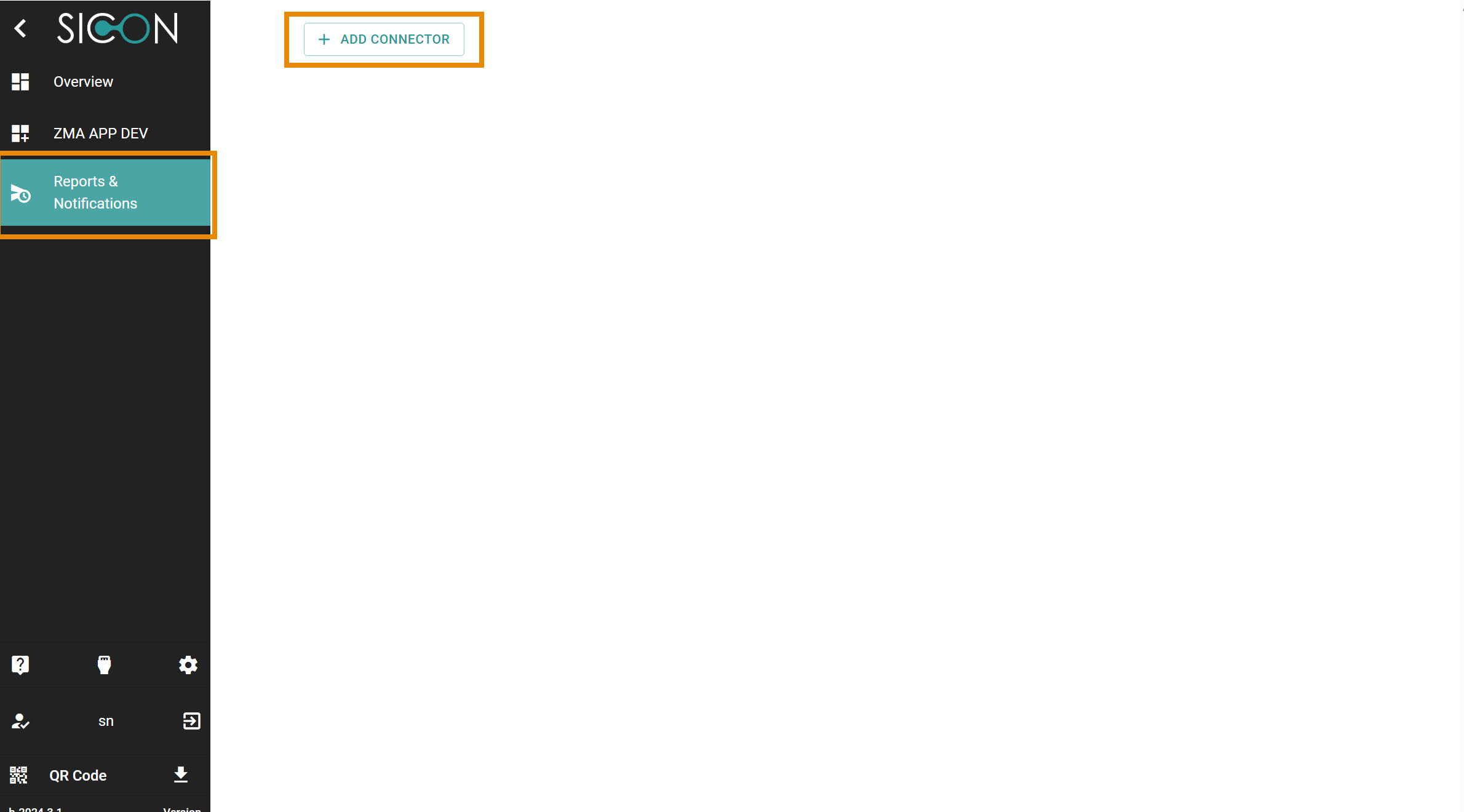
Go to the Sidebar menu. Click & open the Reports & Notification app.
-
Clico on Add Connector to add the connector.
-
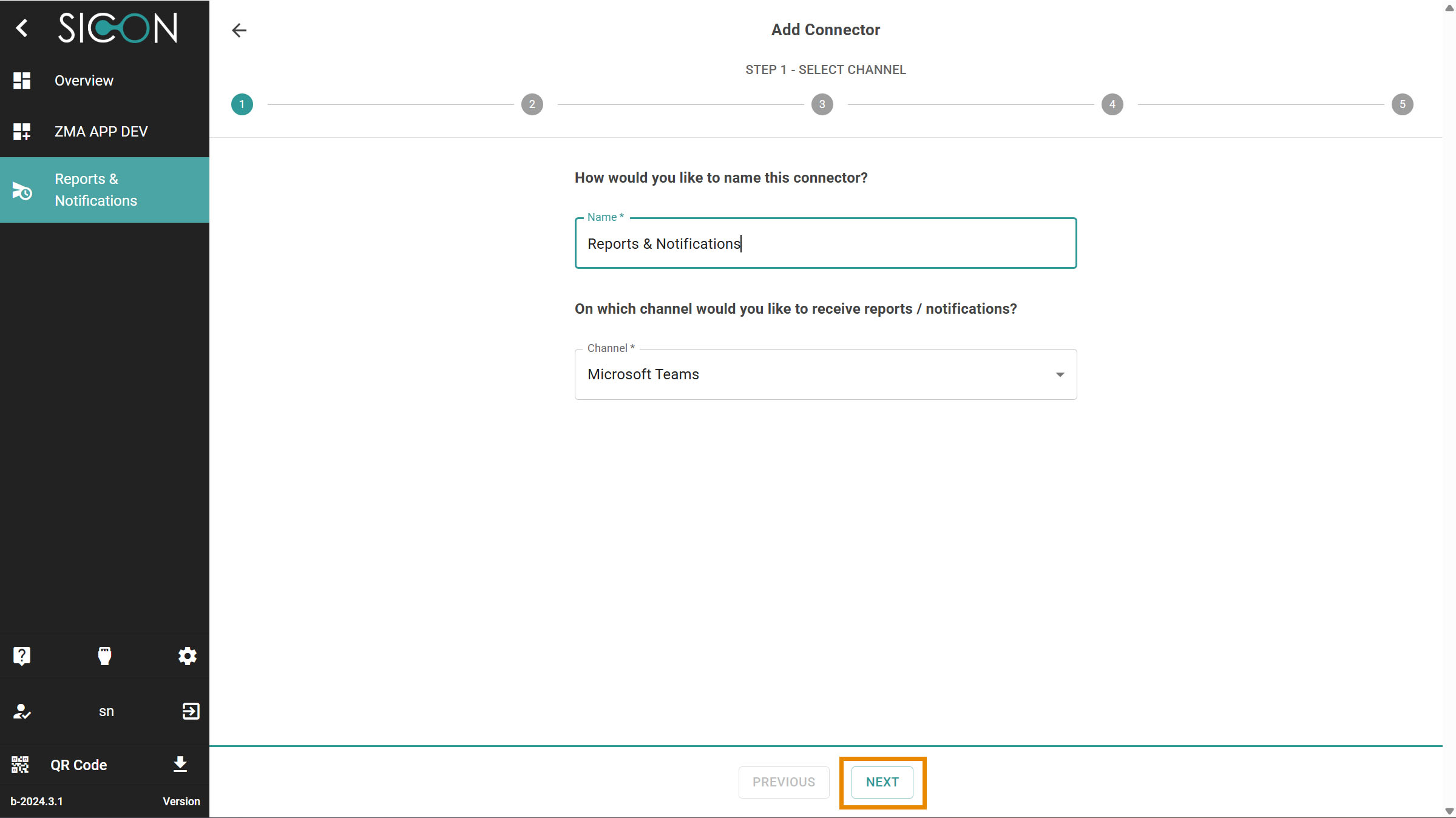
Follow the first step: Select Channel to give the name of the connector & select the channel to receive the reports & Notification.
-
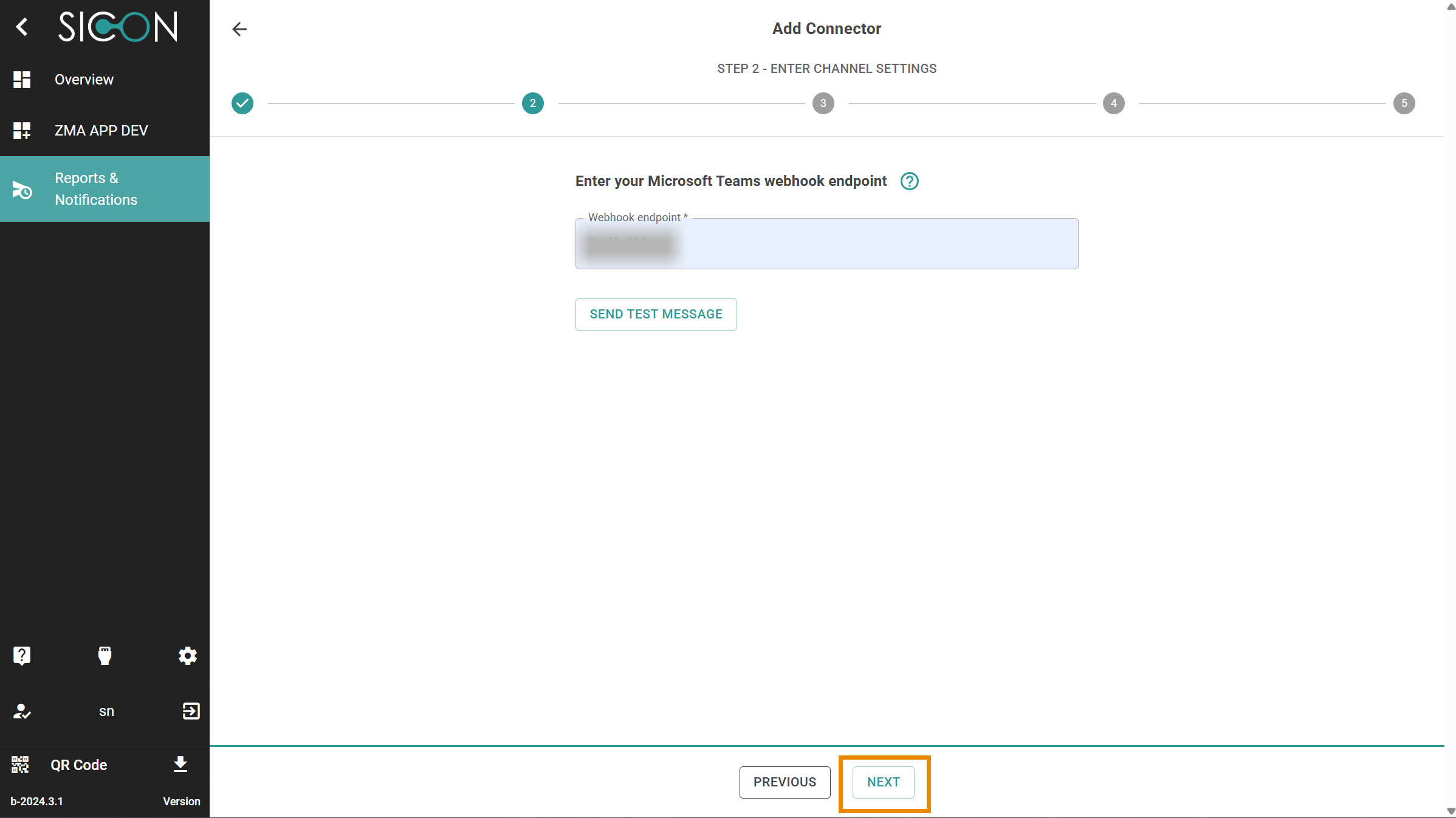
Step 2: Enter Channel Settings and click on Next.
-
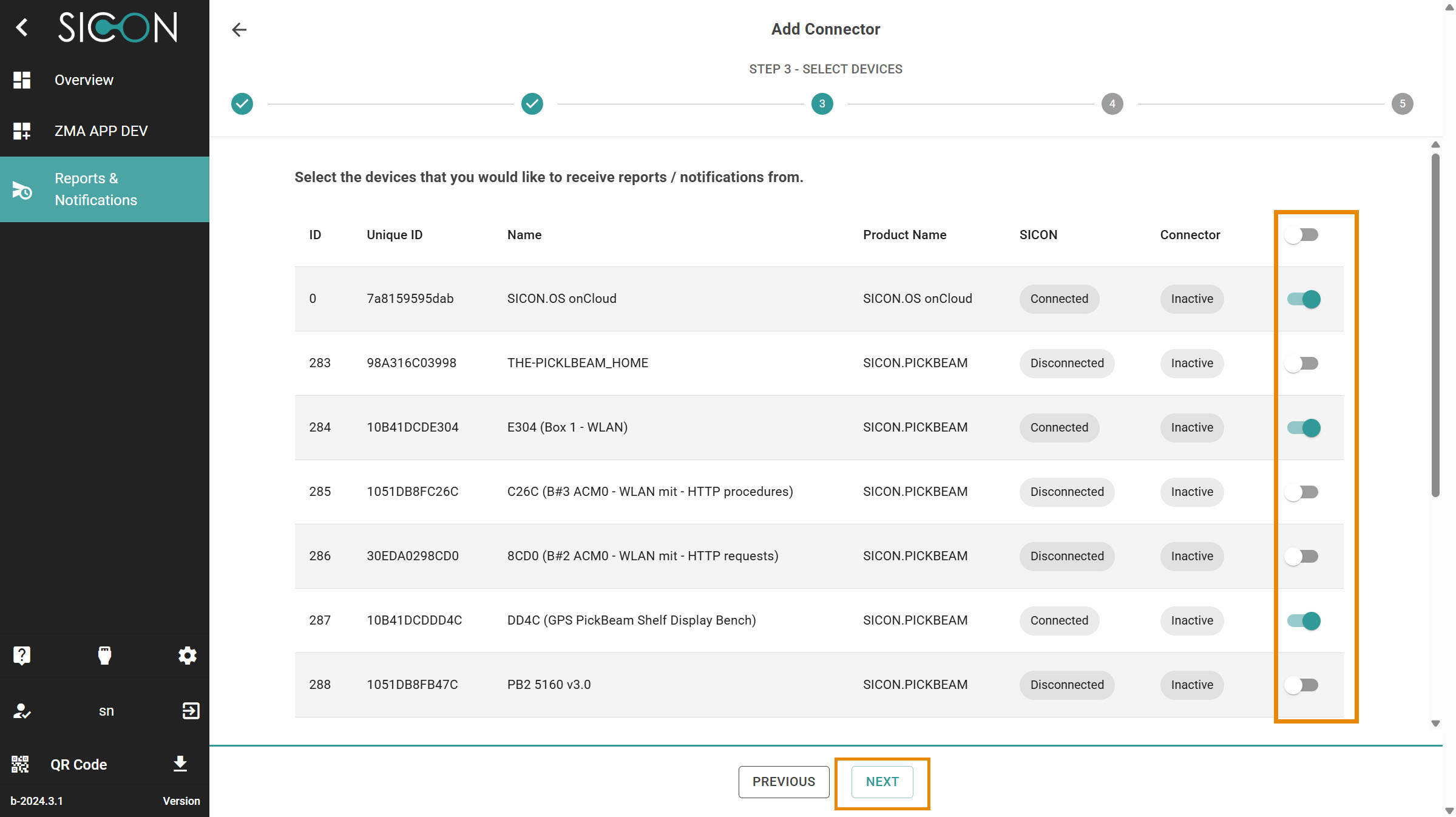
Step 3: Select Devices and click on Next.
-
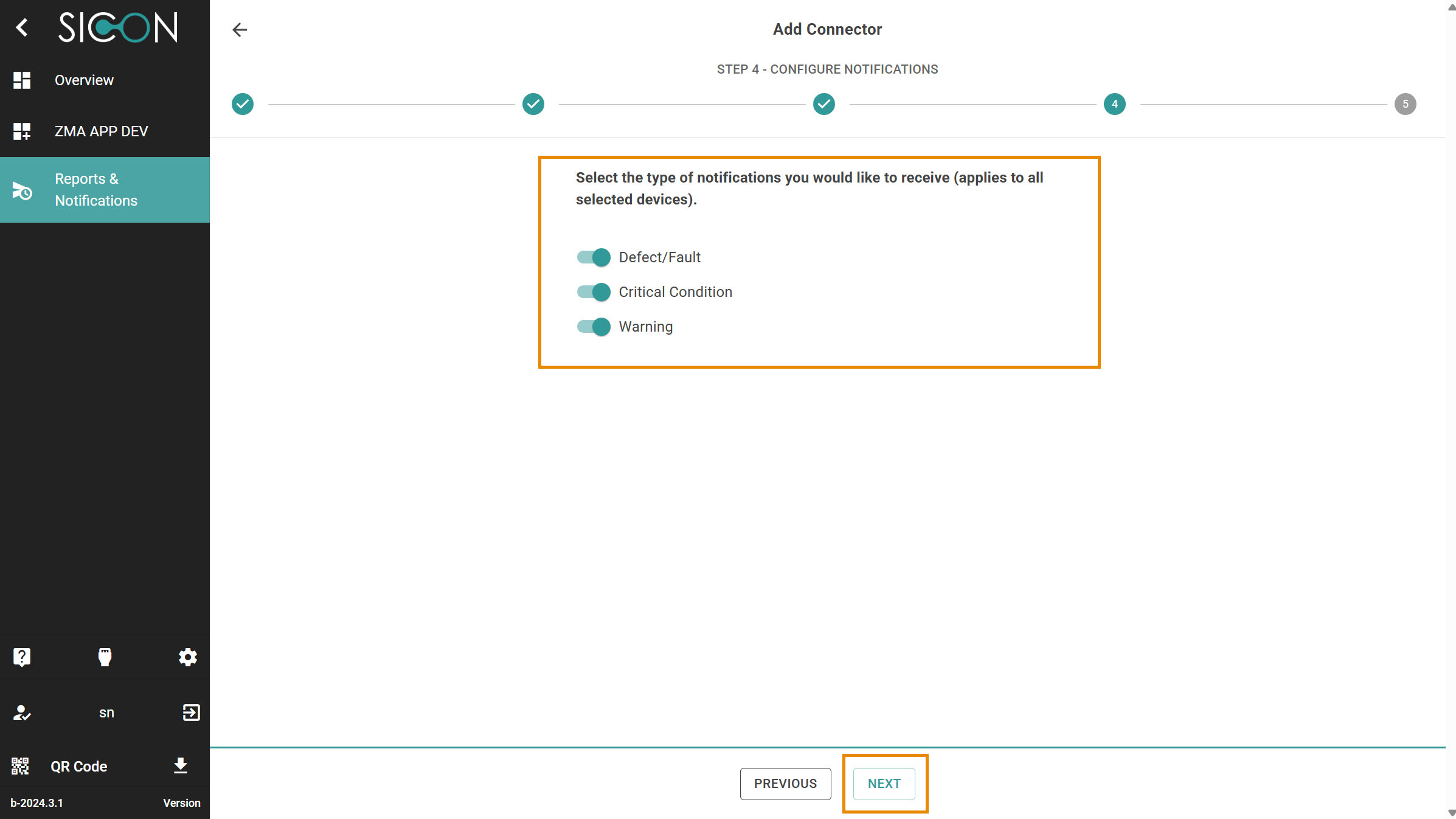
Step 4: Configure Notifications and click on Next.
-
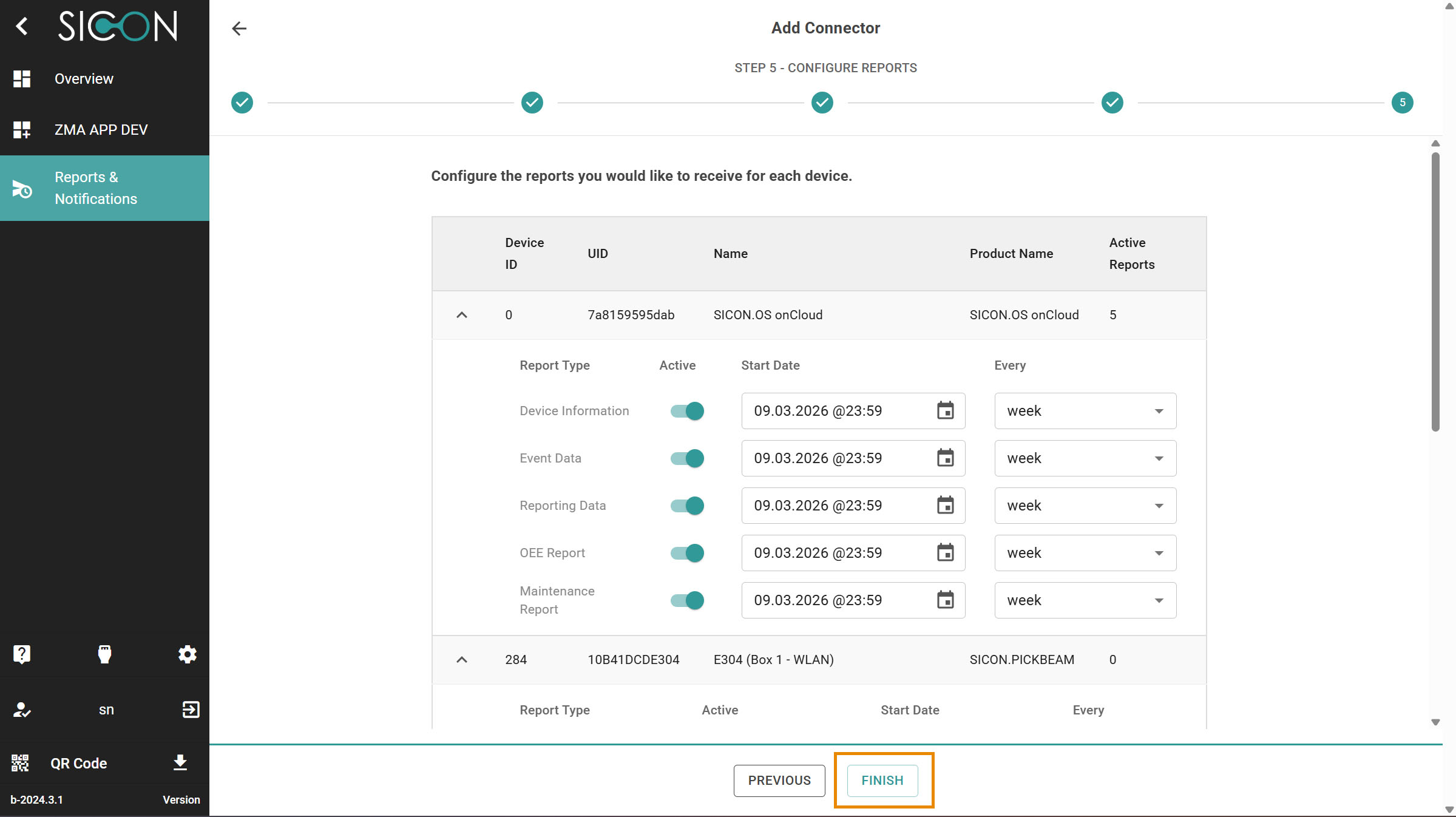
Step 5: Configure Reports. You can schedule the Date, time and week settings for the reports also. Click on Finish .
-
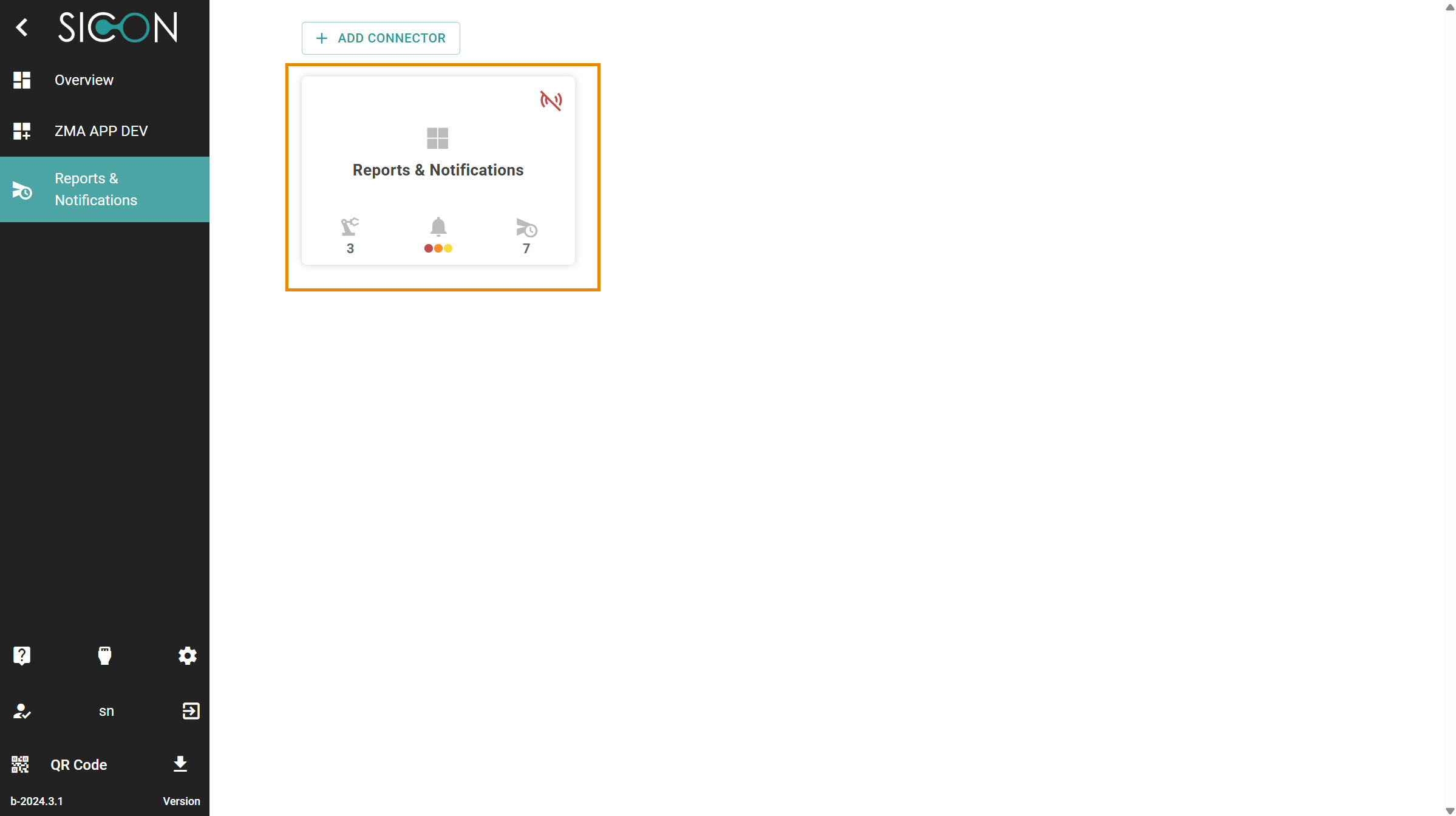
Now the Reports & Notifications has been configure. You will see the on the dashboard the Reports & Notifications card.
-
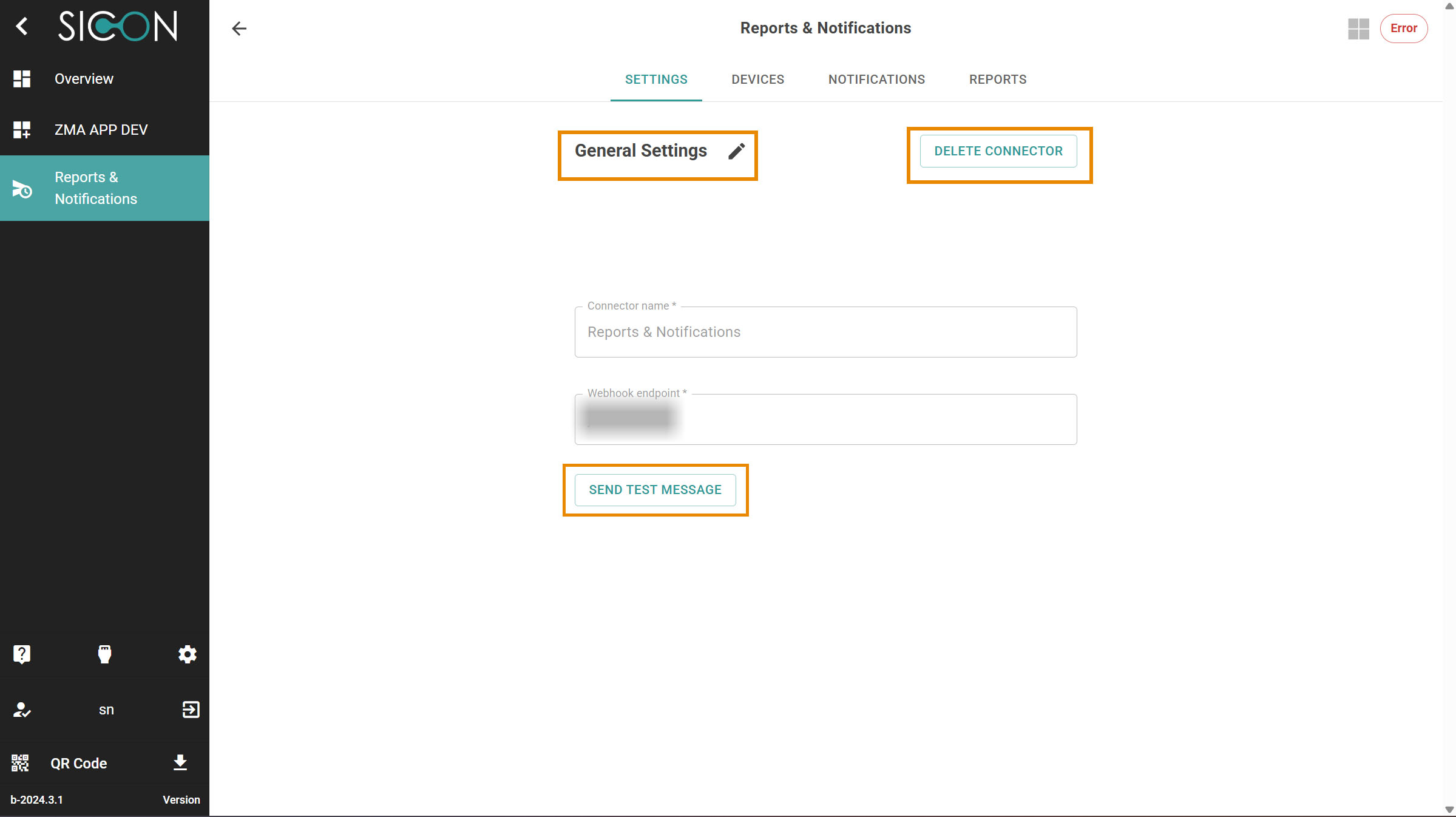
Now open the card & here you will find the settings for the app.
-
Settings
-
Devices
-
Notifications
-
Reports
-
Next Steps
After enabling Reports & Notifications, you can further enhance your industrial edge environment by:
-
Integrating additional applications
-
Automating operational workflows
-
Using APIs for advanced data integration