
This is the general document for the SICON.OS Installation (or general setup).
For installing the SICON.OS, you must have either the SICON.OS P10 box or the SICON.OS VA.
To follow their individual process, please navigate to the documents links given below:
To Install our SICON.OS Software, please follow the steps given below:
1. Pre-Installation Process
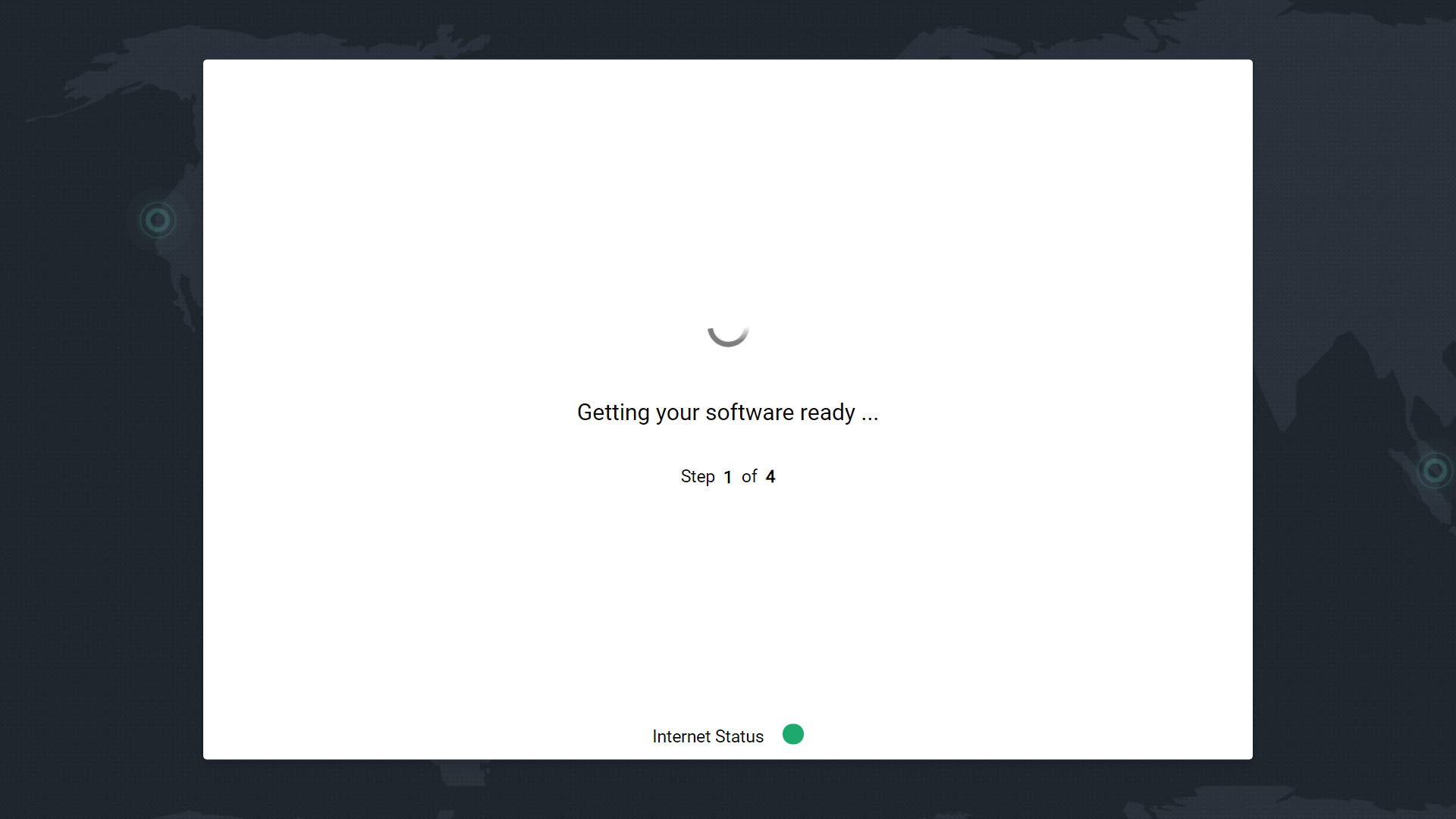
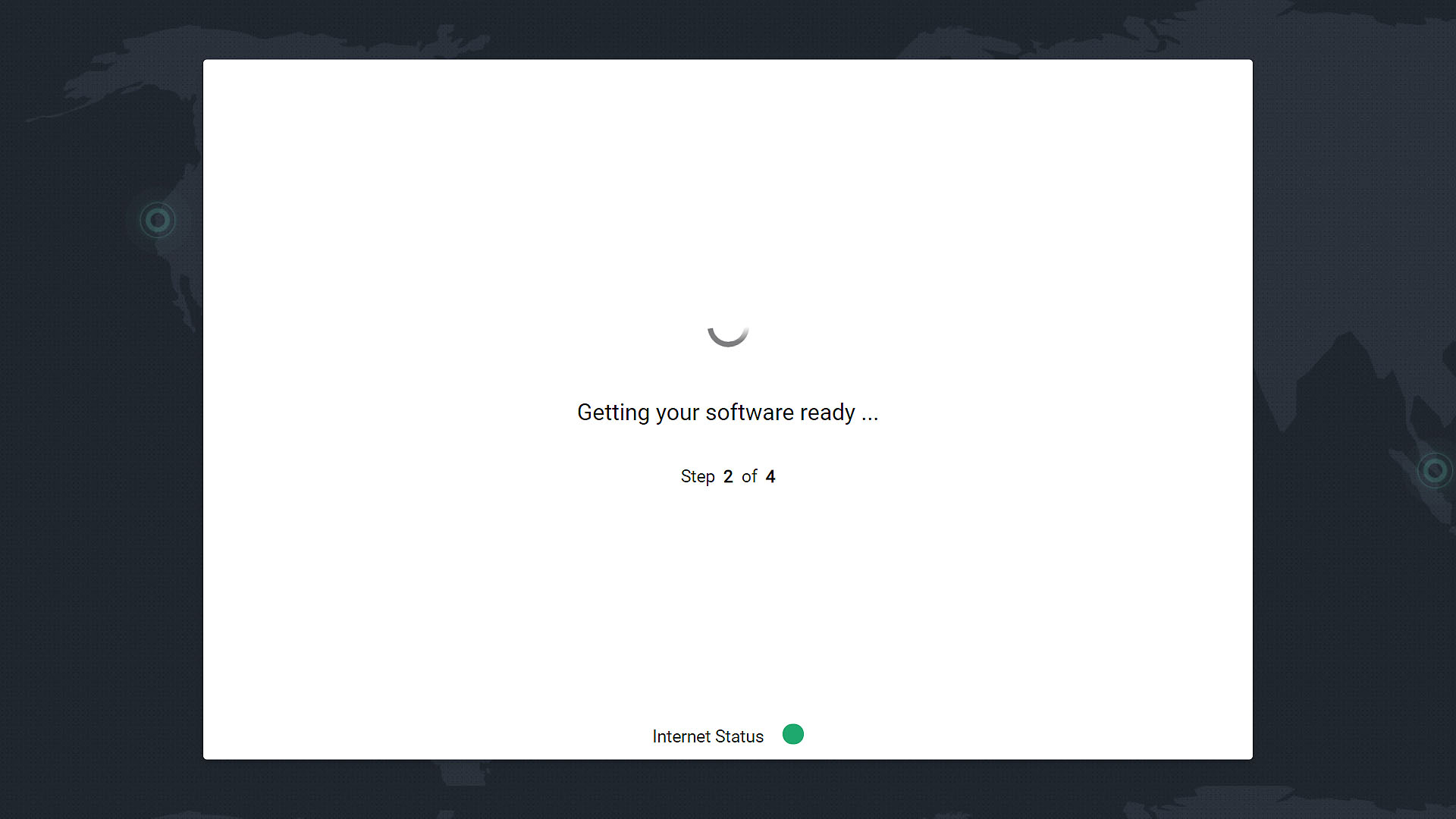
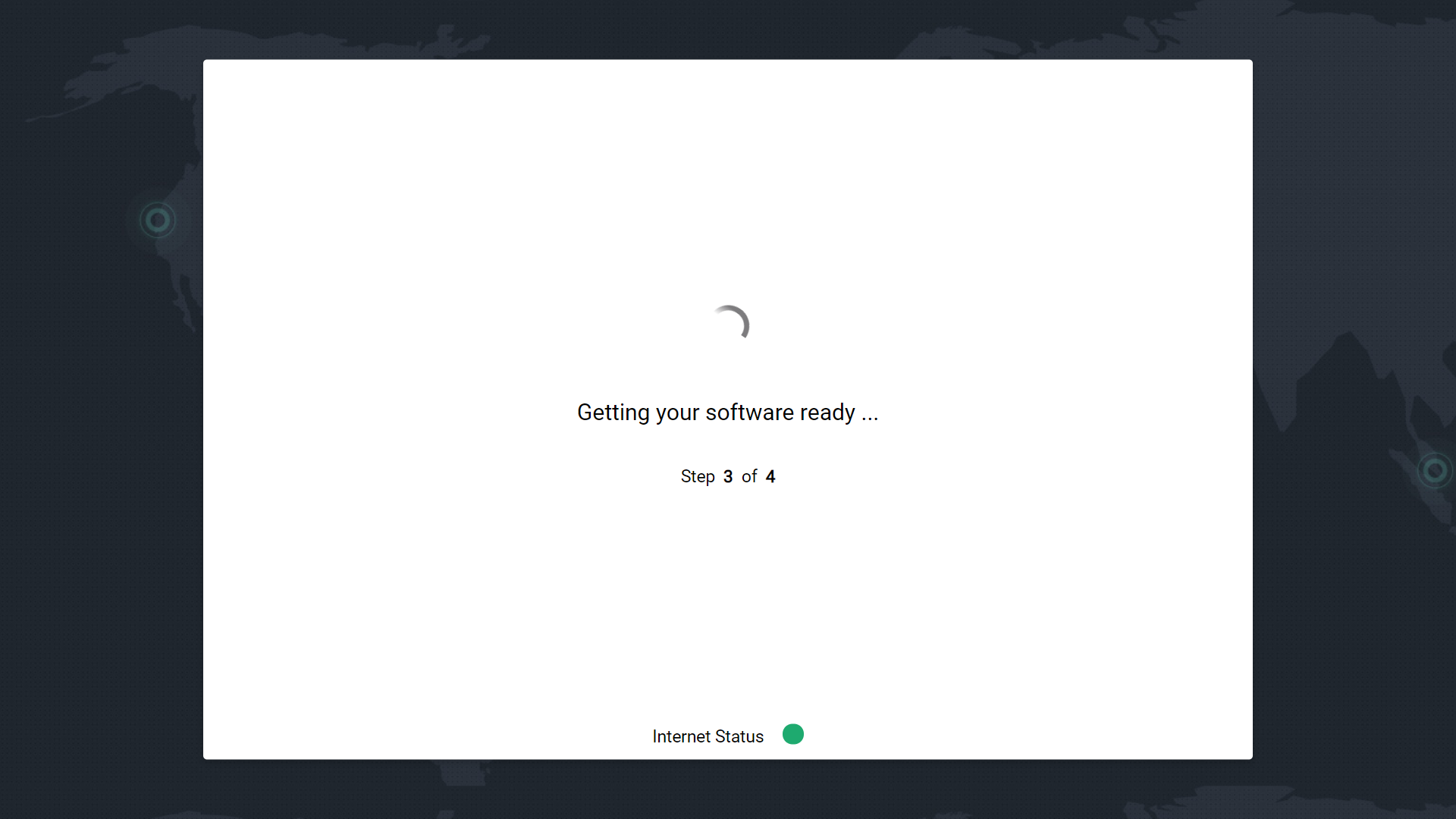
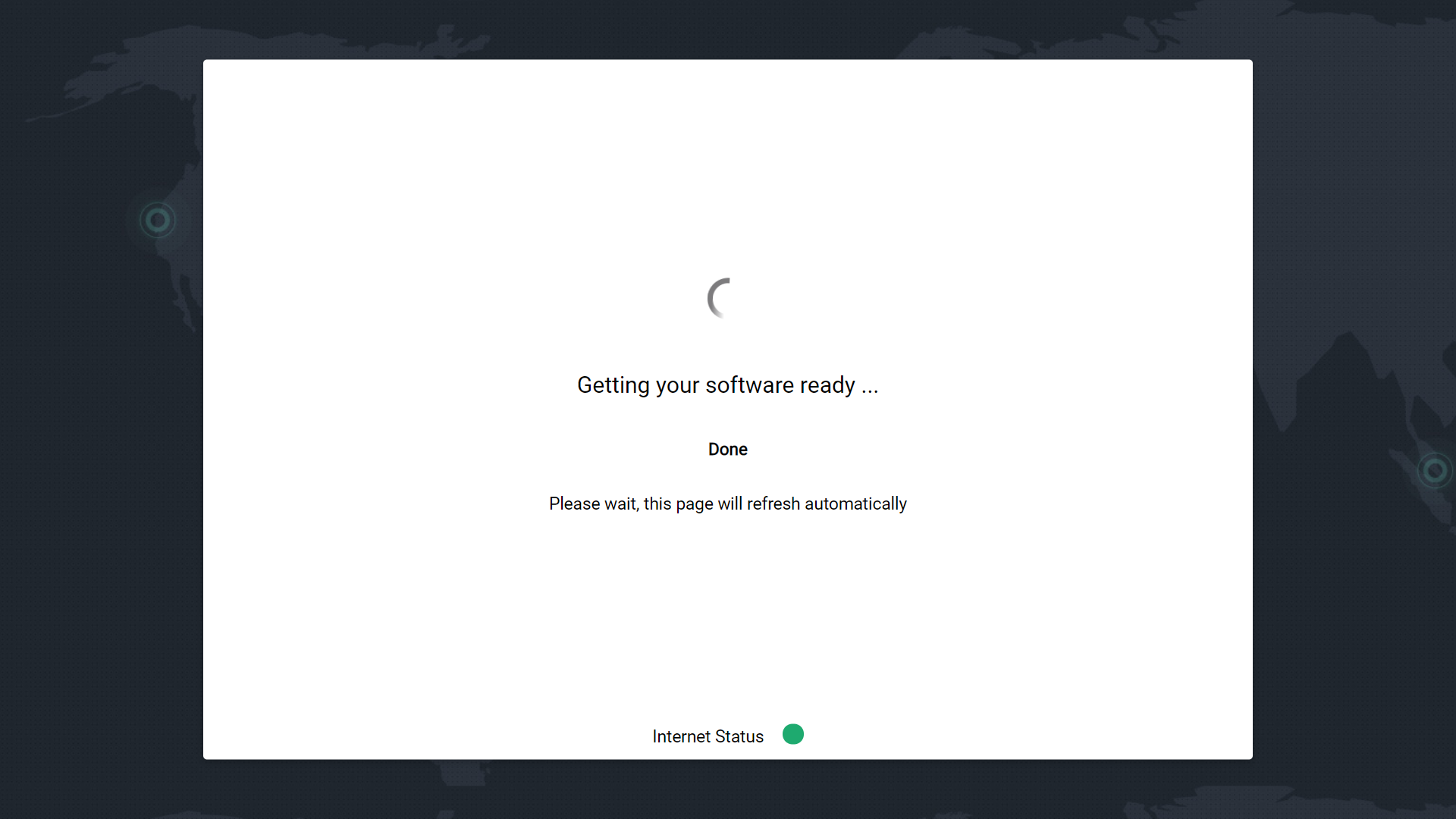
SICON.OS is getting ready for installation
-
Step 1-of-4
-
Step 2-of-4
-
Step 3-of-4
-
Getting your software ready
2. Configure the SICON.OS
Click on "Get Started"
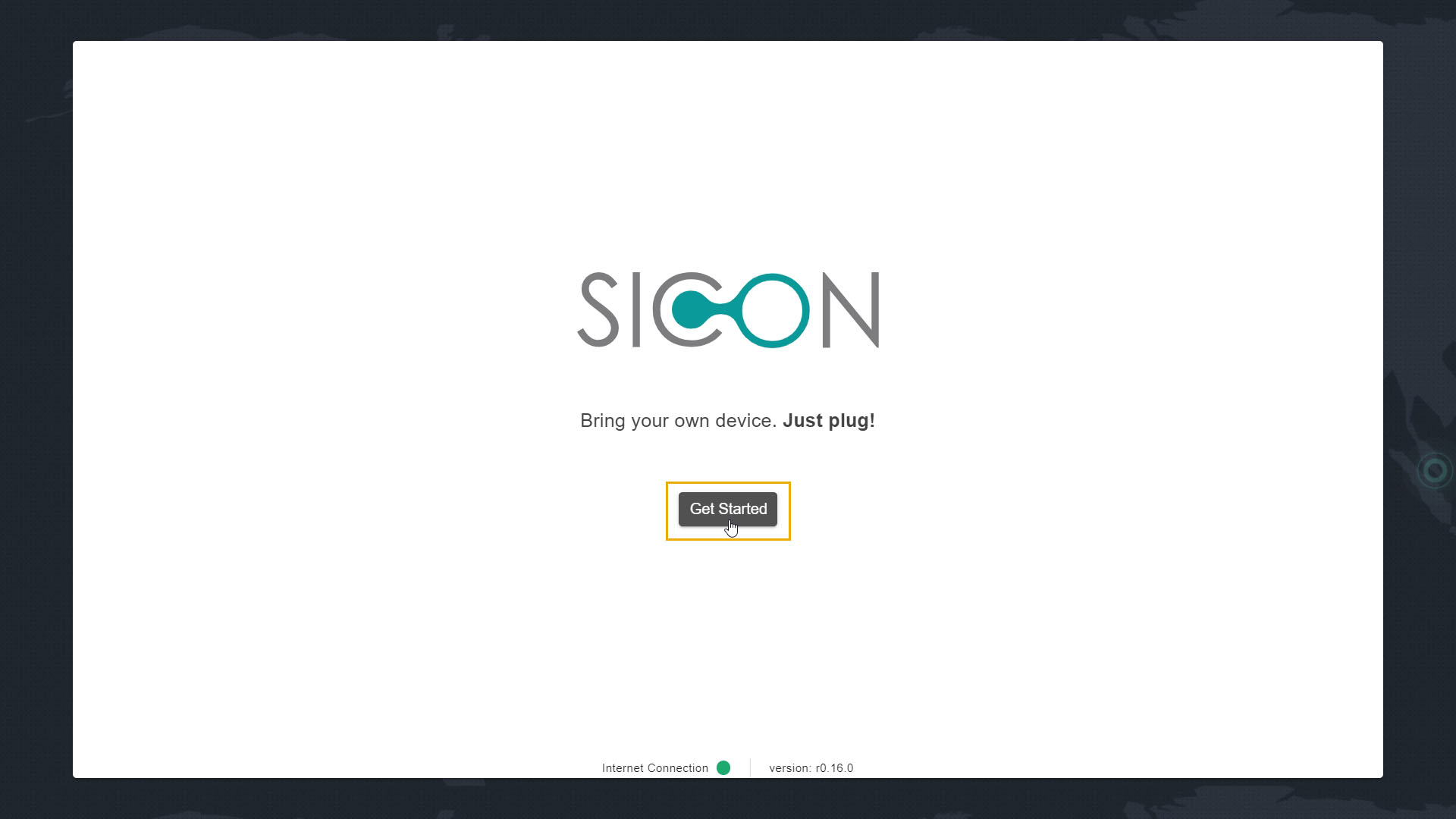
Configuration of the SICON.OS VA completes in four Steps:
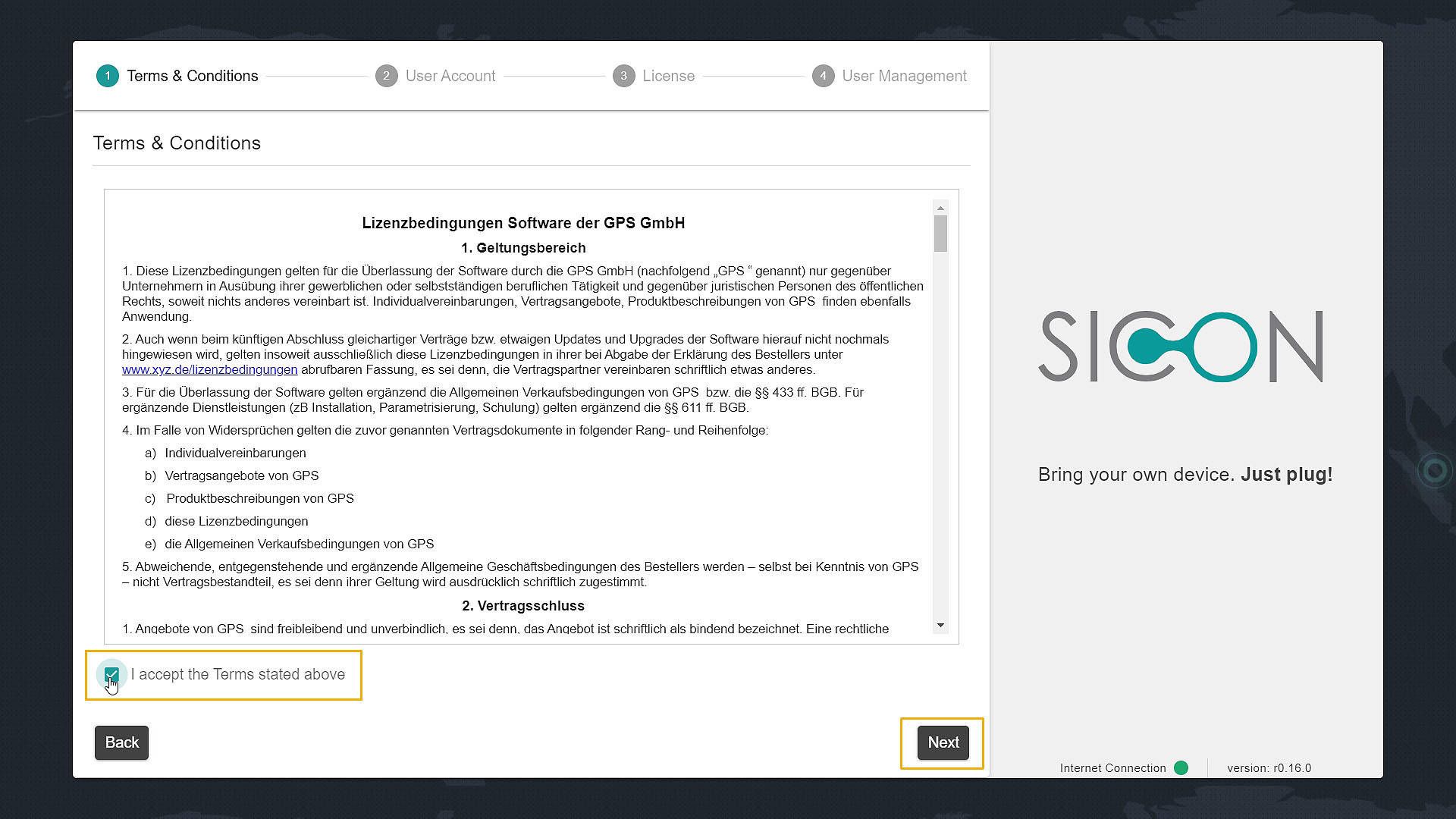
2.1 : Accept Terms & Conditions
-
Carefully read the Terms & Conditions for the Software installation
-
Check-on the option to accept the "Terms stated above"
-
Then click on "Next" to continue.
2.2 : User Account
-
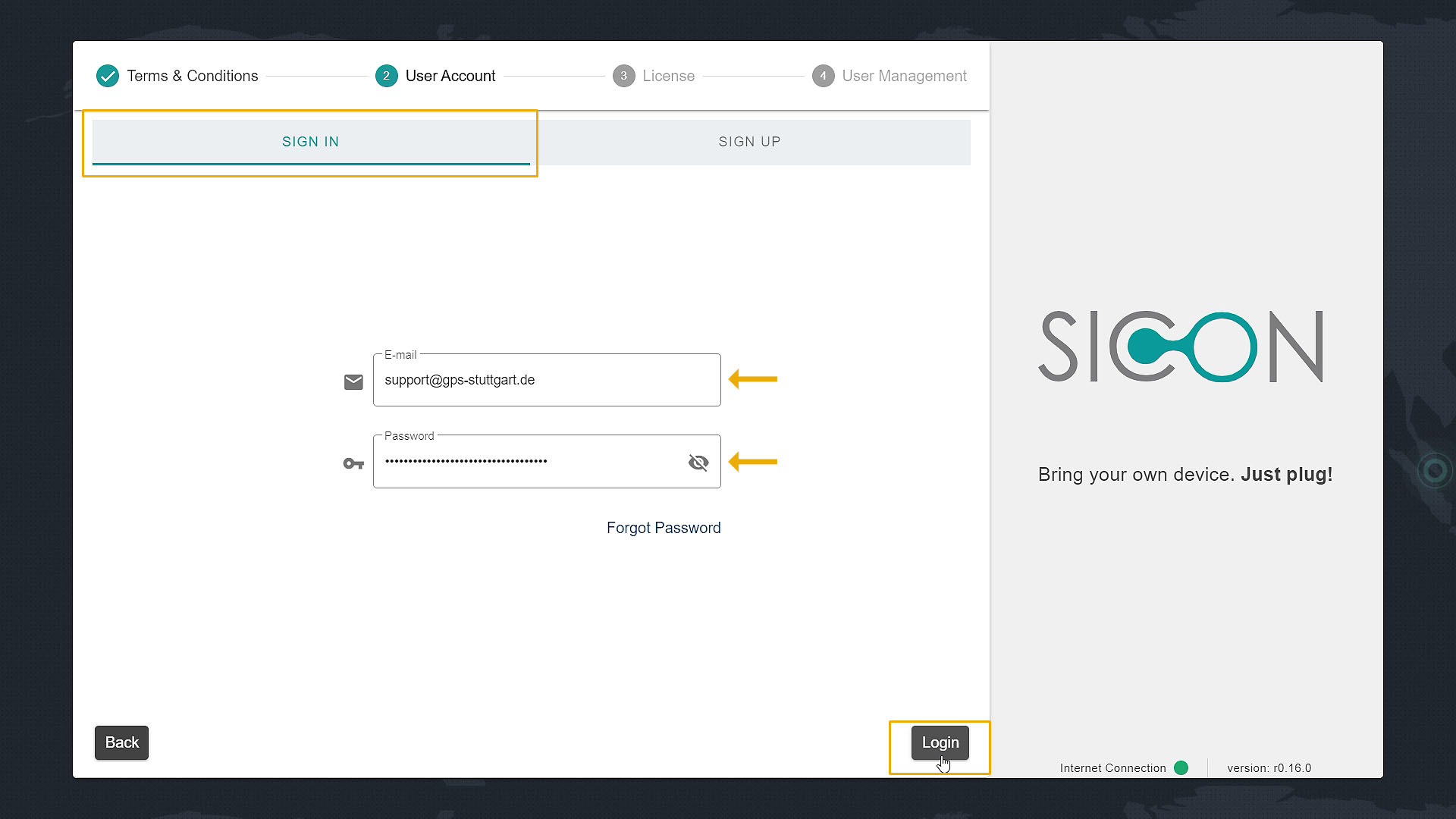
Click on "SIGN IN" option if you already have an account and continue.
-
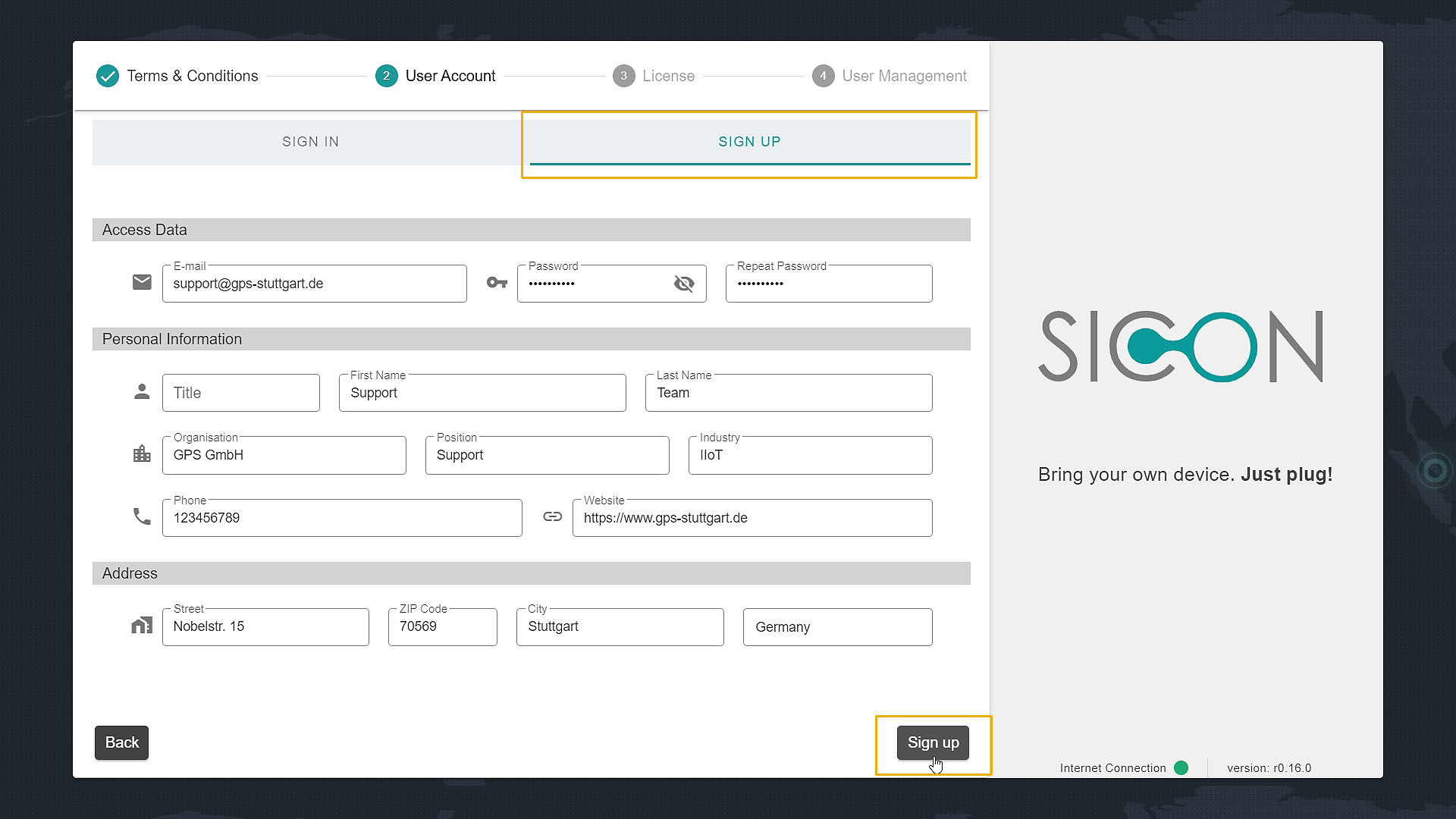
Click on "SIGN UP" option to create an account and continue from step 2.2.2
2.2.1: Account Sign-in
-
Sign-in to the account by filling your Email address and Password.
-
Then click on "Login" to proceed further and continue from Step 2.3
2.2.2: Account Sign Up
-
Fill the option given in the Sign-up form like your E-mail address, Password, Personal Information and Address.
-
Then click on "Sign-up".
2.2.3: E-mail confirmation
Confirm your email address
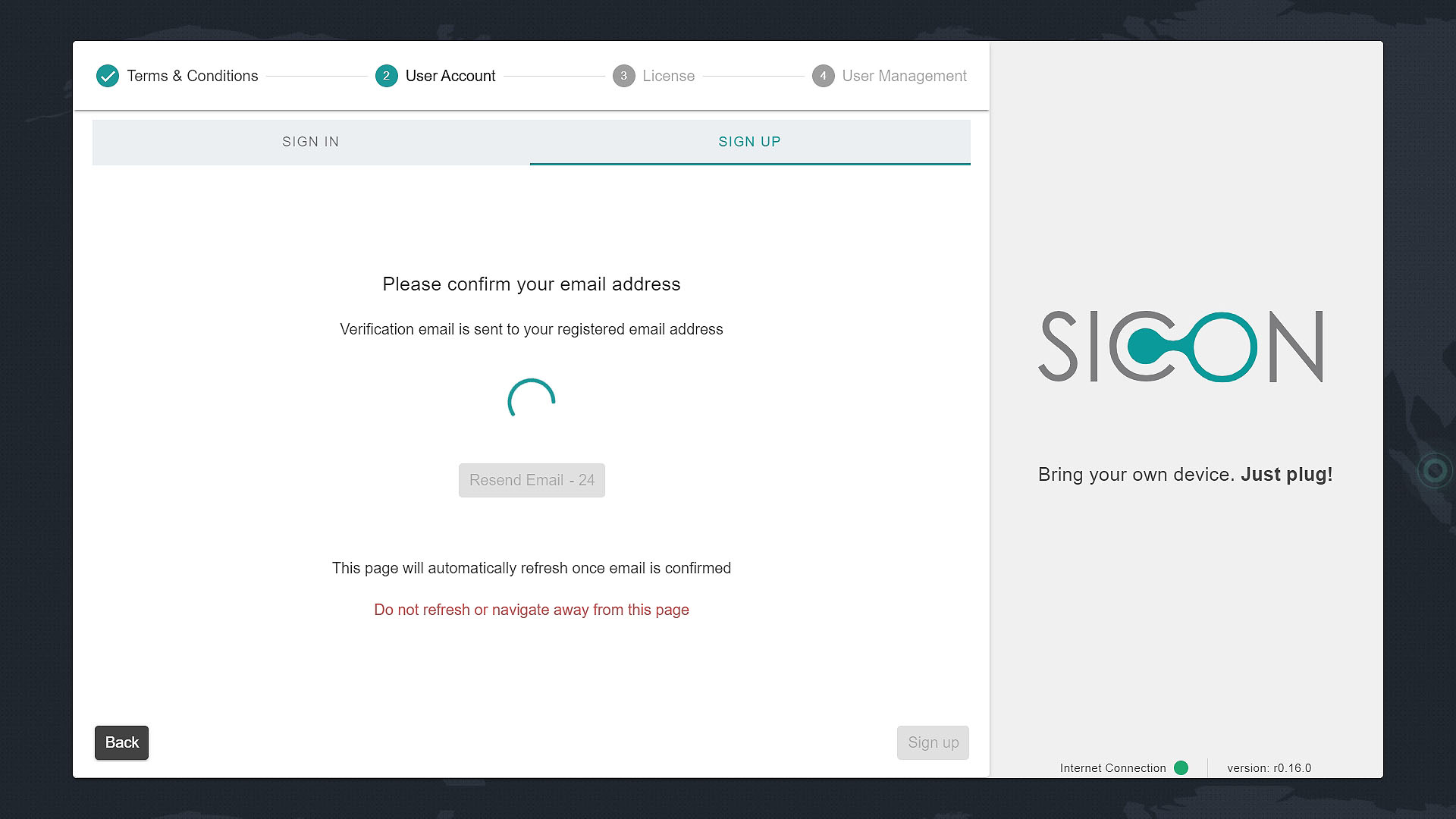
You will receive an email of confirmation on your email account, click on "Confirm Email"
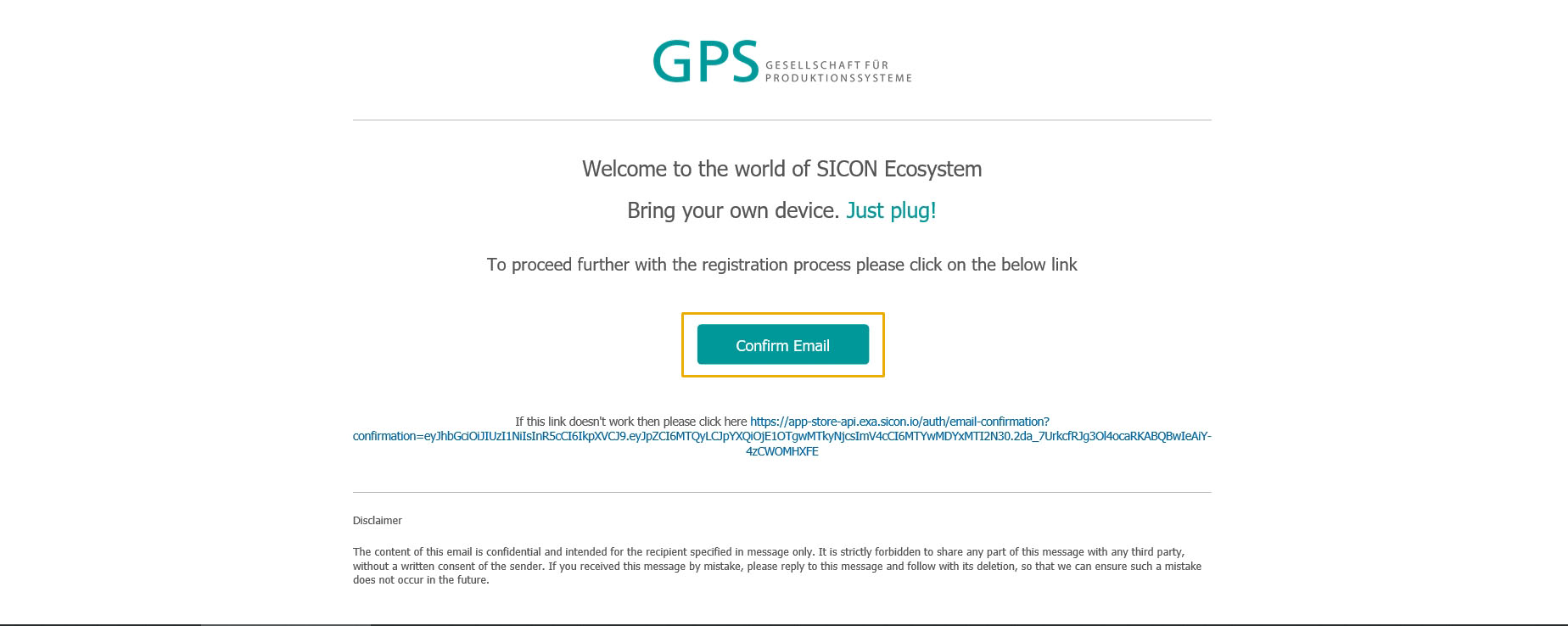
Your account get successfully created.
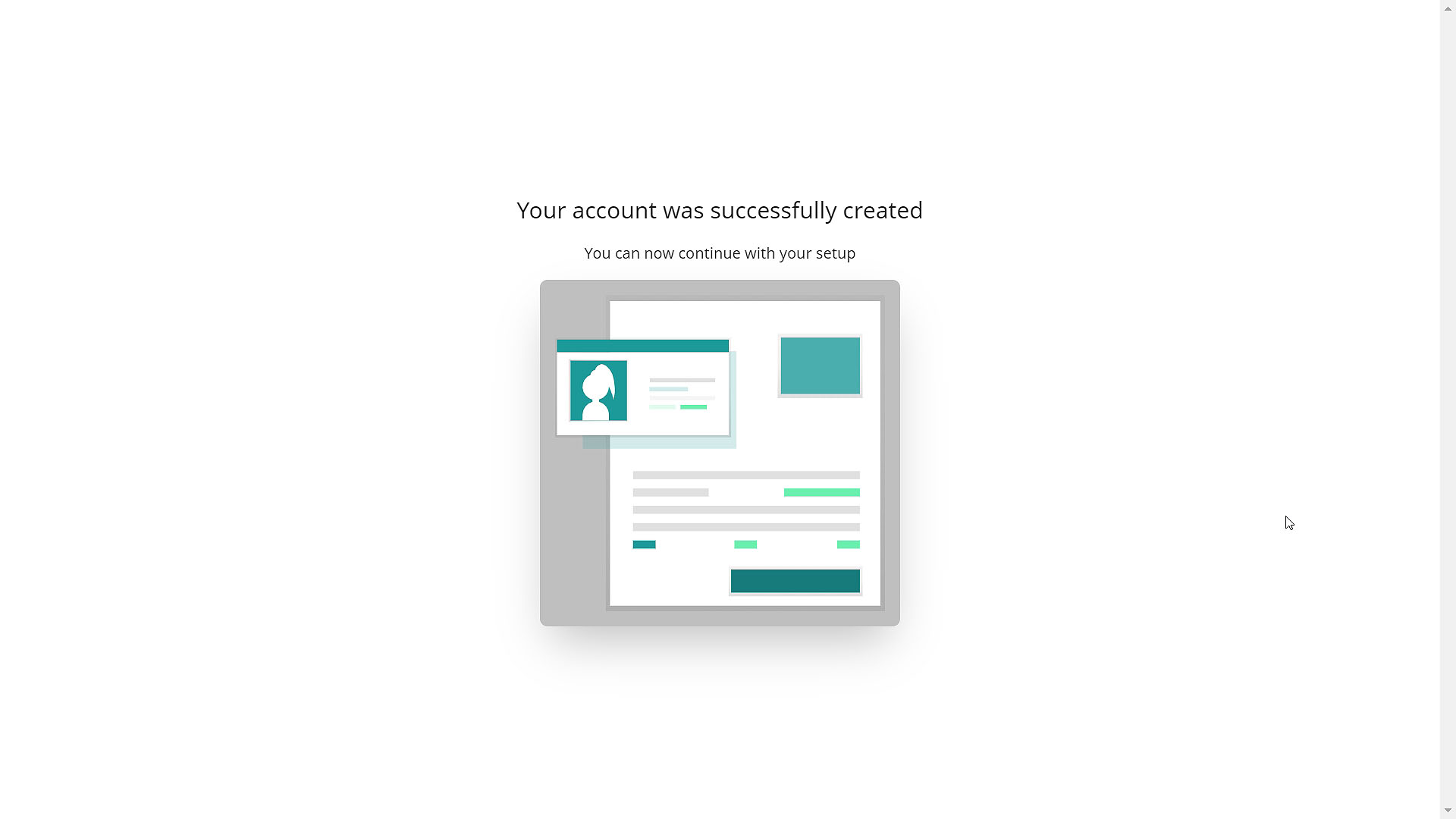
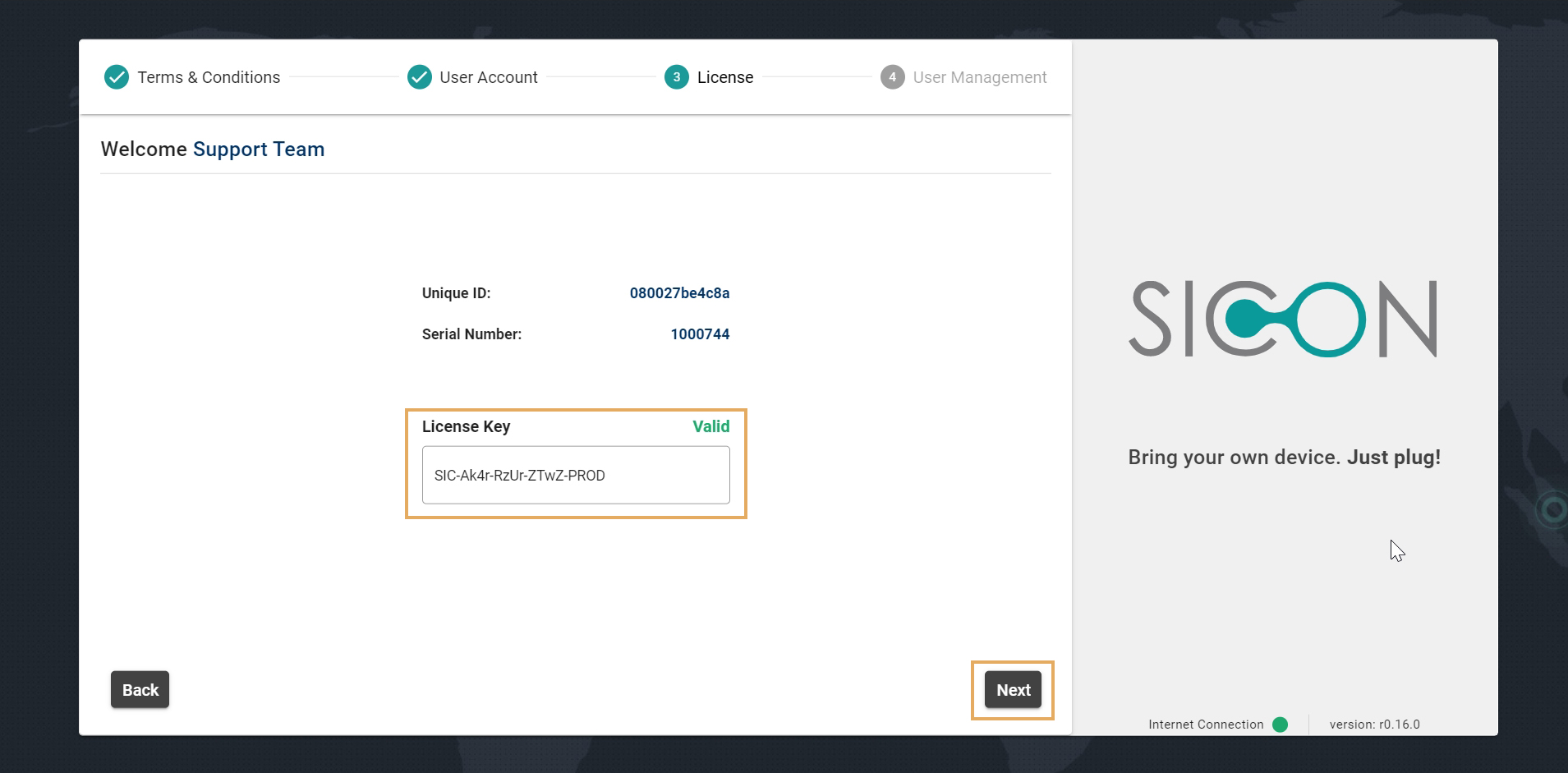
2.3: License
Enter your "License Key" and click on Next
2.4: User Management
-
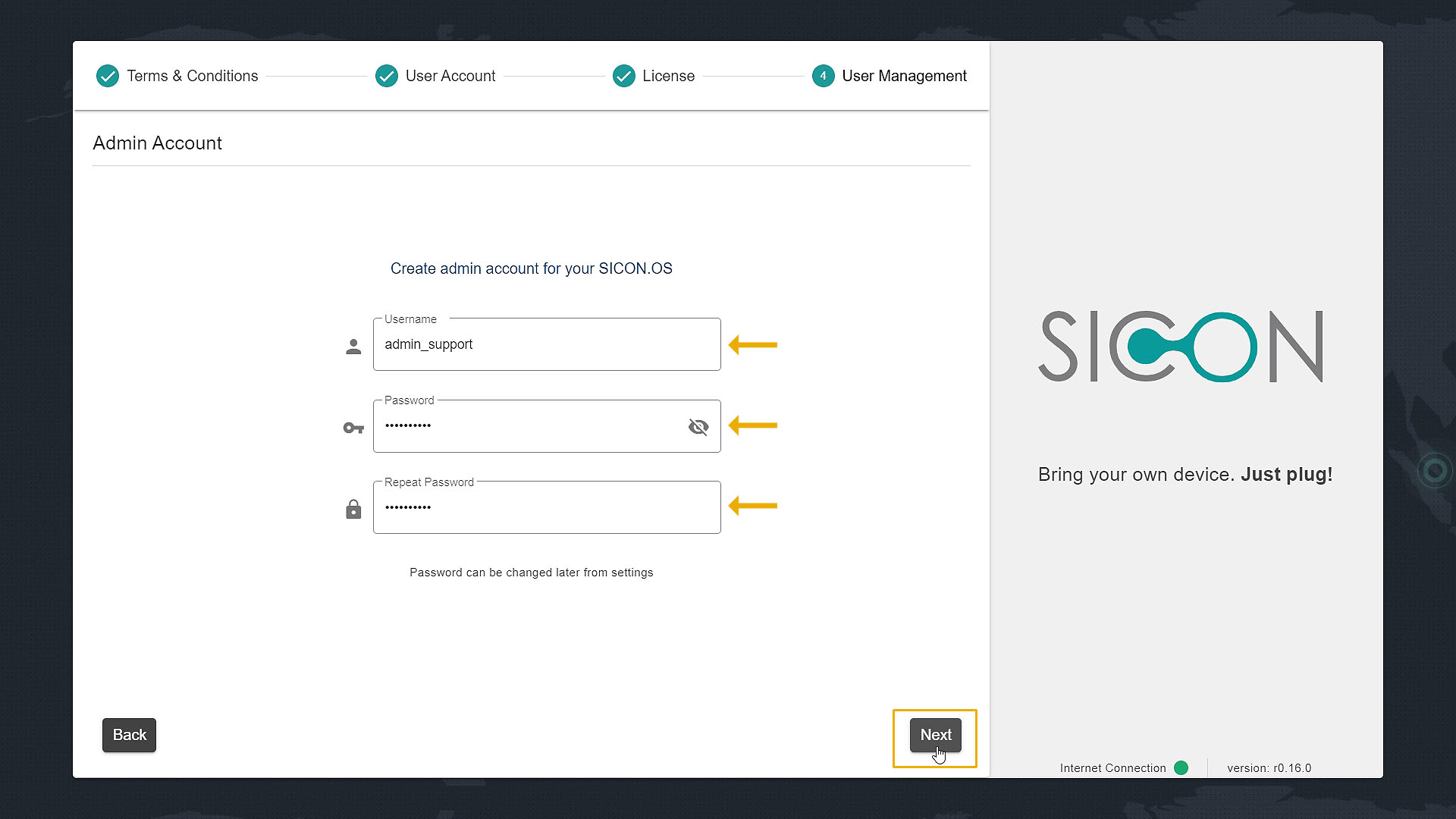
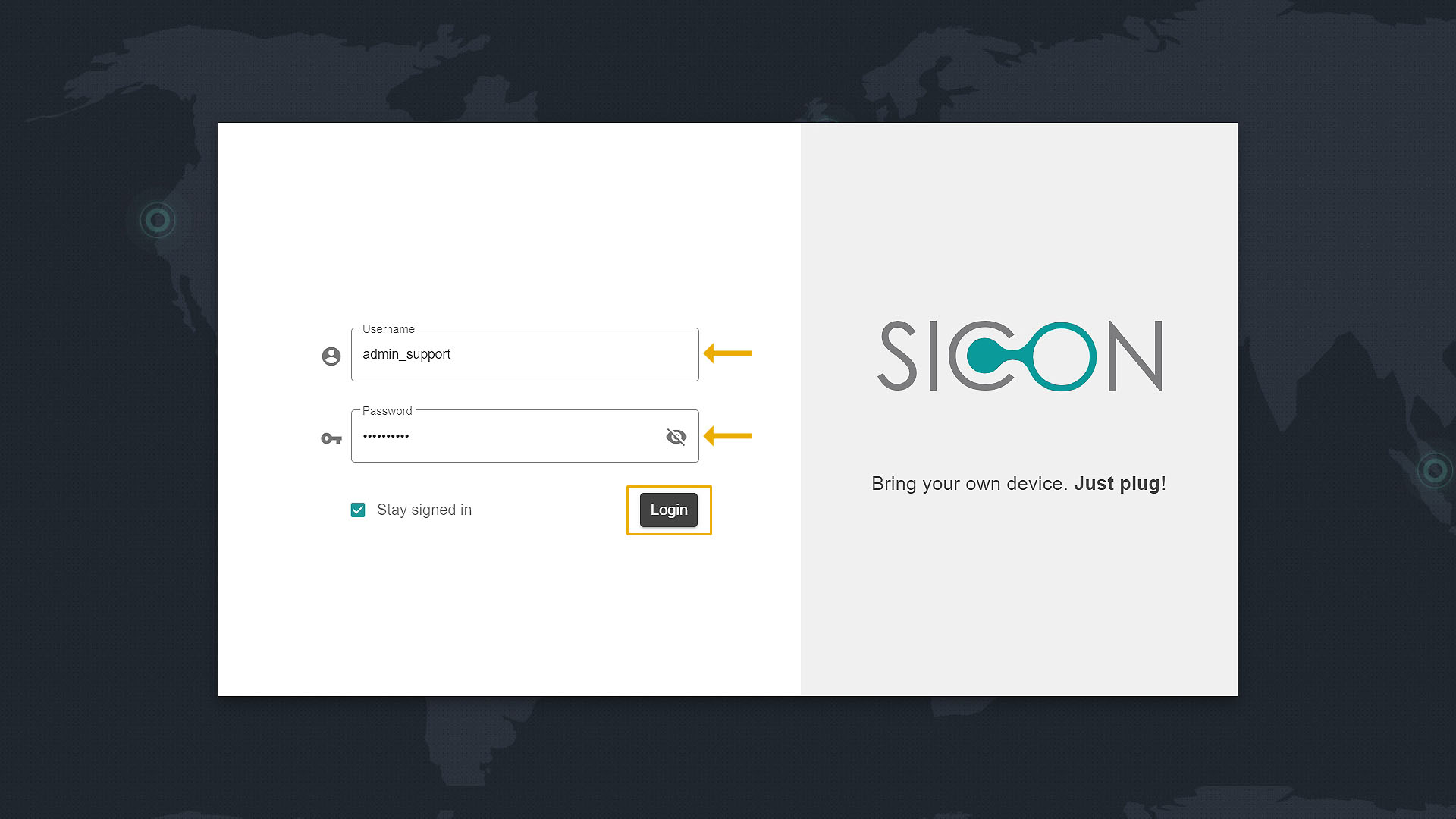
Create Admin account for your SICON.OS by giving Username and Password.
Please note down the Username and Password as it is required to login to SICON.OS.
-
Click on "Next" to proceed further.
3. Final Installation Process
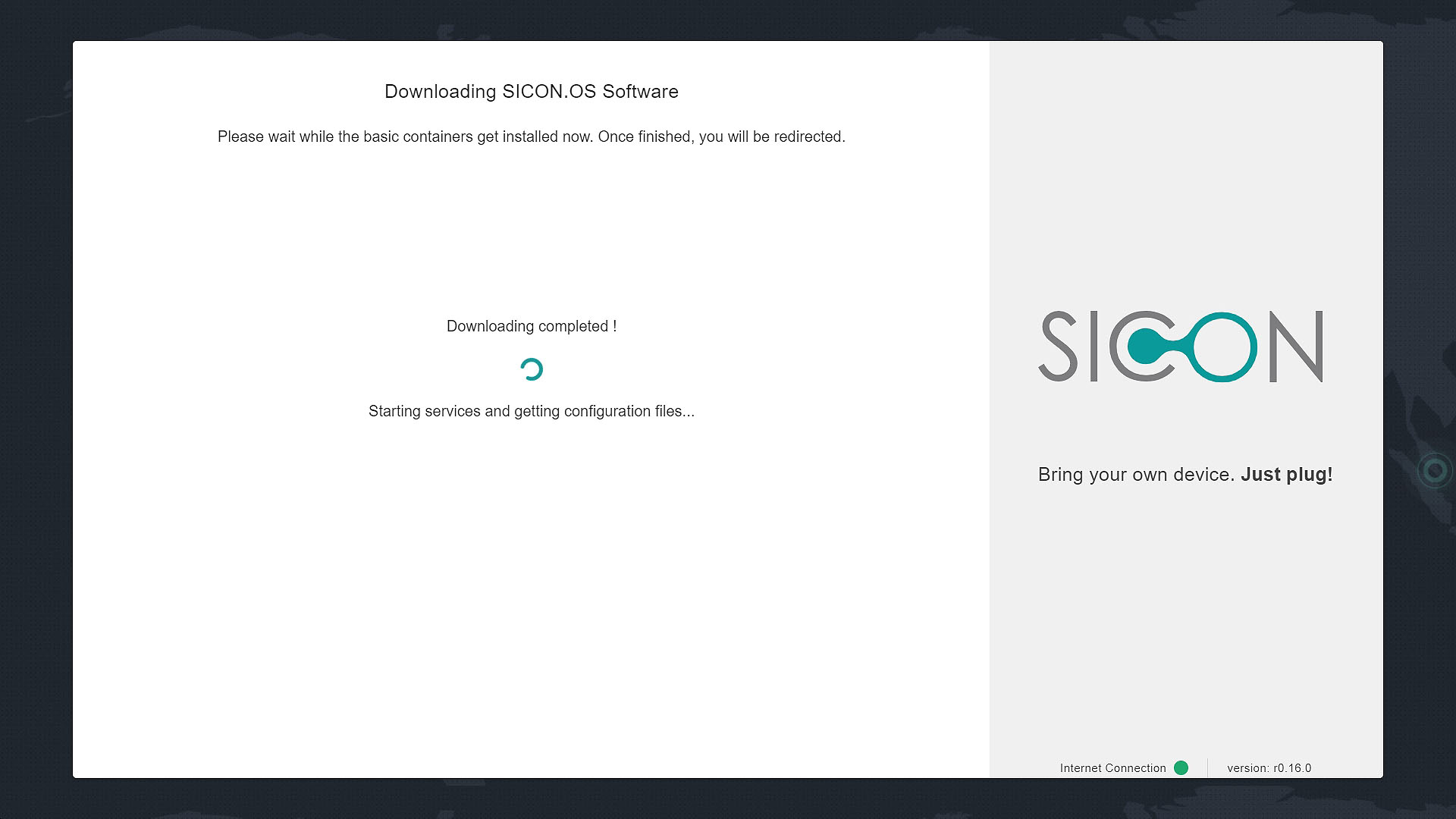
SICON.OS Software starts downloading. Please wait, it may take a few seconds.
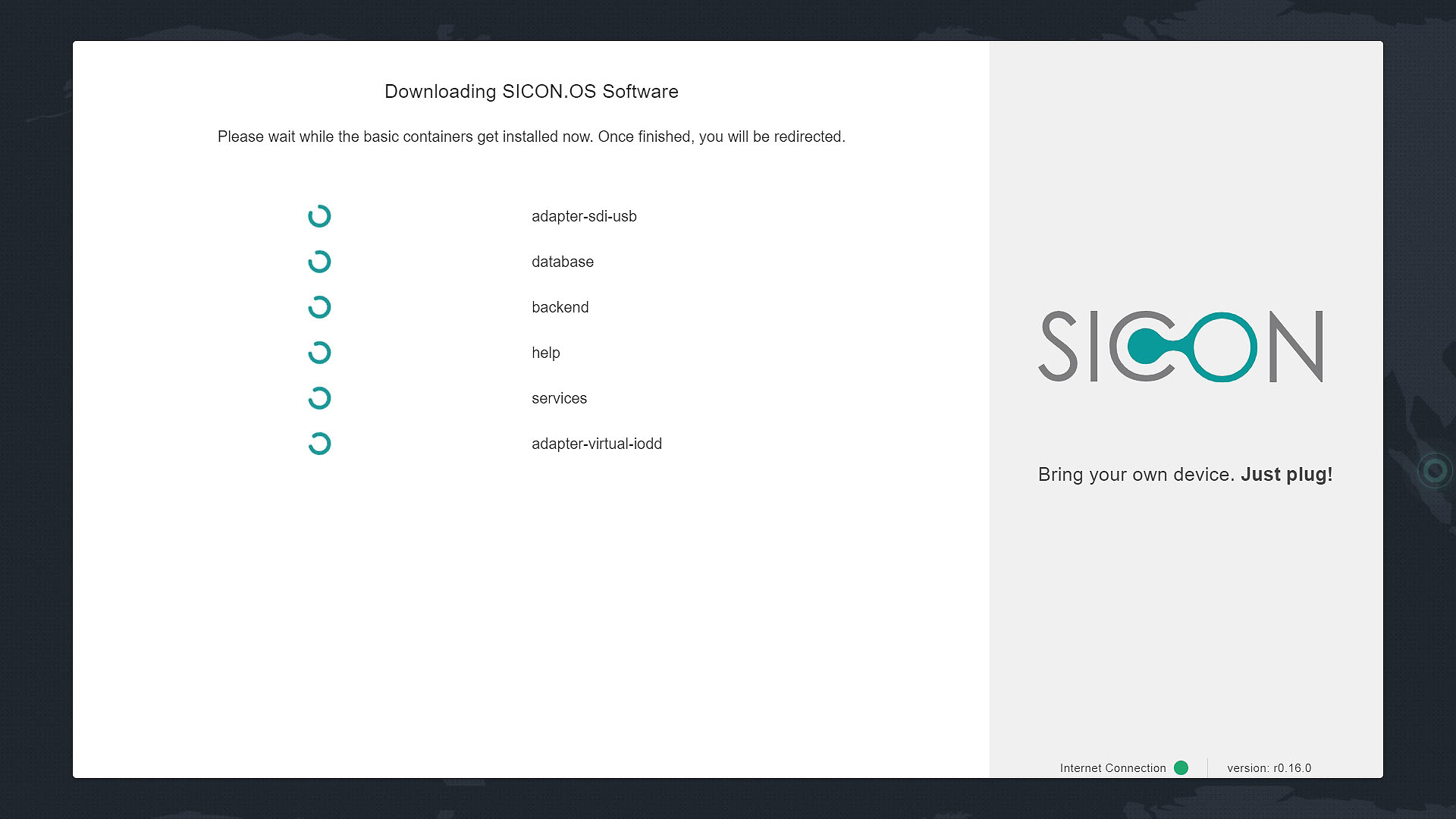
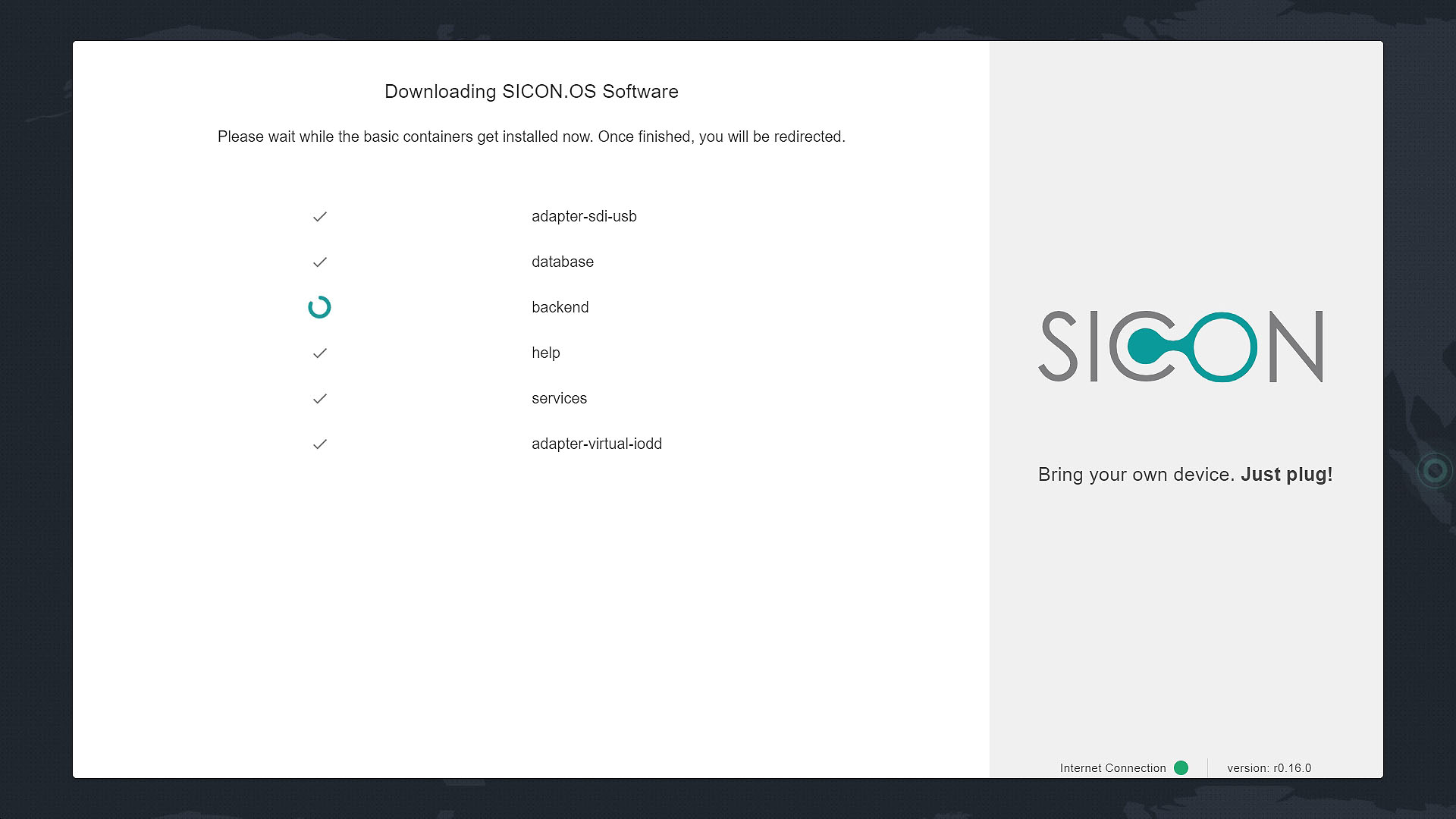
Wait until all the basic containers get installed. After that you will be redirected to the main SICON.OS login page.
Enter your admin account Username & Password and click on "Login".
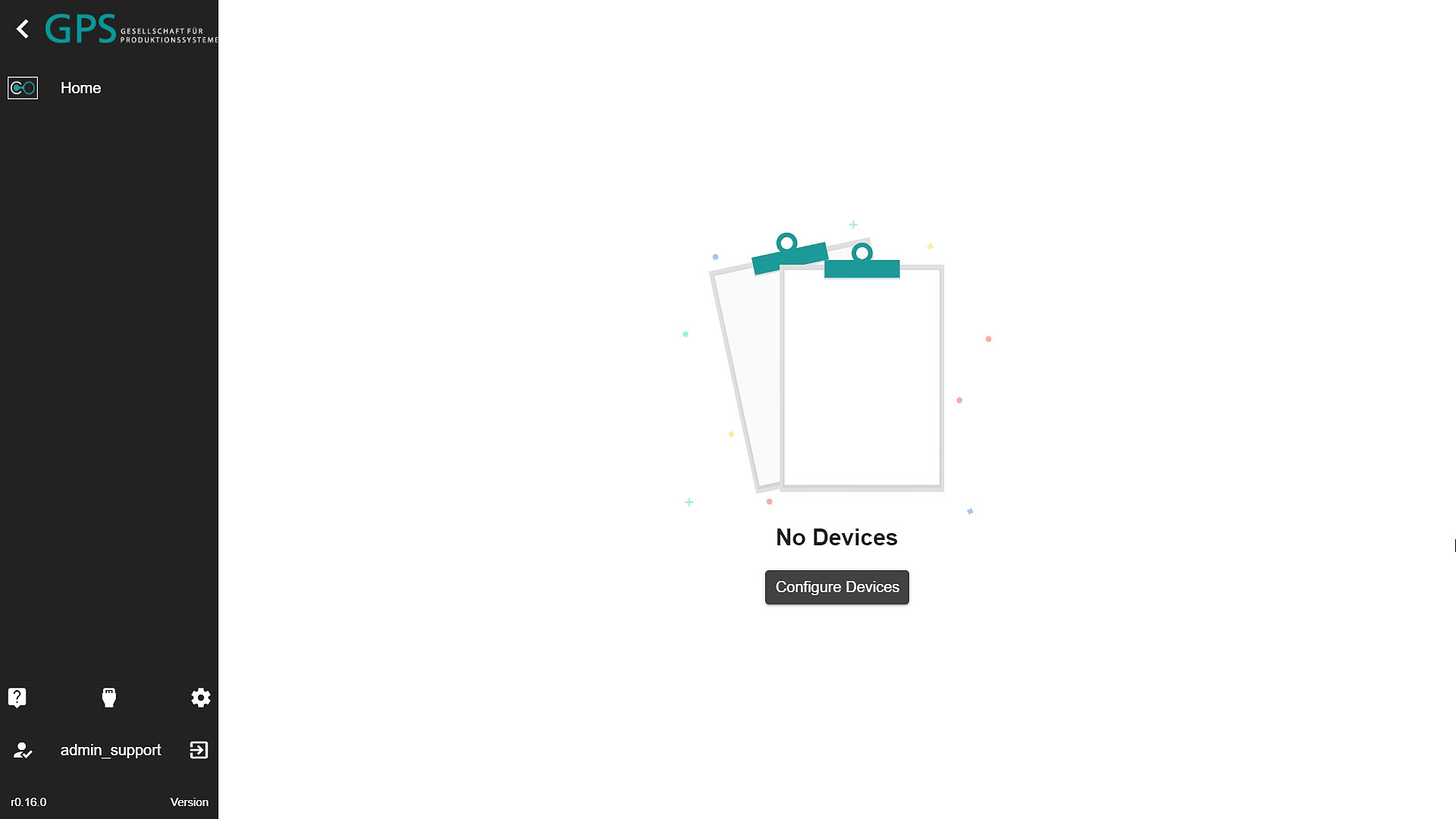
Welcome to your SICON.OS dashboard.
Next steps
Your next steps would be :