2024.1.x 2024.0.x 2023.23.x 2023.22.x 2023.20.x 2023.19.x 2023.18.x 2023.16.x 2023.14.x 2023.12.x 2023.10.x 2023.8.x 2023.6.x 2023.4.x 2022.56.x 2022.54.x 2022.52.x 2022.50.x 2022.48.x 2022.46.x 2022.44.x 2022.42.x 2022.40.x 2022.38.x 2022.36.x 2022.34.x 2022.32.x 2022.30.x 2022.28.x 2022.26.x 2022.24.x 2022.22.x 2022.20.x 2022.18.x 2022.16.x 2022.14.x 2022.12.x 2022.10.x 2022.8.x 2022.6.x 2021.56.x 2021.54.x 2021.52.x 2021.50.x 2021.38.x 2021.10.x English German

Users

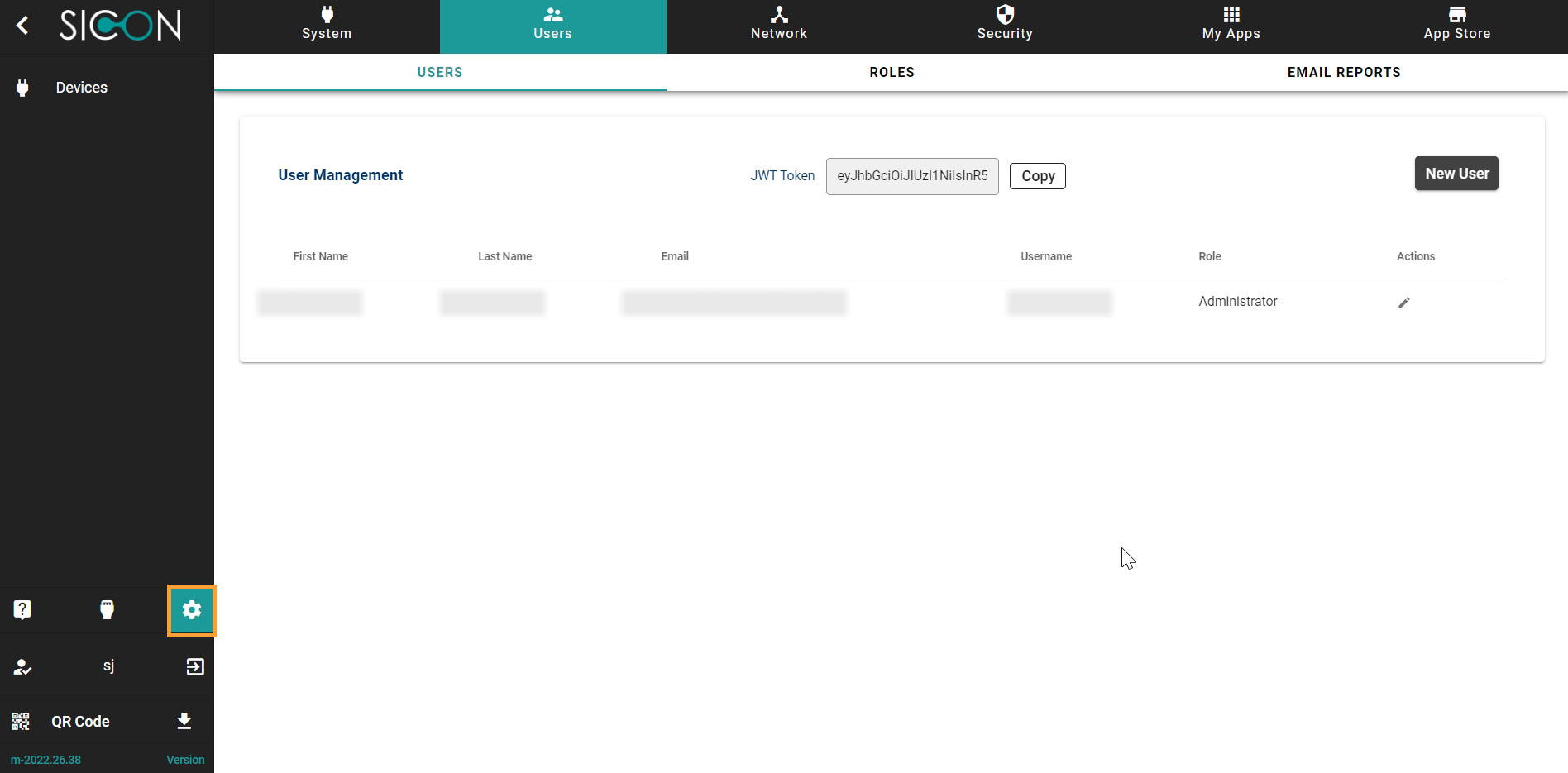
Once you have opened the Home screen of the SICON.OS interface:

On the navigation panel click on Settings to open the System management section.

Users section is divided into two subsections:

  1. USERS

  2. ROLES

  3. EMAIL REPORTS

US_01.jpg

Let’s understand these one-by-one.

Users

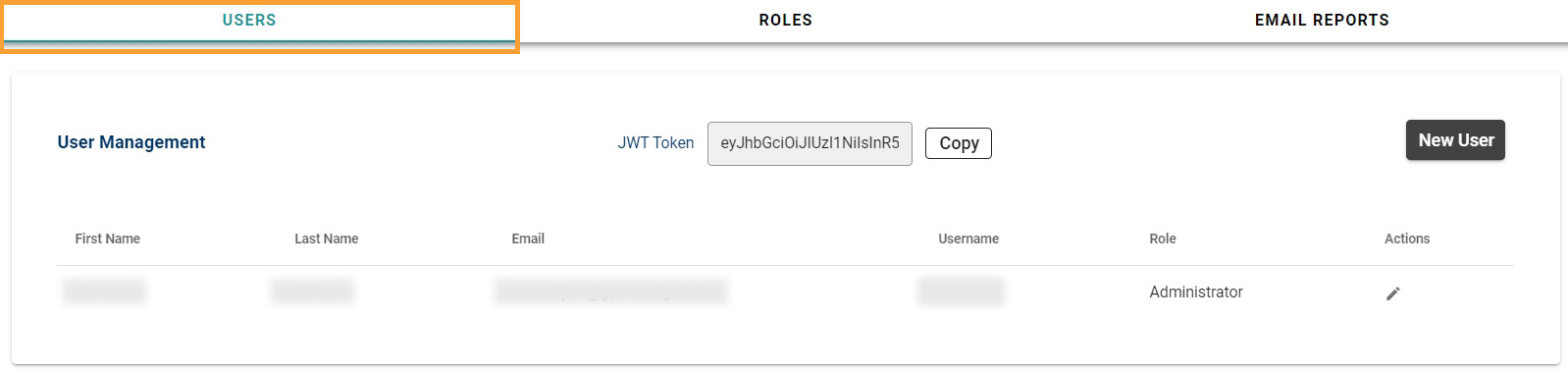
Here you can manage the Users, add a new Users, modify the existing users or delete the users.

For development purposes you can copy the JWT Token for using the REST API.
US_02.jpg

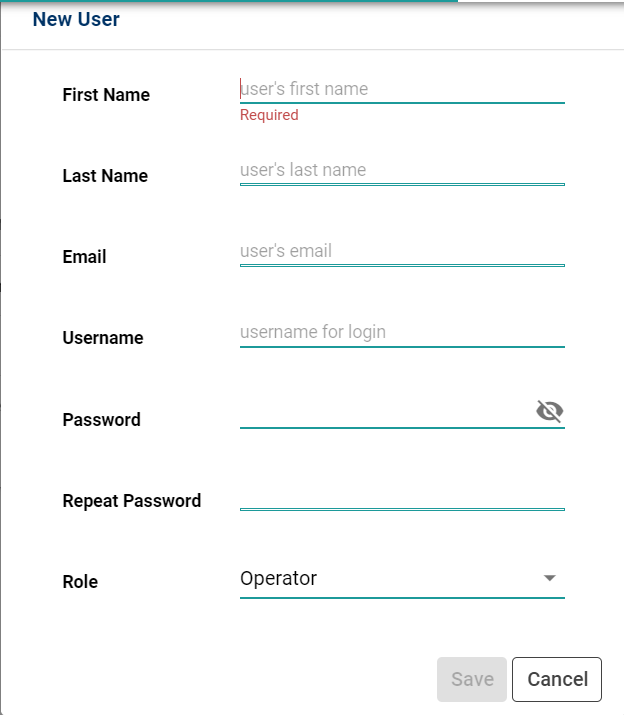
If you want to add a new User, Click on New User. Fill the information required to create the New User and assign a role.
New user.PNG


Roles

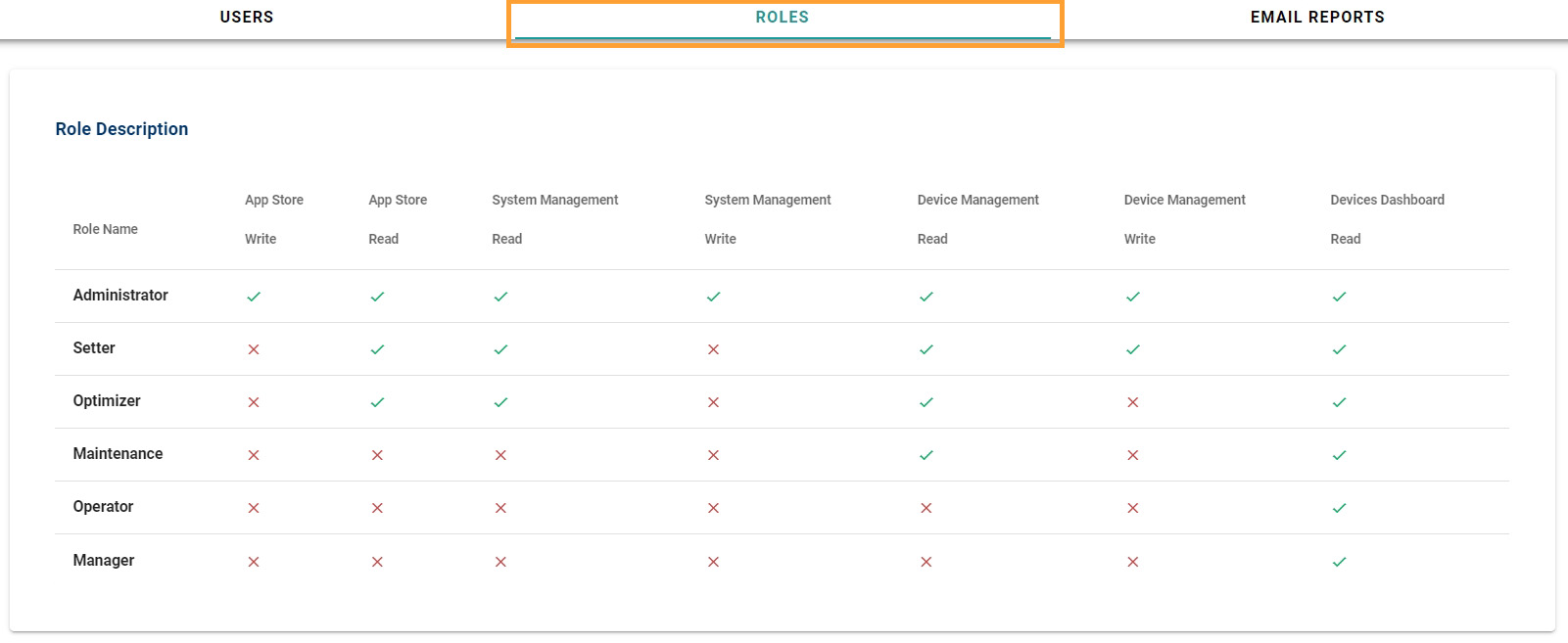
Under Role Description you can see which roles has been assigned to which users.
US_03.jpg

Email Reports

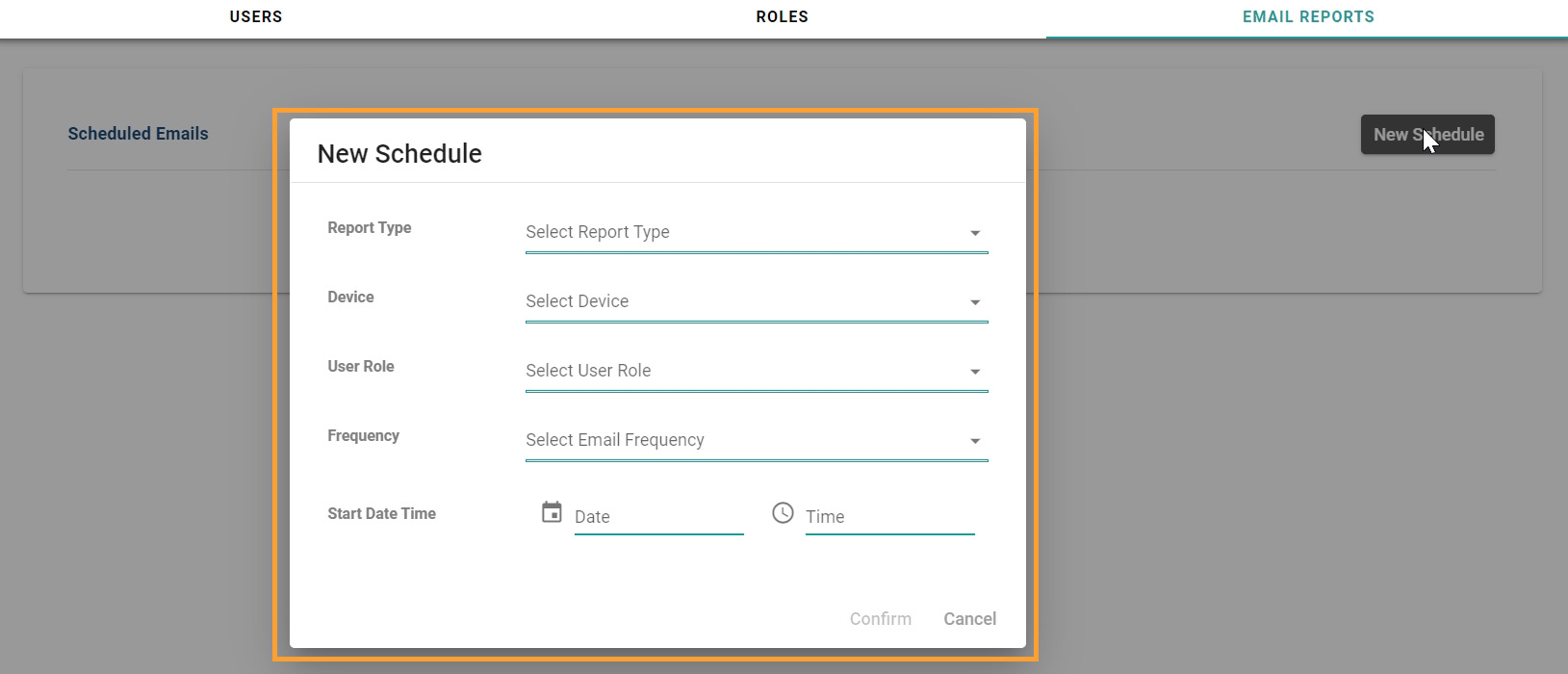
Under Email reports, you can schedule the email reports. Click on `New Schedule´

US_04.jpg
US_05.jpg

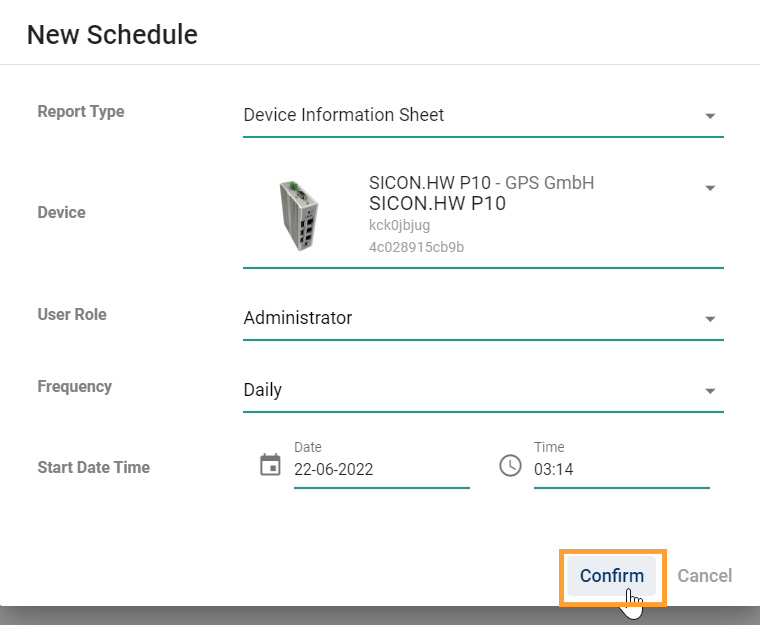
Here you can select the Report type, Device for which you need the report, user role, frequency of email reports, select date and time. Click on `Confirm´ to create a new schedule for the email reports.
US_06.jpg