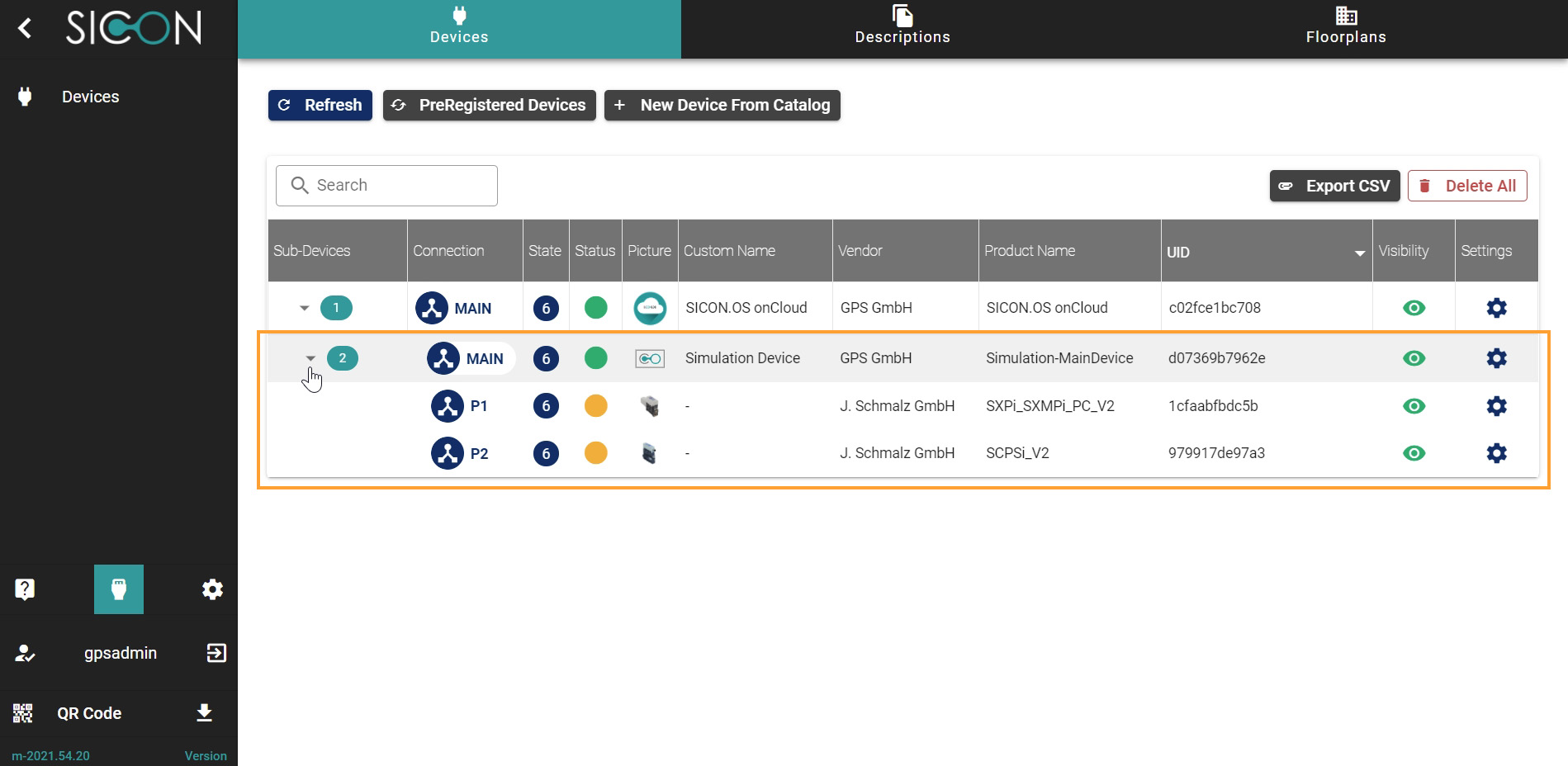
Adding simulation device to SICON.OS
Once you have opened the Home screen of the SICON.OS interface:
-
On the navigation panel click on Device Management to open the Device management section.
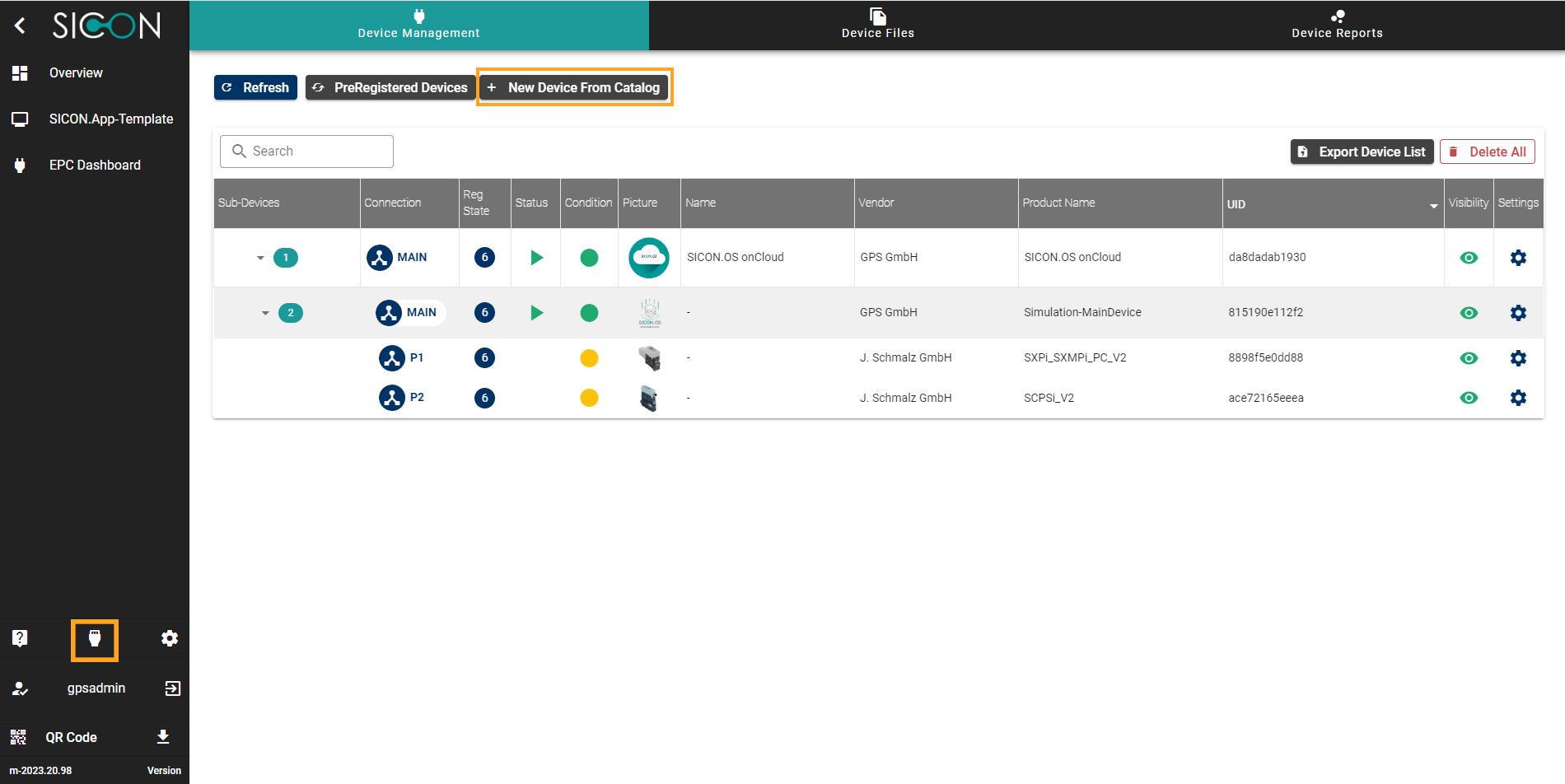
New Devices from Catalog
-
Under Devices, you will find New Devices from Catalog button to add any device manually to SICON.OS. Click on the button New Devices from Catalog.

-
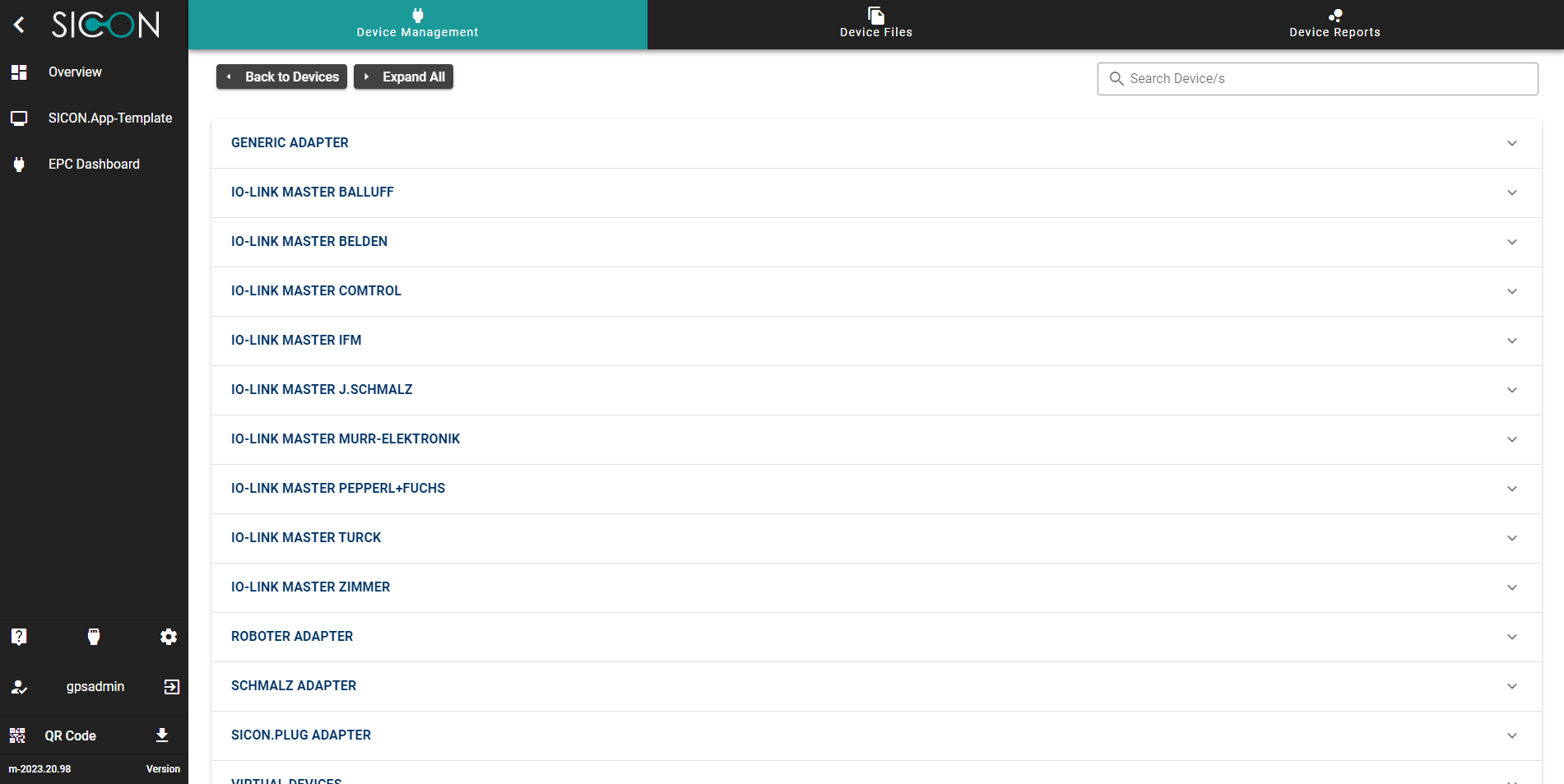
Now select the simulation Adapter to add simulation devices to SICON.OS
-
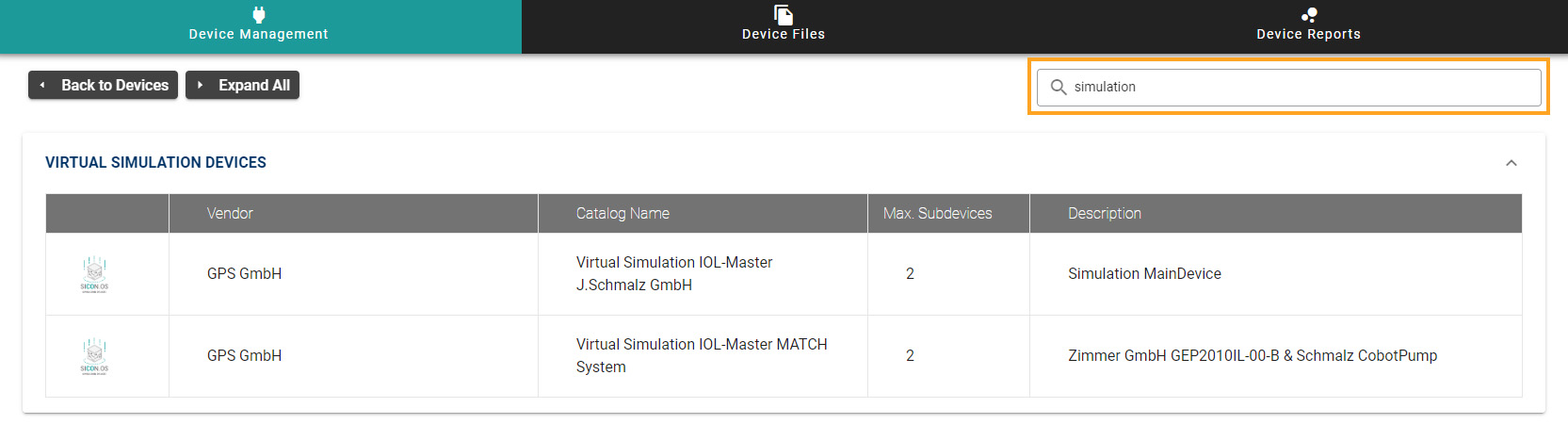
Or simply Search with name of the simulation device from the above search bar.
-
Click to open the configuration settings of the selected simulation device. Here you can configure settings for the Adapter.
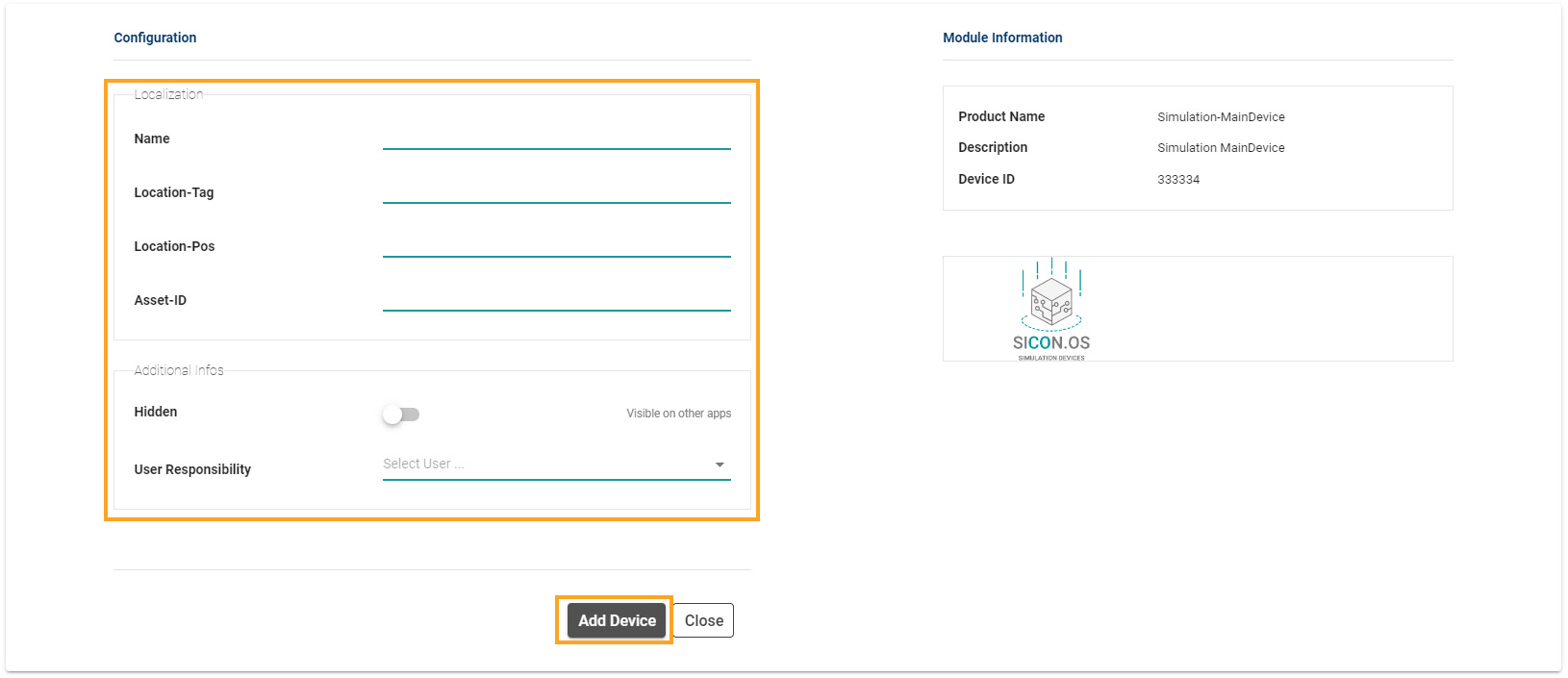
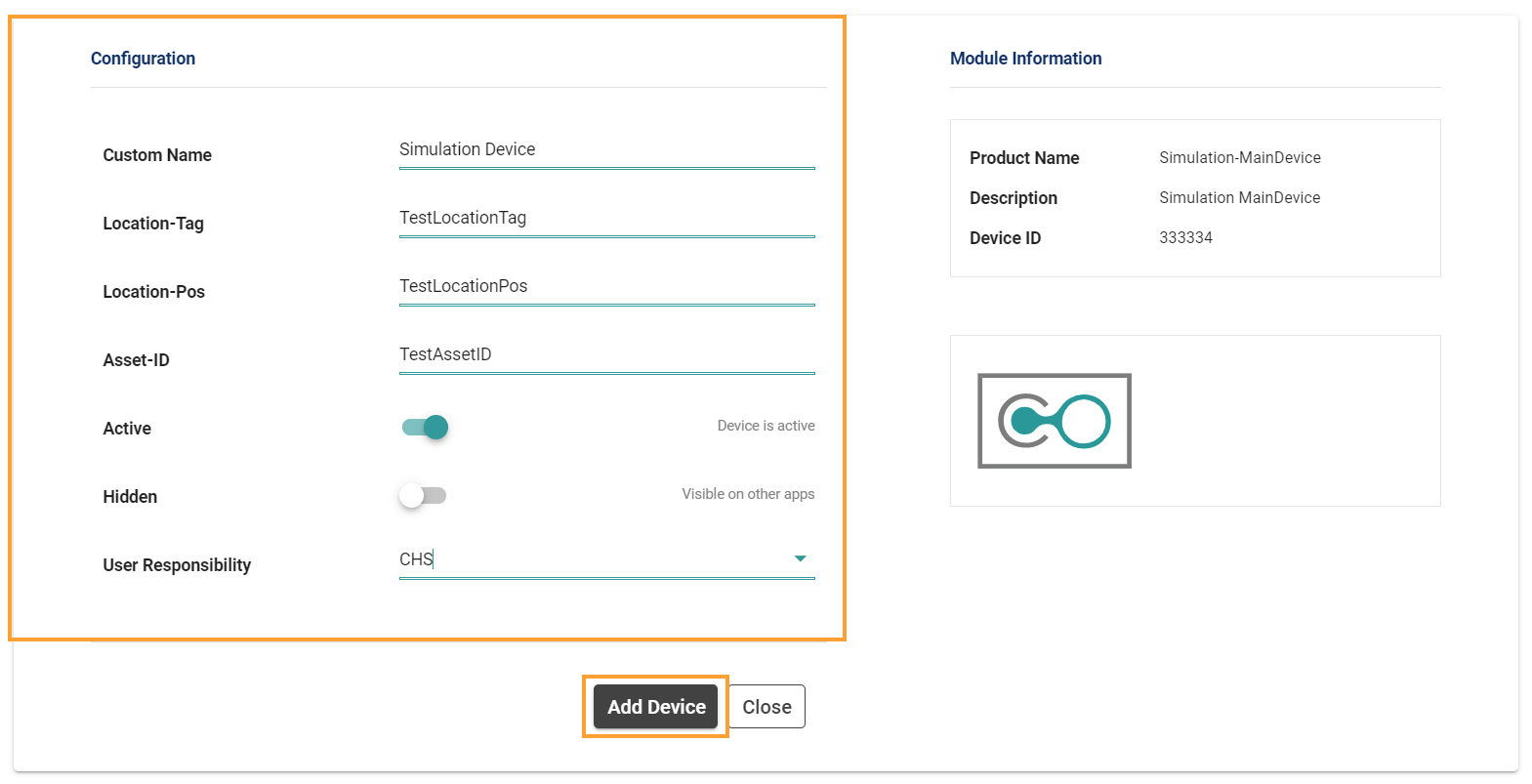
For example, you can choose the following options given below:
-
Custom Name of the Adapter,
-
Location-Tag,
-
Location-Pos,
-
Asset-ID,
-
Select the Device status Active or Inactive,
-
Select the visibility of Devices on other apps Hidden (Visible or not Visible),
-
Give the User Responsibility (If you want)
After completing the fields given in configuration settings, Click on Add Device button.
Now you can see the Selected and configured device on the Device management screen.
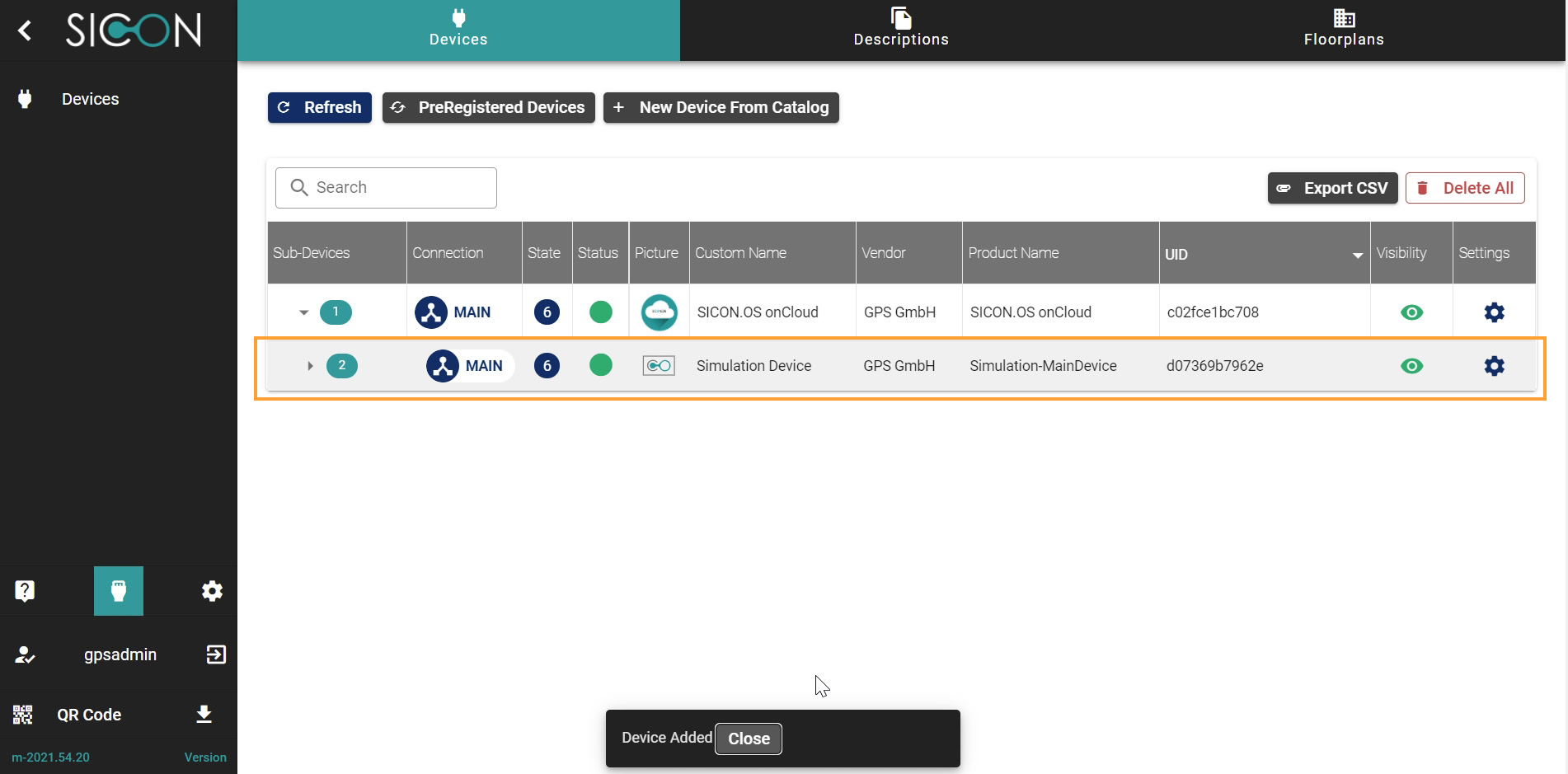
Click to expand the selected Simulation Device.